Objective
When a user who is not responsible for the document requests its deactivation, the system will generate an inactivation request task for decision, that is, the user responsible for preparing the document will be able to decide whether the document will be inactivated or not.
Prerequisites
- Be the user responsible for preparing the document.
- The document must have an inactivation request made by another user.
Step-by-step
- Access the tab Tasks.

- Click on the tab Request.

All open requests for your user will appear. - Click on the request you want to handle:
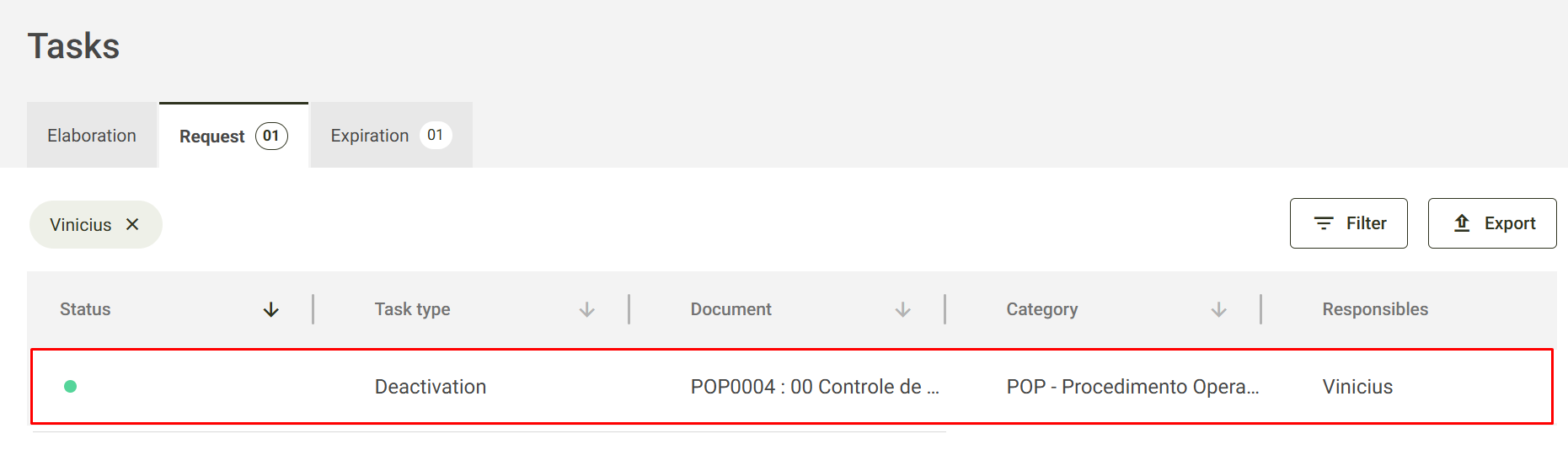
When you click on the request, the screen with the document details will open. To find out more details about document consultation, Click here.
Just below the document display code, the detailed deactivation request will appear, showing information such as the requesting user, date and reason: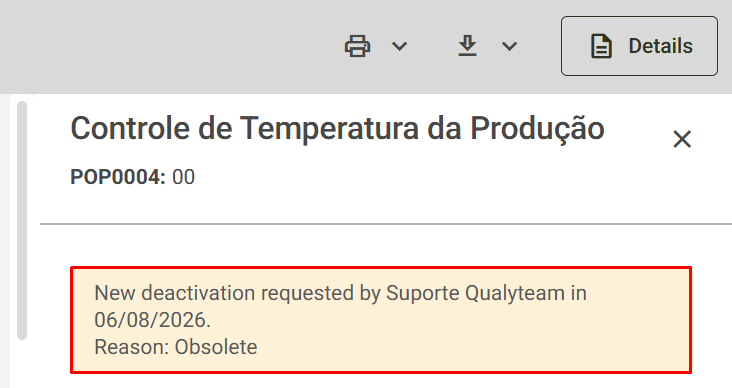
- After evaluating the deactivation request, it will be possible to proceed with two paths:
- Approve deactivation request:
1) Click Approve deactivation request: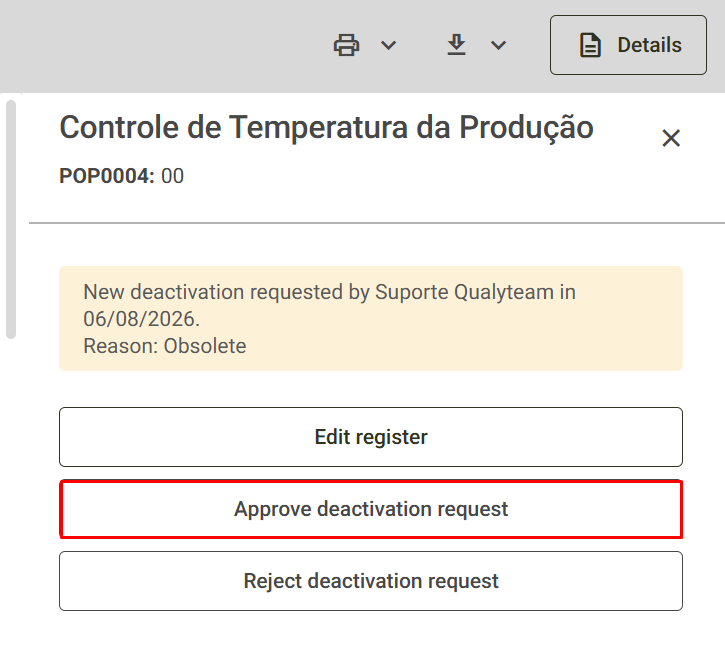
2) Click Save To proceed with inactivation: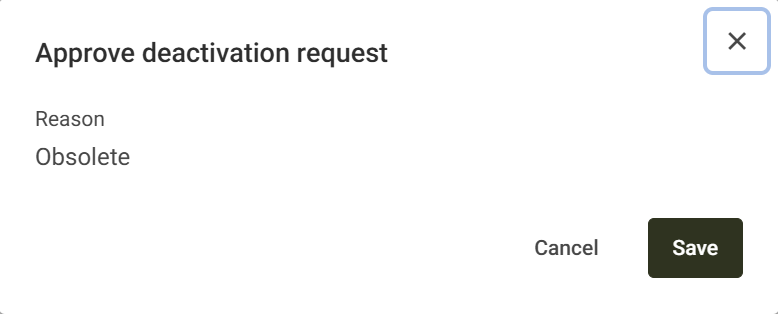
If desired, check the Request review of associated documents box. Therefore, when recording the inactivation, you will be asked to review all documents associated with what was inactivated.
This message will be displayed, indicating that the inactivation was successful:
- Reject deactivation request:
1) Click Reject deactivation request: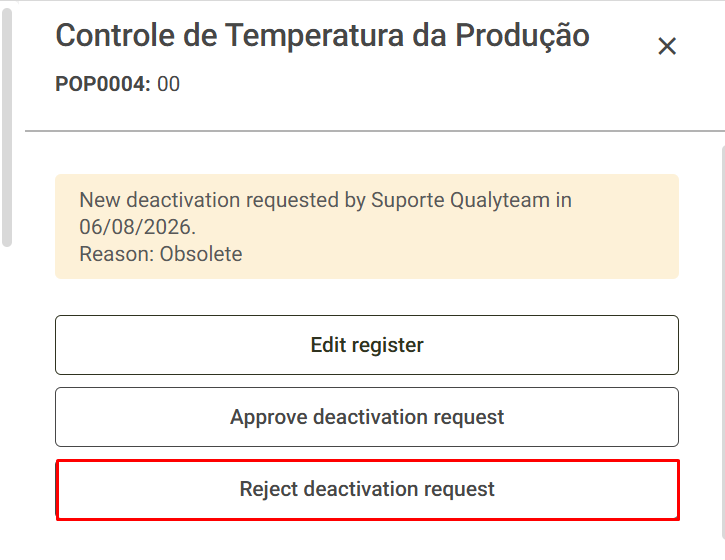
2) Enter a reason in the field Justification and then click To record: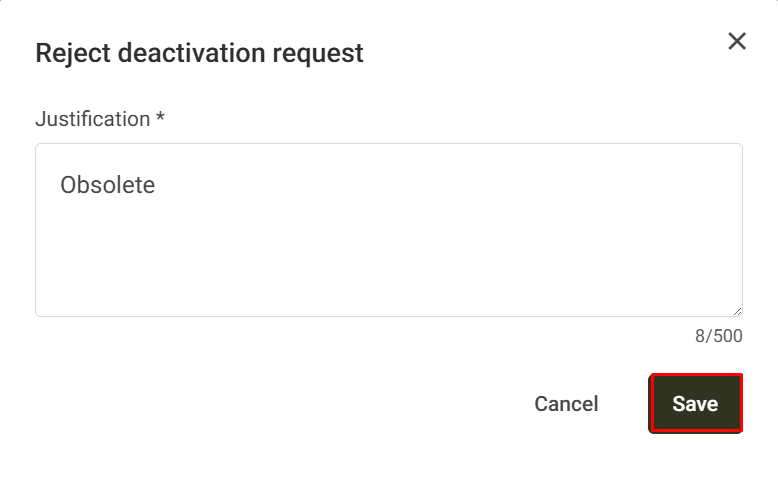
This message will be displayed, indicating that the inactivation rejection was successful:
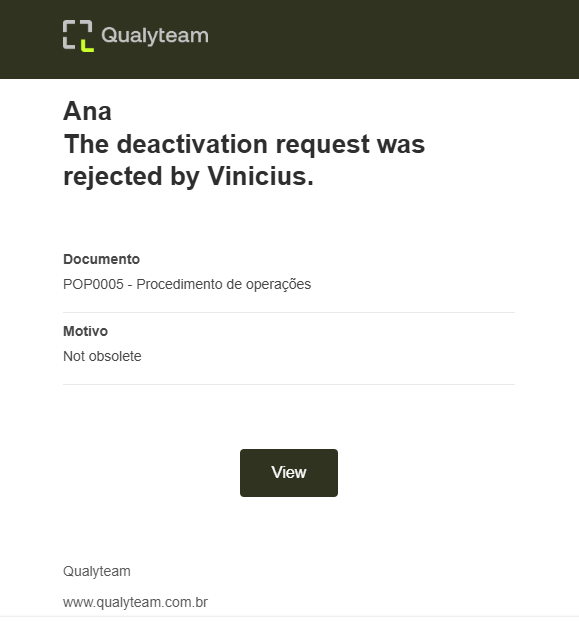
After completing the pending process, the user who requested inactivation will be notified by email, being informed that their inactivation request was rejected, and the reason for the rejection. Example of email sent:
- Approve deactivation request: