
Objective
This article explains how to reactivate internal documents that were previously deactivated.
Step-by-step
- Access the Search tab, locate and select the document you want to reactivate. If necessary, use the filters to refine your search by selecting the Inactive status to locate inactive documents. To better understand how to query a document, click here.
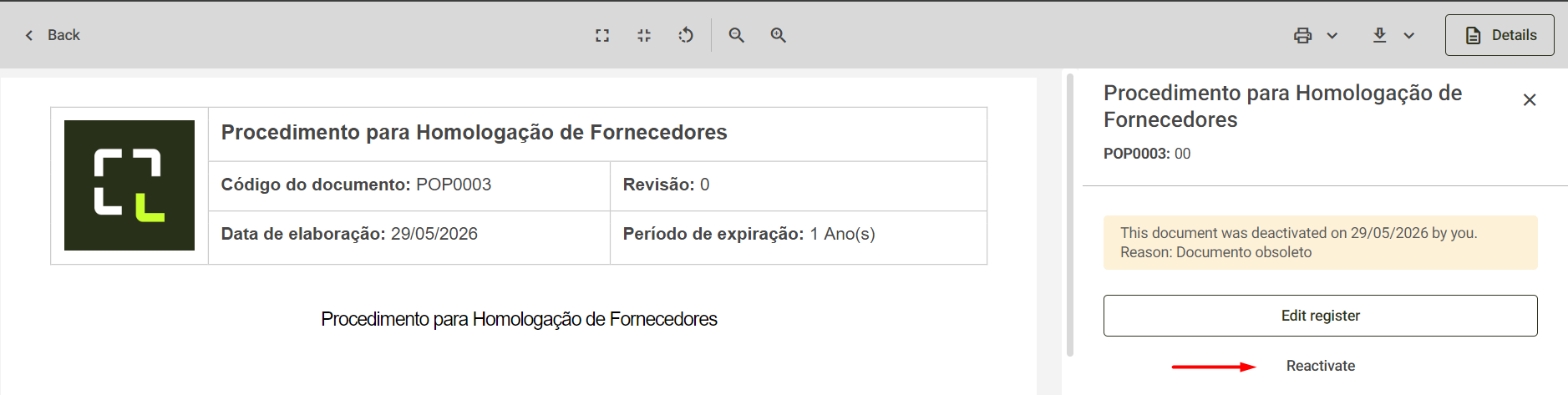
- When clicking on the selected document, its view will open and, on the right side, the details screen will be displayed. To learn more about this screen, click here.
- Next, select the Reactivate option displayed on the screen.
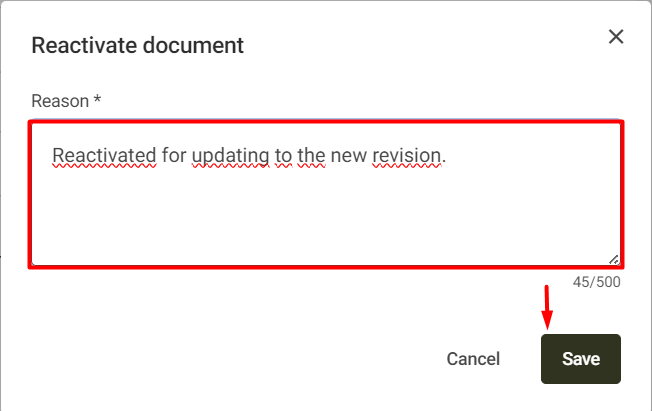
- The system will ask you to enter the Reason for reactivation. After entering it, click Save.
- Then, the document will be reactivated, and the system will display the message Document reactivated successfully.
