Objective
The document category is a mandatory field used to facilitate the organization and location of documents. Therefore, the name and settings applied to this category should be designed considering a general context.
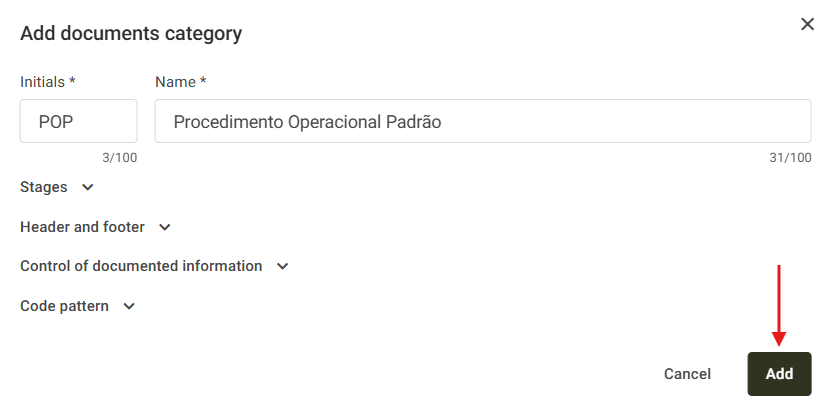
To exemplify the context above, the Procedimento Operacional Padrão (POP) category was created. This category will be used to link all internal documents related to operational procedures from different company departments, such as: Nonconformity Management Procedure, Financial Closing Procedure, among others.
Index
Prerequisites
- To register a category, it is necessary to have the following permission, for more details about the permissions of the Documents module, click here.

Step-by-step
1. Access the Internal document tab. 
2. Click on the Category field and then on the Add new.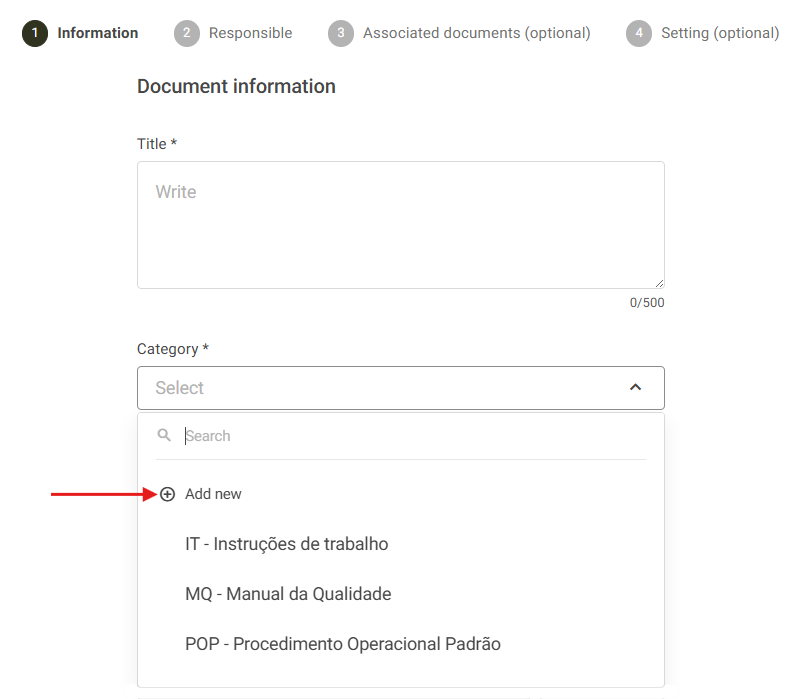
3. The screen to enter the new category information will be displayed.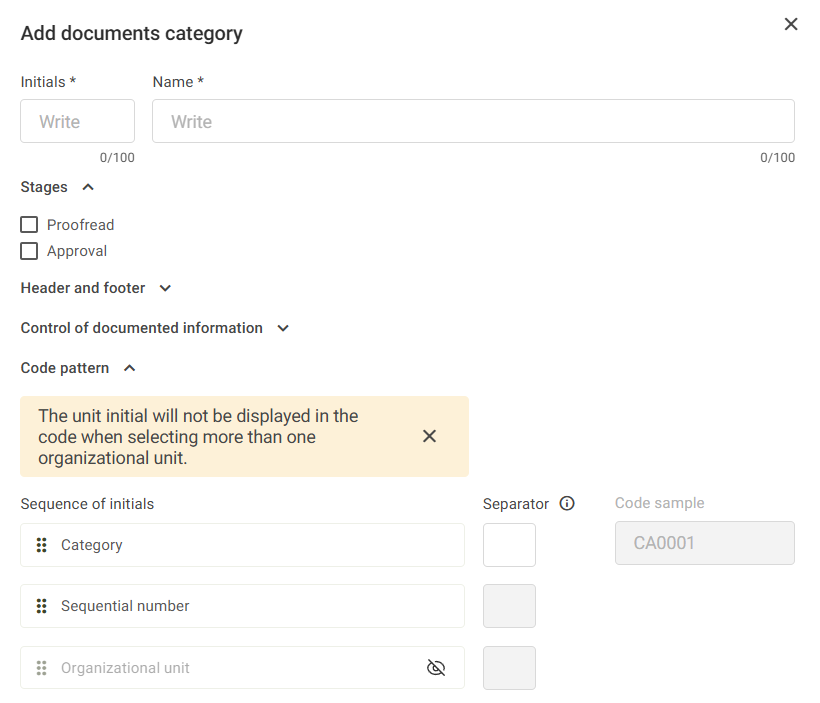
Initials:
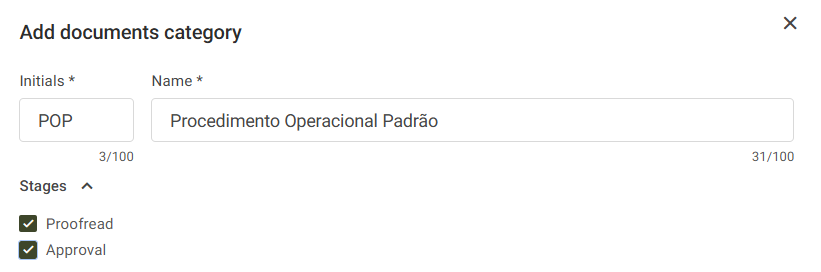
In the Initials field, an abbreviation of the category name must be entered, for example: POP.
Name:
In the Name field, enter the category description, for example: Procedimento Operacional Padrão.
Stages:
In Stages, select the Proofread and Approval options if the documents in this category need to go through these stages during the workflow.
Header and footer:
After that, the option to insert a header and footer in the documents created within the system for this category will be available. For more details about document creation, click here.
Header:
To add a header, click on the Header and footer option, check the Header option, and the option to insert your company logo will be available.
Below, an example of how the header will be displayed when creating a new document will be shown.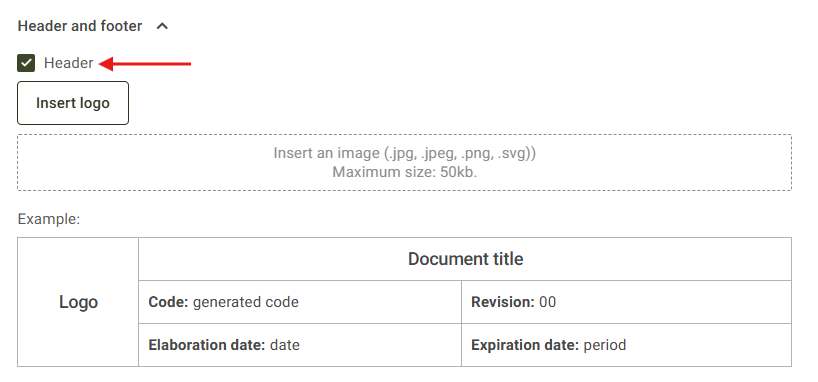
Footer:
Further below, the option to enable the Footer will also be available.
A preview of how the footer will be displayed in the document will also be shown.

Control of documented information:
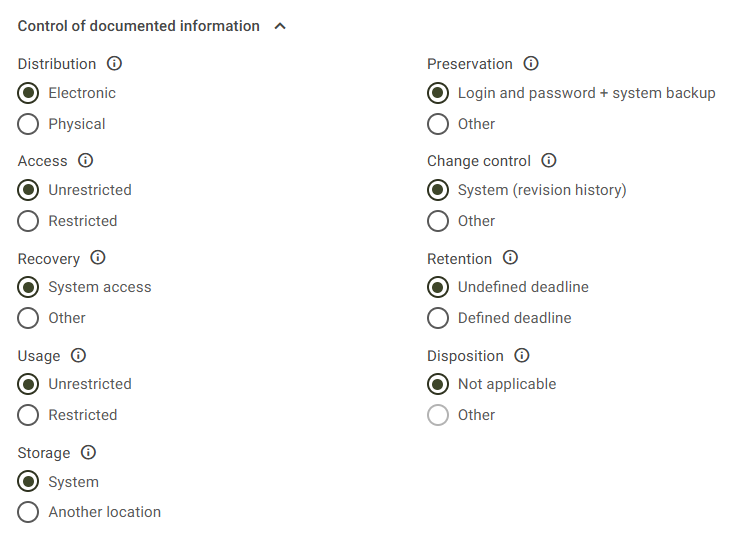
The options to define how documents will be controlled and documented will be displayed.
By default, the system already presents the first option selected. If no changes are necessary, simply proceed to the next settings.
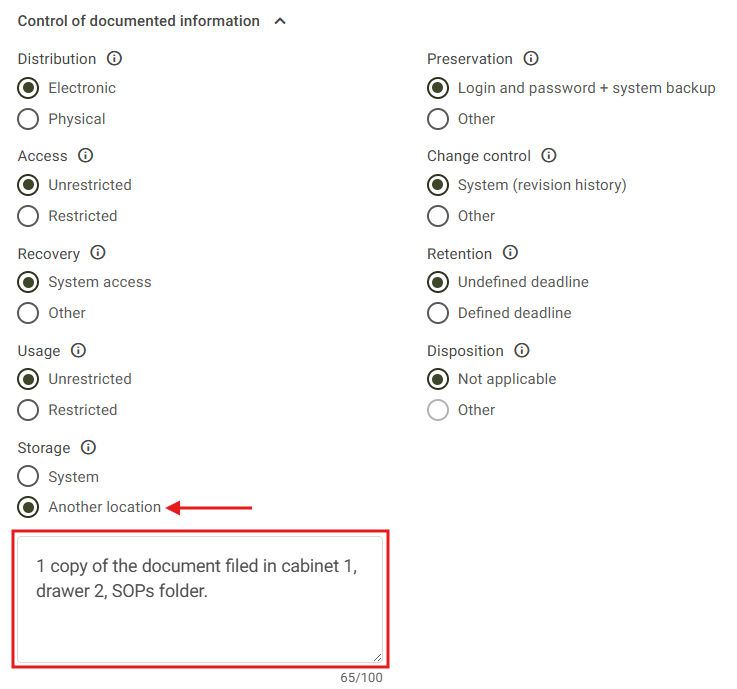
- If it is necessary to change the selected option, a field will be displayed and must be filled in with the document control information, according to the example below:
- When hovering the mouse over the question mark icon
 , the system will display the definition related to the selected control option. This feature can be used for any control option.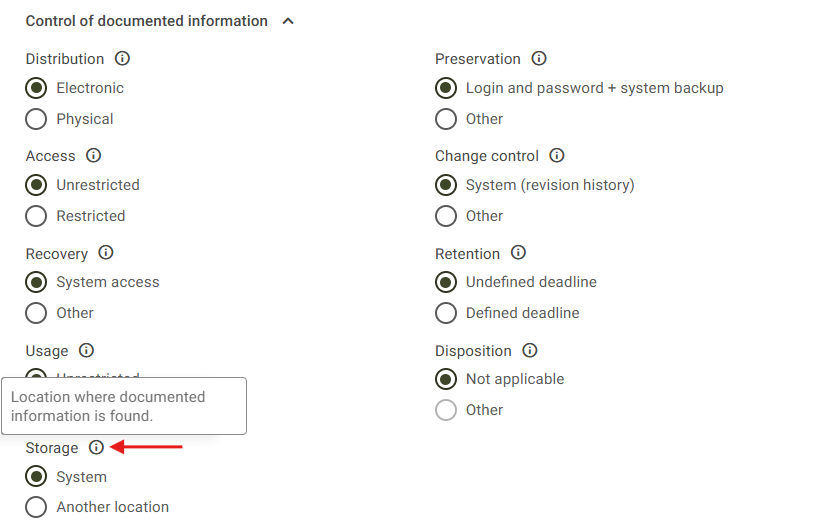
Code pattern:
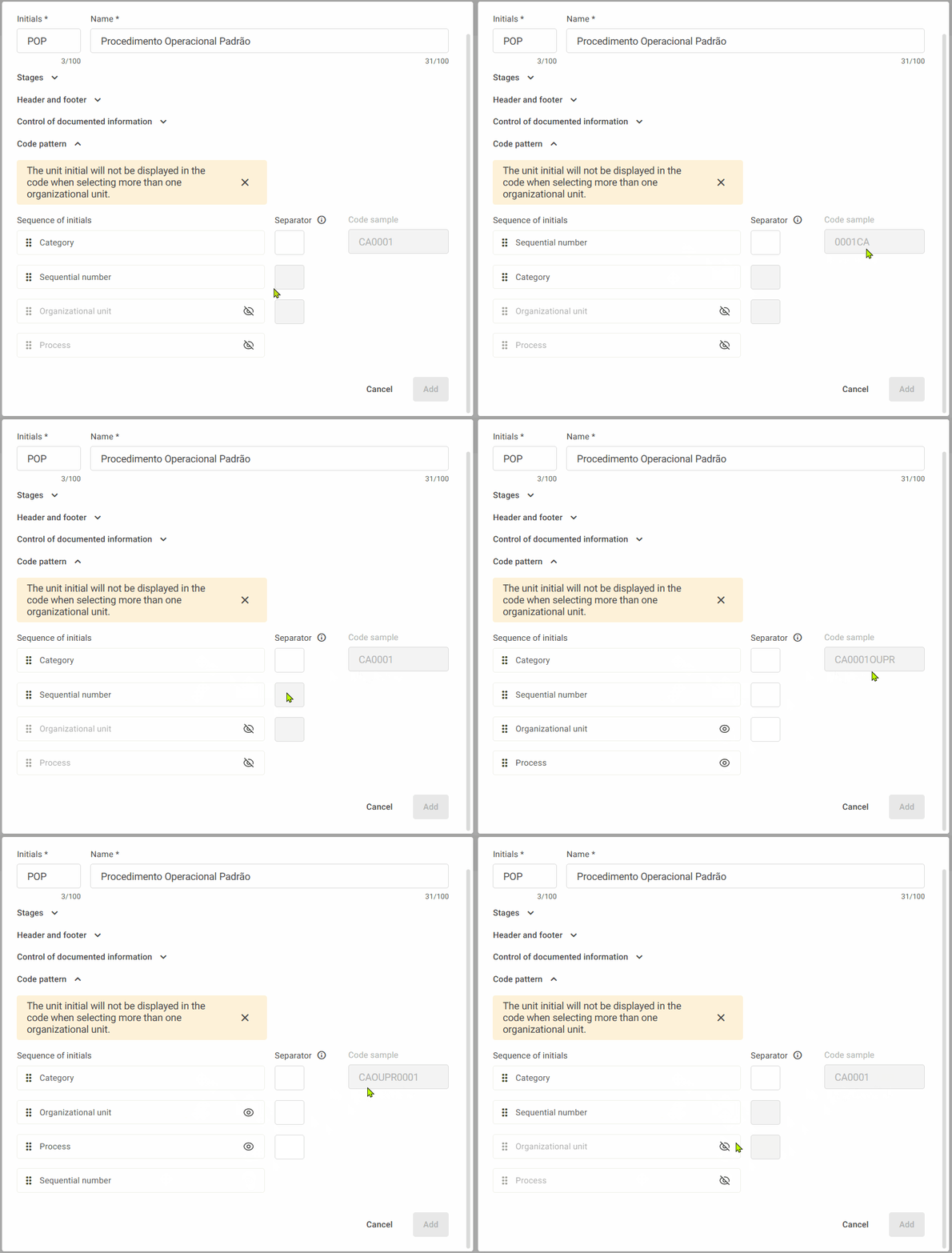
When clicking on Code pattern, the settings to define how document codes will be displayed will be shown. In addition to the default pattern (Category and Sequential Number), the codes may also contain Organizational Unit and Process.
As the code composition is being defined, the system will display on the right side, under Code sample, how the final result will appear.
Category and Sequential Number: The Category and Sequential Number fields are system defaults. If you want to change their order, click, drag, and drop them into the desired position.
Organizational Unit and Process: It is also possible to add the Organizational Unit and Process acronyms to the code. To do this, enable the fields by clicking the eye icon
 on the right side of the field name.
These acronyms can be enabled according to the organization’s needs, making it possible to use only the Organizational Unit, only the Process, or both.
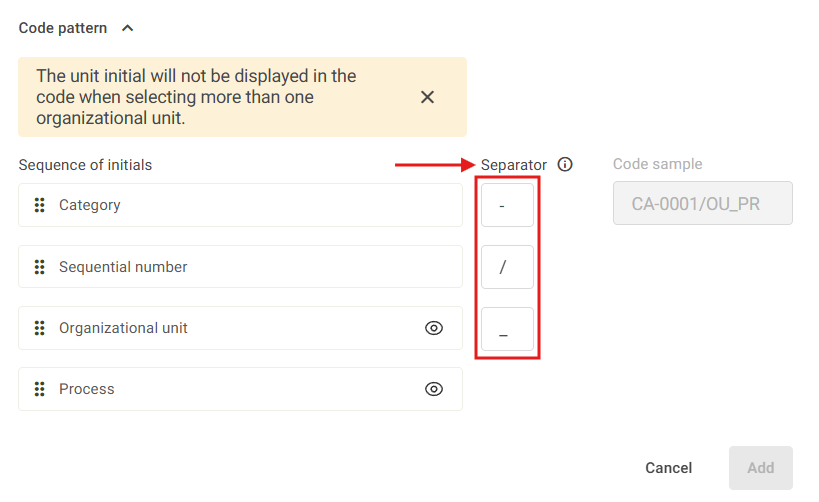
Separator: It is also possible to define a separator for the acronyms. To do this, enter a special character in the Separator field next to the desired acronym. Example: (. , _ -).
4. After entering all the category information, click Add to complete the registration. Then, the system will display a message informing that the category has been successfully saved.