Objective
The drafting stage consists of developing, in electronic format, a file containing the information required to perform a specific activity, following the rules established by the organization and meeting the requirements defined in the Internal Document Registration.
Index
Prerequisites
- To perform the elaboration of an internal document, the user must be responsible for this step.
Step-by-step
1. After registering an internal document or approving a new revision, it will enter the elaboration phase. The responsible user will receive an email similar to the one shown below, informing which document is pending elaboration and its deadline.
By clicking the View your task button in the email, the page to perform the document elaboration will be opened.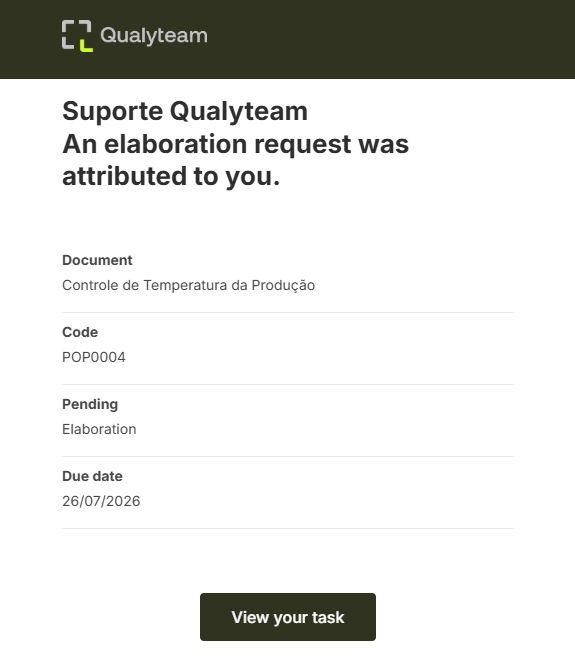
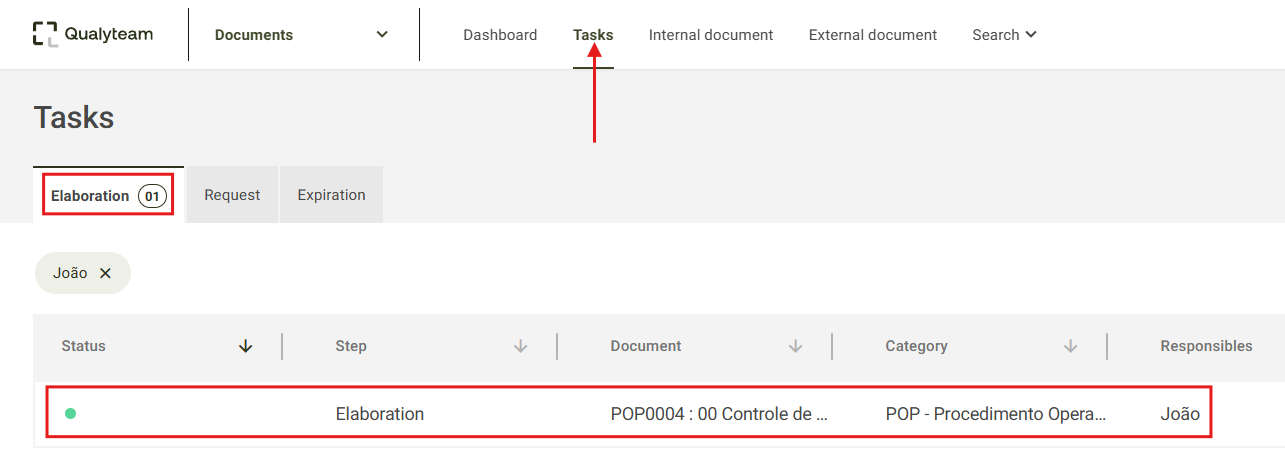
Directly in the system, it is also possible to access the task by clicking the Tasks menu. In the Elaboration tab, locate the desired document and click on it.
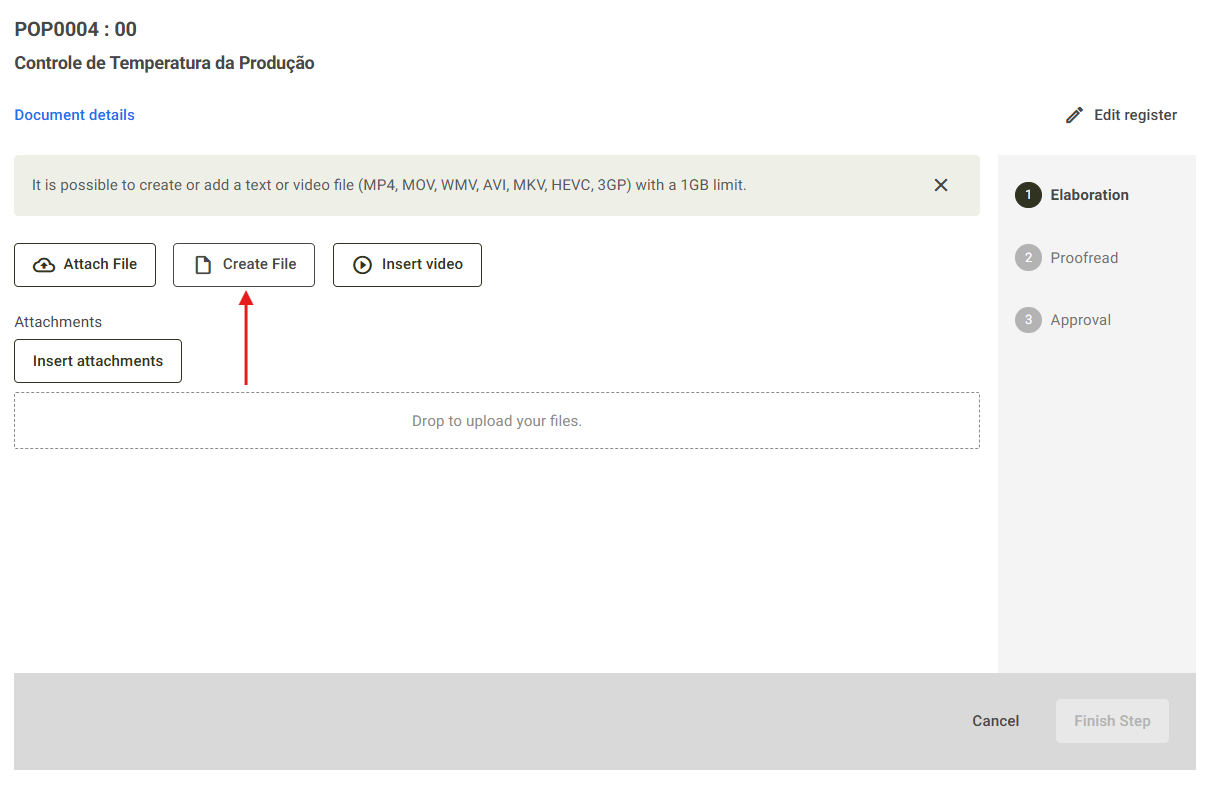
2. When the screen opens, the following options will be available: Attach File, Create File, and Insert Video.
Attach File: Use this option to upload an already prepared file, such as Word, Excel, or other document formats.
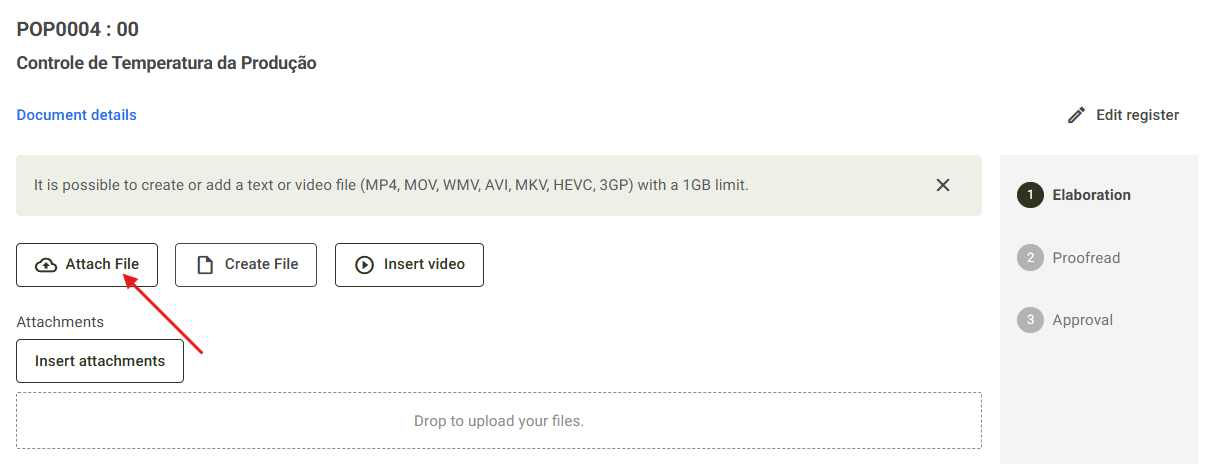
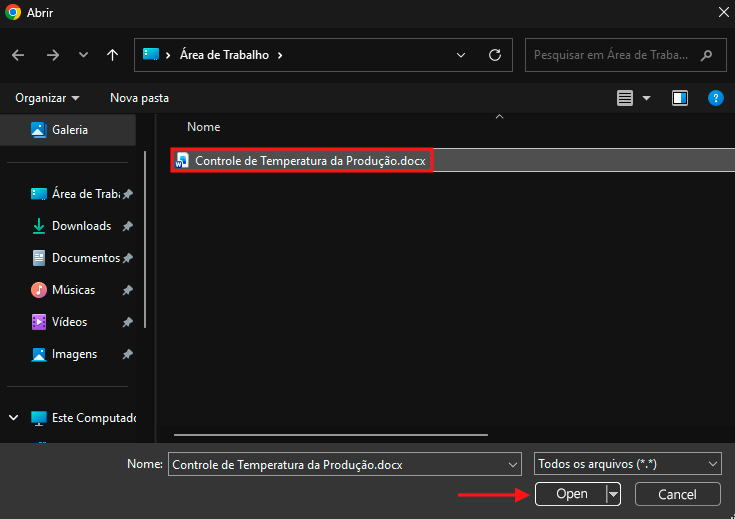
When clicking Attach File, a window from your web browser will open. Locate the file on your computer, select the file you want to insert, and click Open.
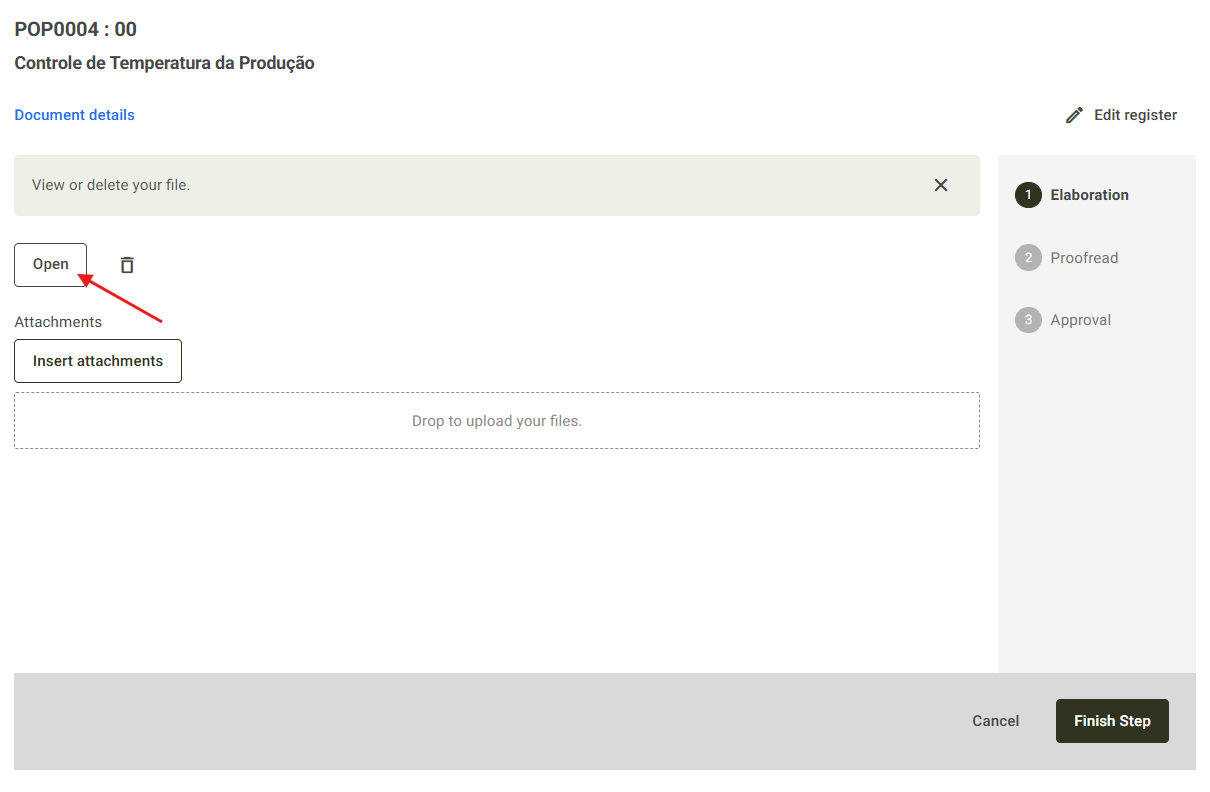
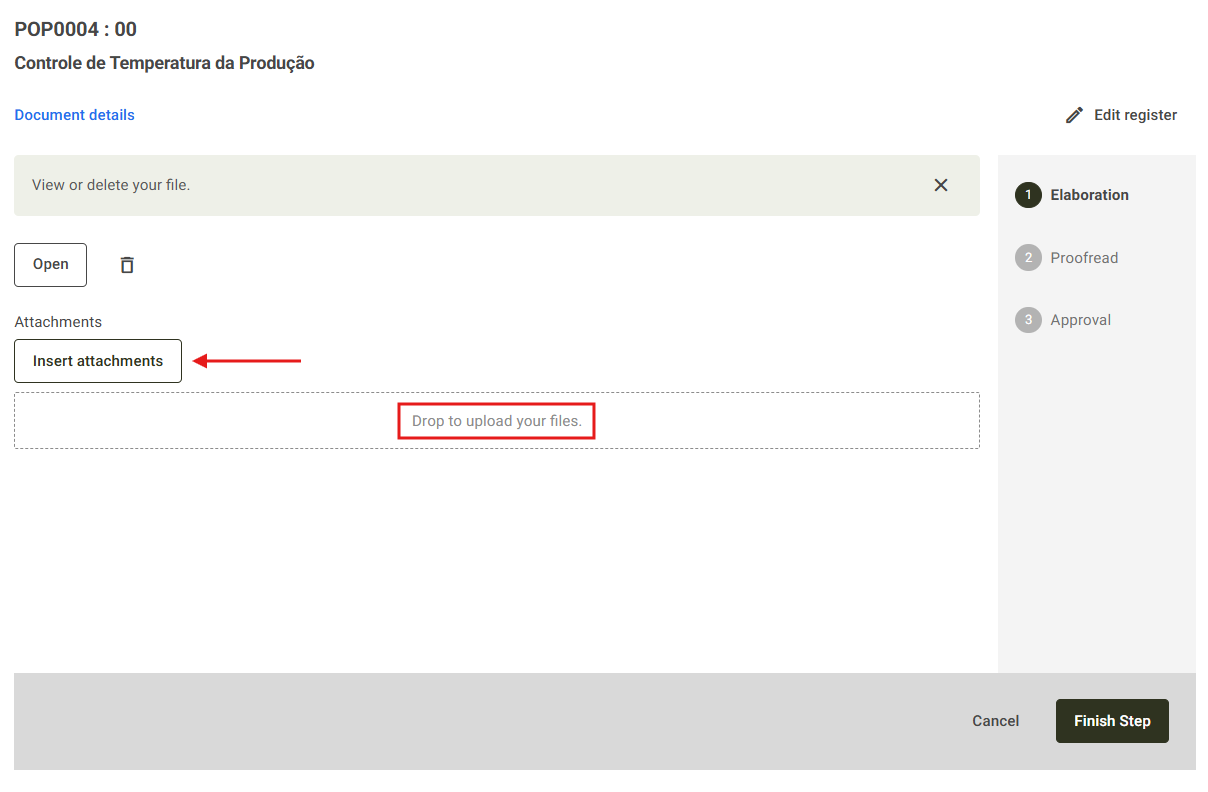
Then, it will be possible to view the inserted file by clicking the Open option.
The PDF view of the document being drafted will be displayed.
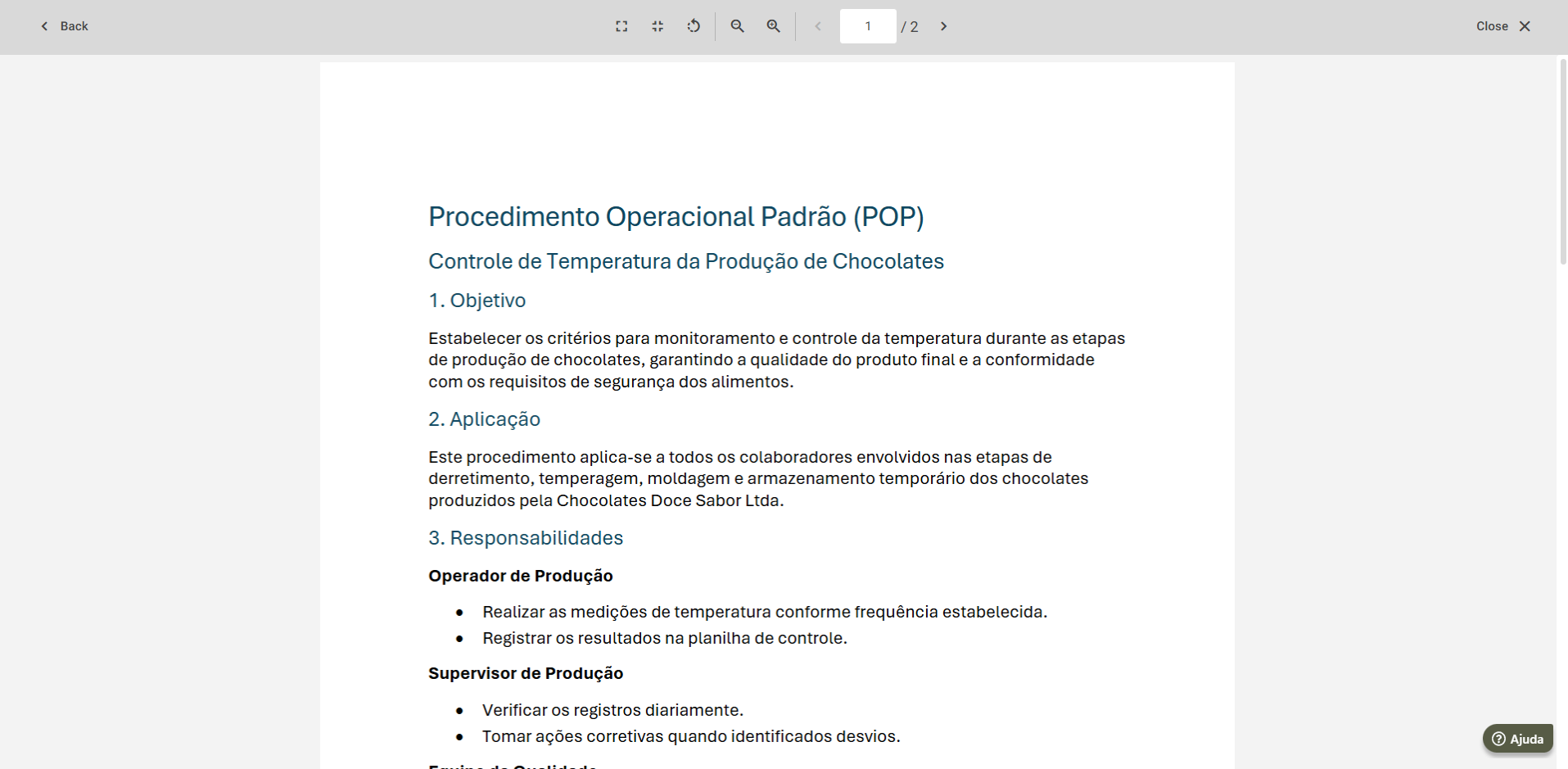
In the document preview, some tools are available for use, as described below:
- Zoom In: This button allows you to enlarge the document view.
- Default Size: This button restores the document view to its standard size.
- Rotate Document: This button allows you to rotate the document view.
- Zoom Out: This button allows you to decrease the document zoom level.
- Zoom In (Increase Zoom): This button allows you to increase the document zoom level.
- Current Page: This option displays the current page being viewed in the document.
To exit the document preview screen and return to the elaboration screen, click Close or Back, located respectively in the top-right and top-left corners of the screen.
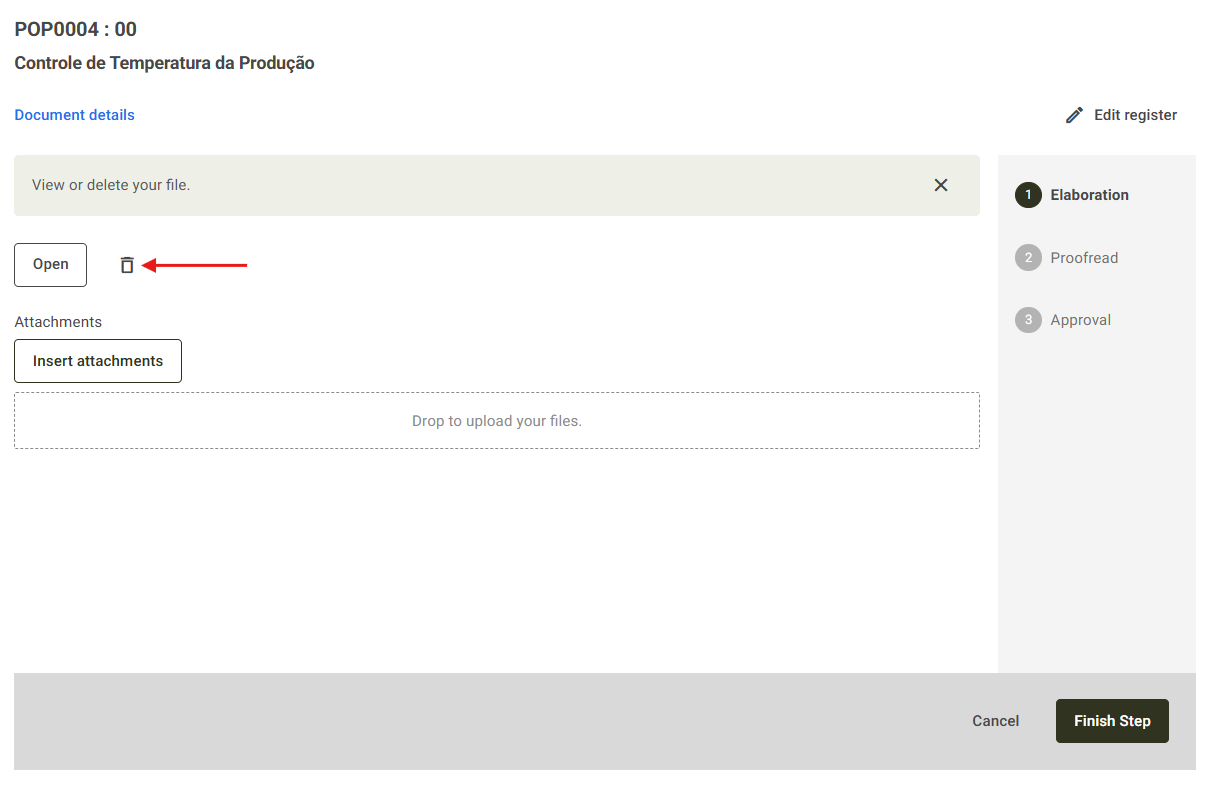
If you want to delete the inserted file to add another one, click the trash icon next to the Open option.
Create File: Use this option to create the document directly in the system editor. For more details about document creation, click here.
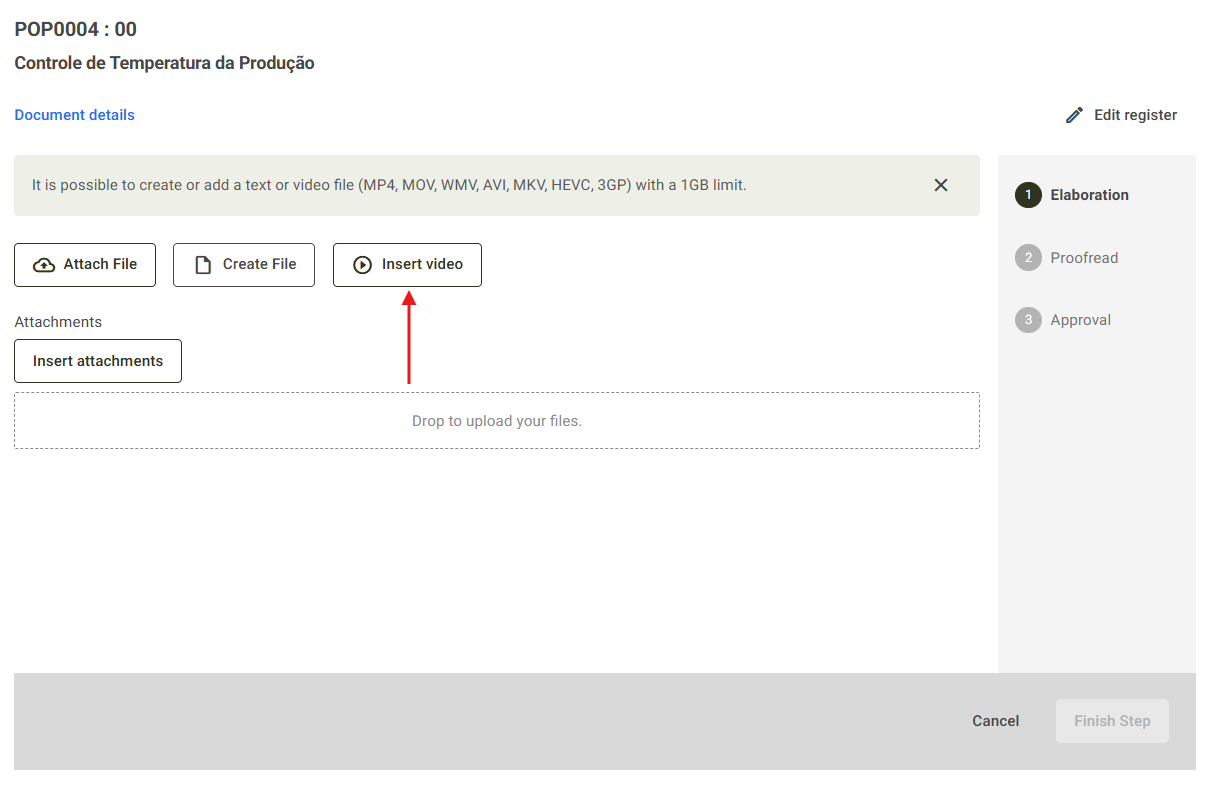
Insert Video: Use this option if it is necessary to add video files.
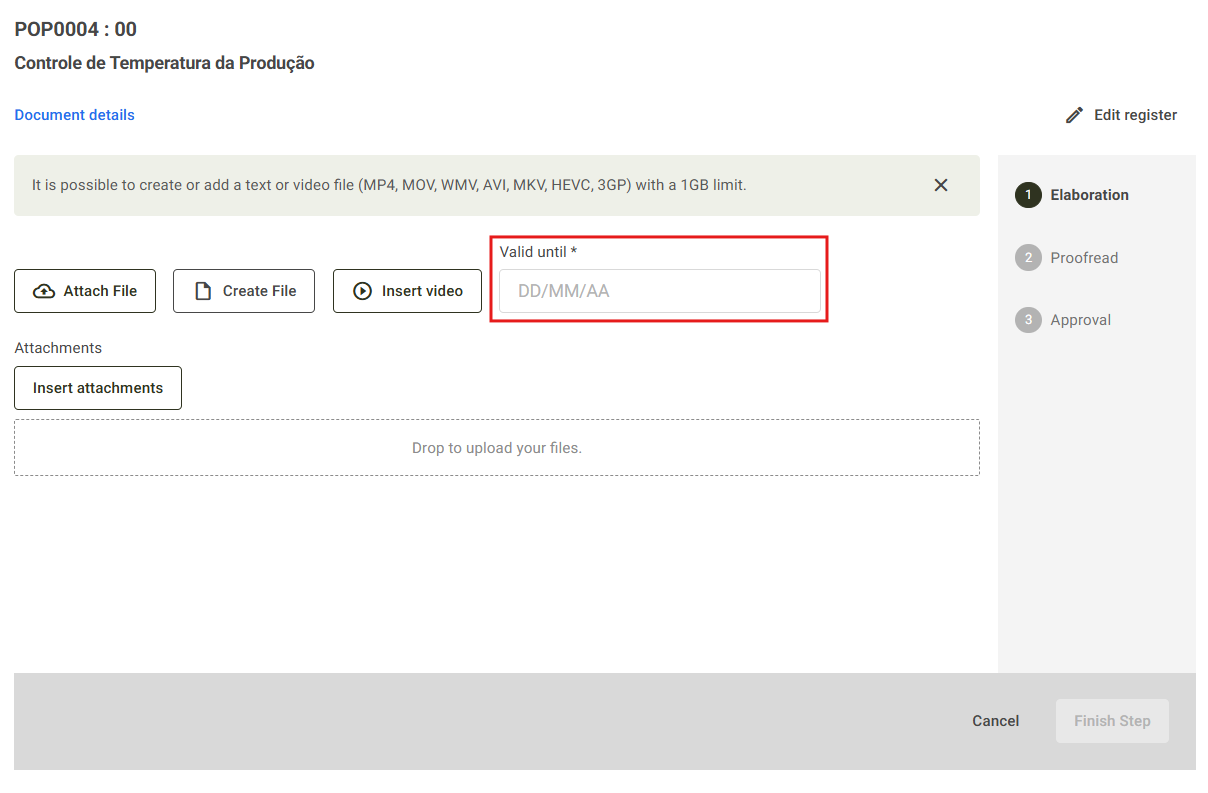
3. If the document has been registered with a specific validity period, the Valid until field will be displayed so you can enter the document’s expiration date. To learn more about registering documents with a validity period, click here.
4. On this screen, it is also possible to add files as attachments to the document. To do so, click the Insert Attachments button or drag and drop the file into the dotted area below the button.
5. After completing the document elaboration, click the Finish Step button so the document can proceed to the next review stage.
If you wish to exit the screen without completing the document elaboration, click the Cancel button.
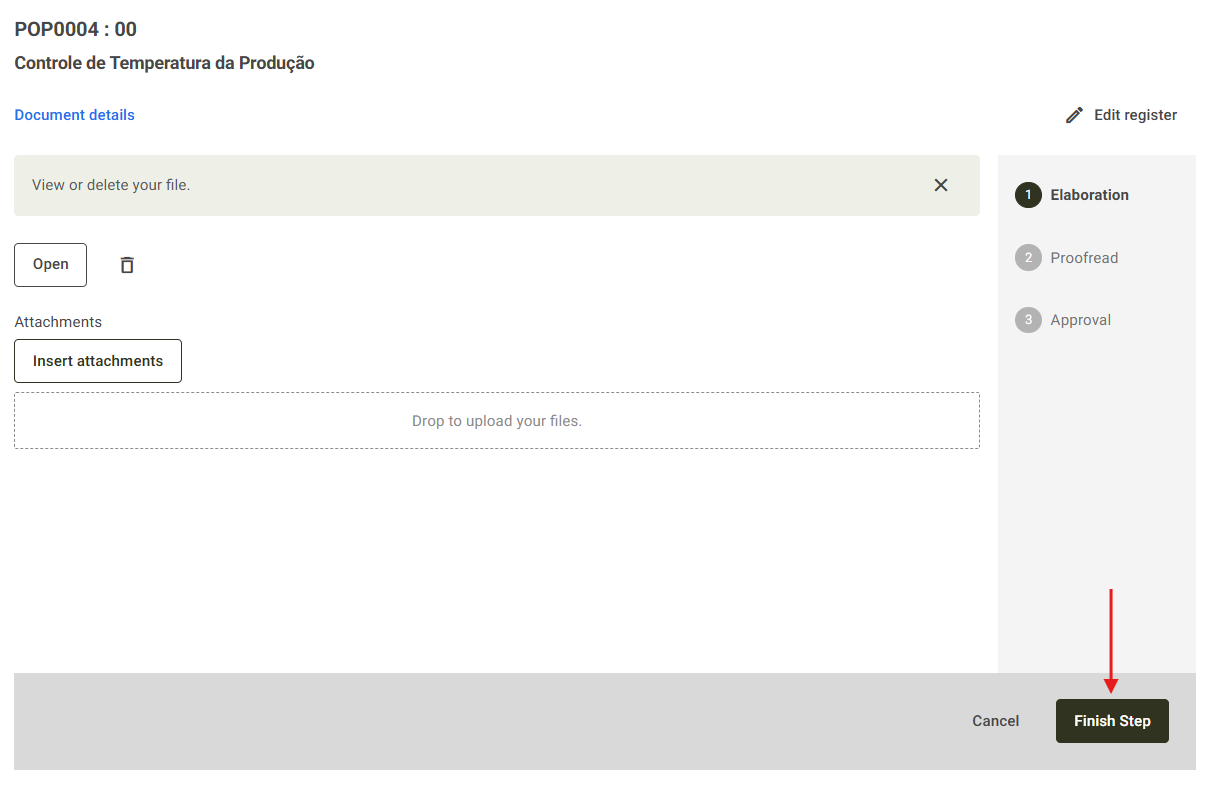
Then, the system will notify you that the document has been completed and will proceed to the next step. To return to the tasks screen, click Go to Tasks.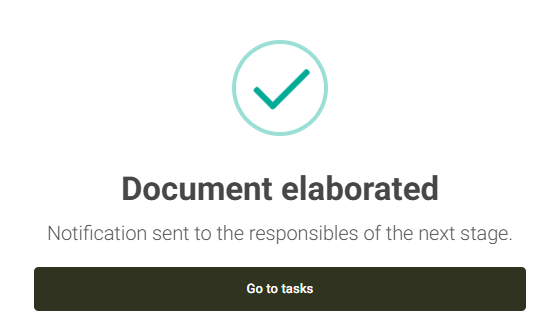
Additional Information
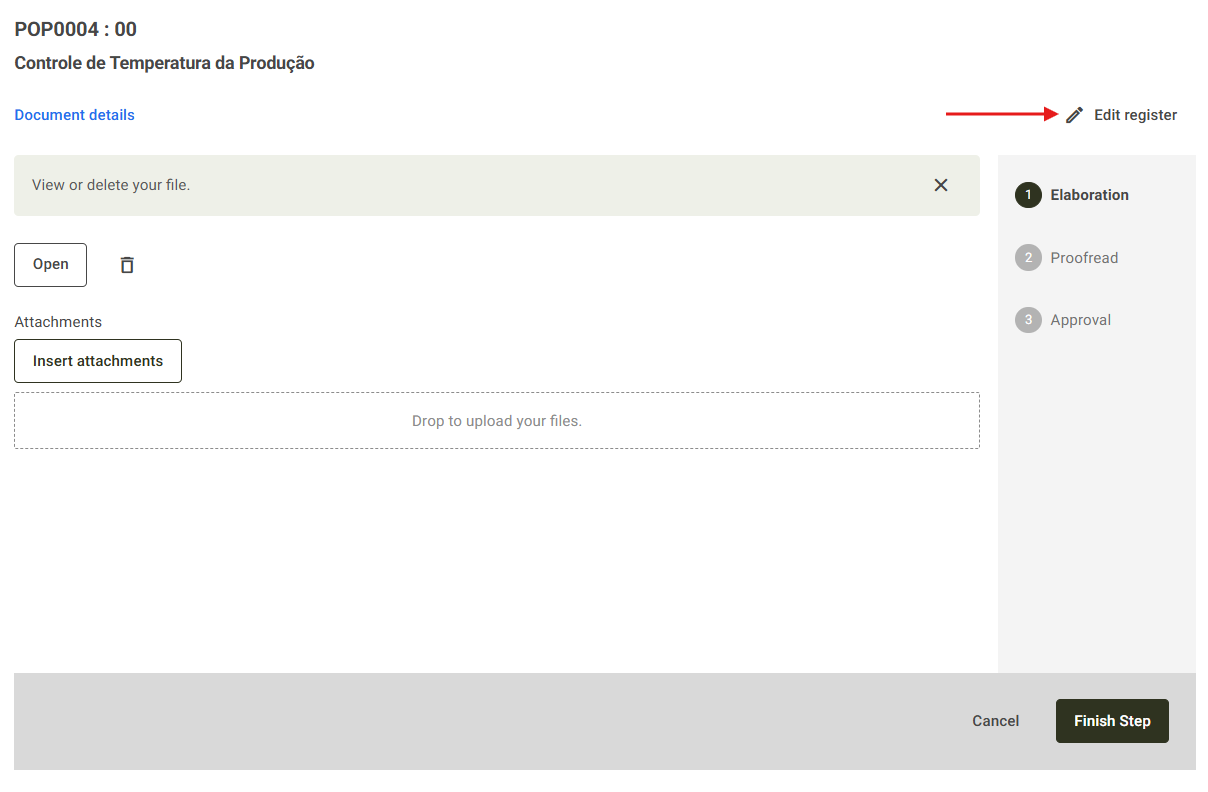
It is possible to edit the document registration information by clicking Edit Register, located on the right side of the screen. However, to perform this action, the Edit documents permission must be enabled in your user level. For more details about permissions in the Documents module, click here.
By clicking the Edit Registration button, you will be redirected to the document registration screen, where you can make the necessary changes. For more details about document editing, click here.
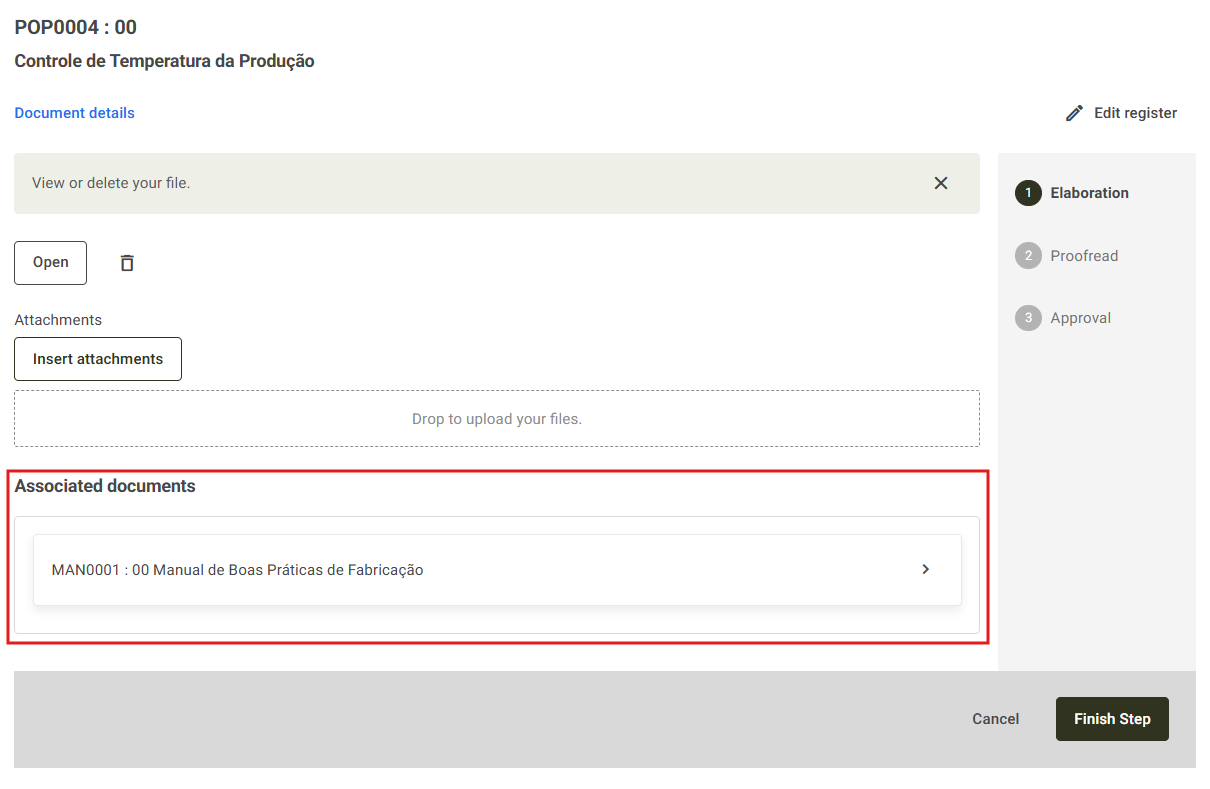
If the internal document has another associated document, the system will display which document it is associated with. By clicking on it, you will be able to view its details.
If you want to edit the inserted document, you can do so directly within the system. Simply click the pencil icon to open the Editor: