Objective
Viewing external documents allows you to access the registered information and view the content of documents linked in the system. This feature makes it easier to monitor, verify information, and quickly locate external documents from a centralized location.
Prerequisites
To view an external document, you must have the View Documents permission, for more details about the permissions available in the Documents module, click here.

Step-by-step
1. Click the Search tab and select the External Documents option.

2. By default, all registered documents will be displayed. Locate the desired document and click on it.
If necessary, you can use the Filter option to search for specific external documents. For more information about search filters, click here.
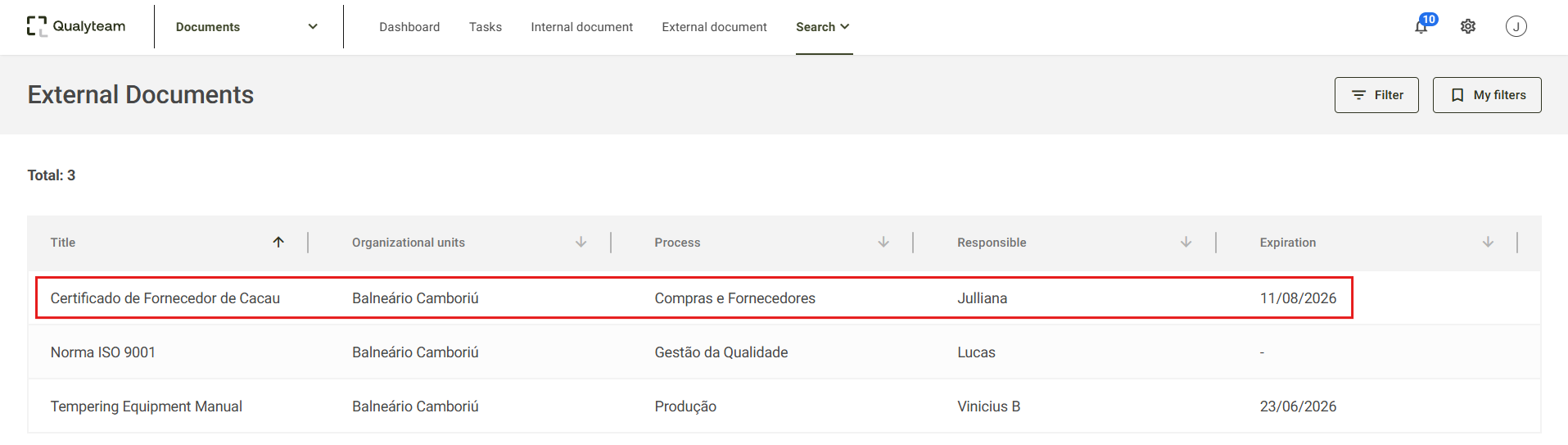
3. When opened, the external document details will be displayed, along with the available actions.
External Document Details
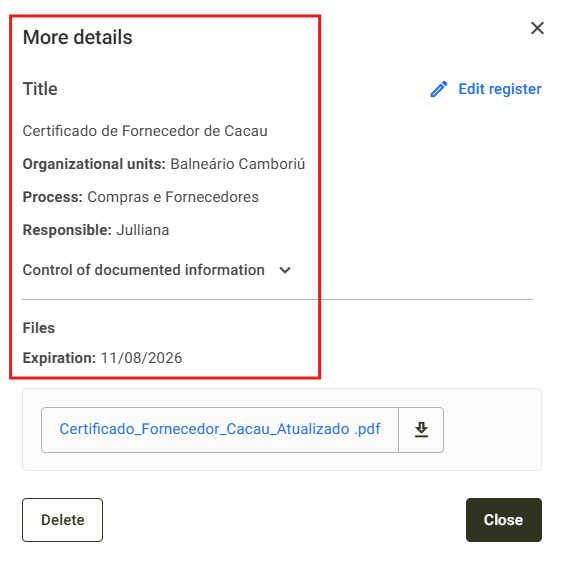
- Title: Displays the title of the external document.
- Organizational Units: Displays the organizational units selected during the external document registration.
- Process: Displays the process selected during the external document registration.
- Responsible: Displays the person responsible for the external document.
- Control of documented information: Displays the control of documented information settings defined during the external document registration. For more details, click here.
- Expiration: Displays the expiration date of the external document, if one has been defined.
Available Actions
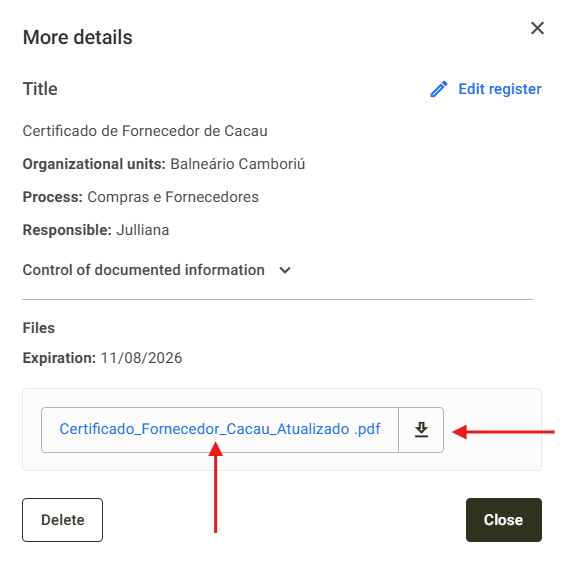
View External Document: By clicking the name of the added file, the document preview will be opened.
Download External Document: To download the added file, click the Download icon
 .
.
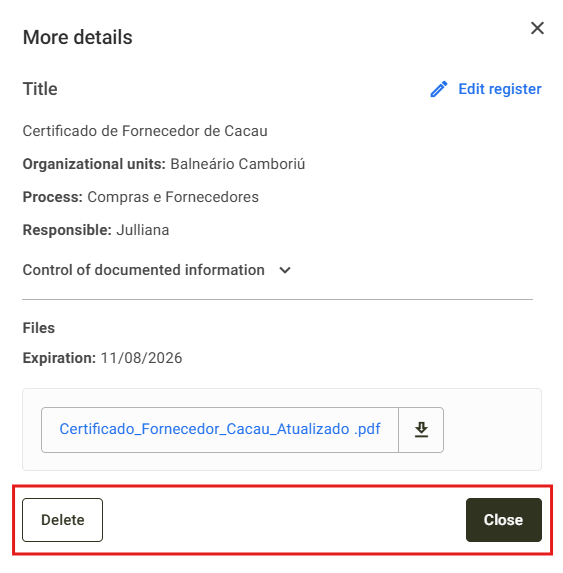
- Delete: To delete the external document registration, click Delete.
- Close: To exit the external document details, click Close.
4. In the document preview, some tools are available, as described below:
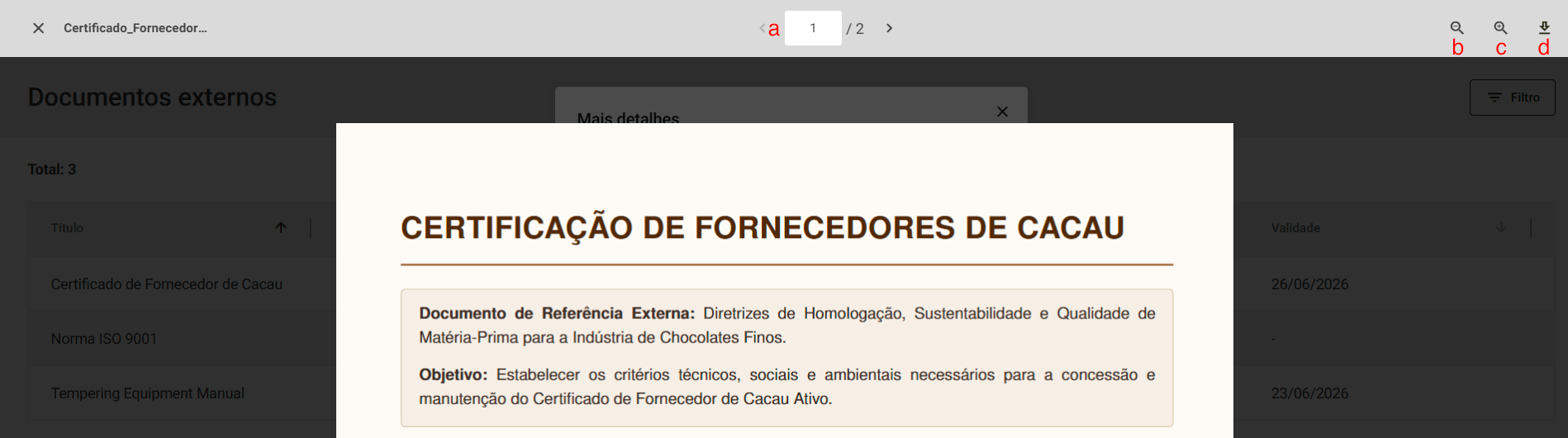
- Current Page: This option displays the current page of the document being viewed.
- Zoom Out: This button allows you to decrease the document view zoom level.
- Zoom In: This button allows you to increase the document view zoom level.
- Download: This button allows you to download the document.
To exit the preview screen, click the X button located in the top-left corner of the screen.
Additional Information
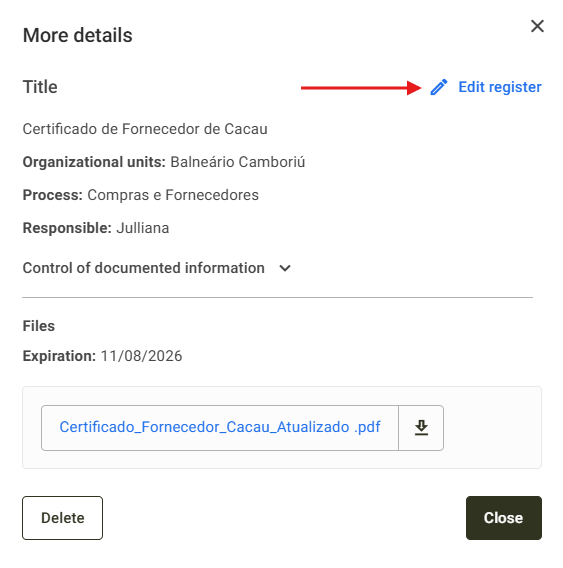
It is possible to edit the external document registration information by clicking Edit Register. However, to perform this action, you must have the Edit Documents permission enabled for your user level. For more details about the permissions available in the Documents module, click here.
By clicking the Edit Register button, you will be redirected to the document registration screen, where you can make the necessary changes. For more details about editing external documents, click here.