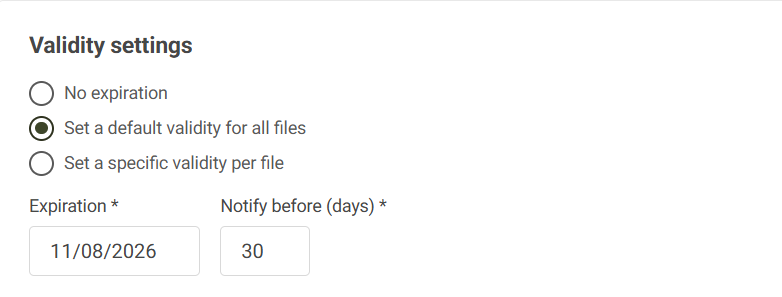
Objective
When an external document has a registered expiration date and is close to expiring, the system automatically generates a pending task. This feature allows the person responsible to update the document's information preventively.
Prerequisites
- Be the person responsible defined in the external document registration, have the permission below checked in your permission group, to learn more details about module permissions, click here.

Step-by-step
To update the expiration date of an external document, follow the steps below:
- Access the Tasks screen and click on the Expiration tab. Documents with expiration dates close to expiring will be displayed.
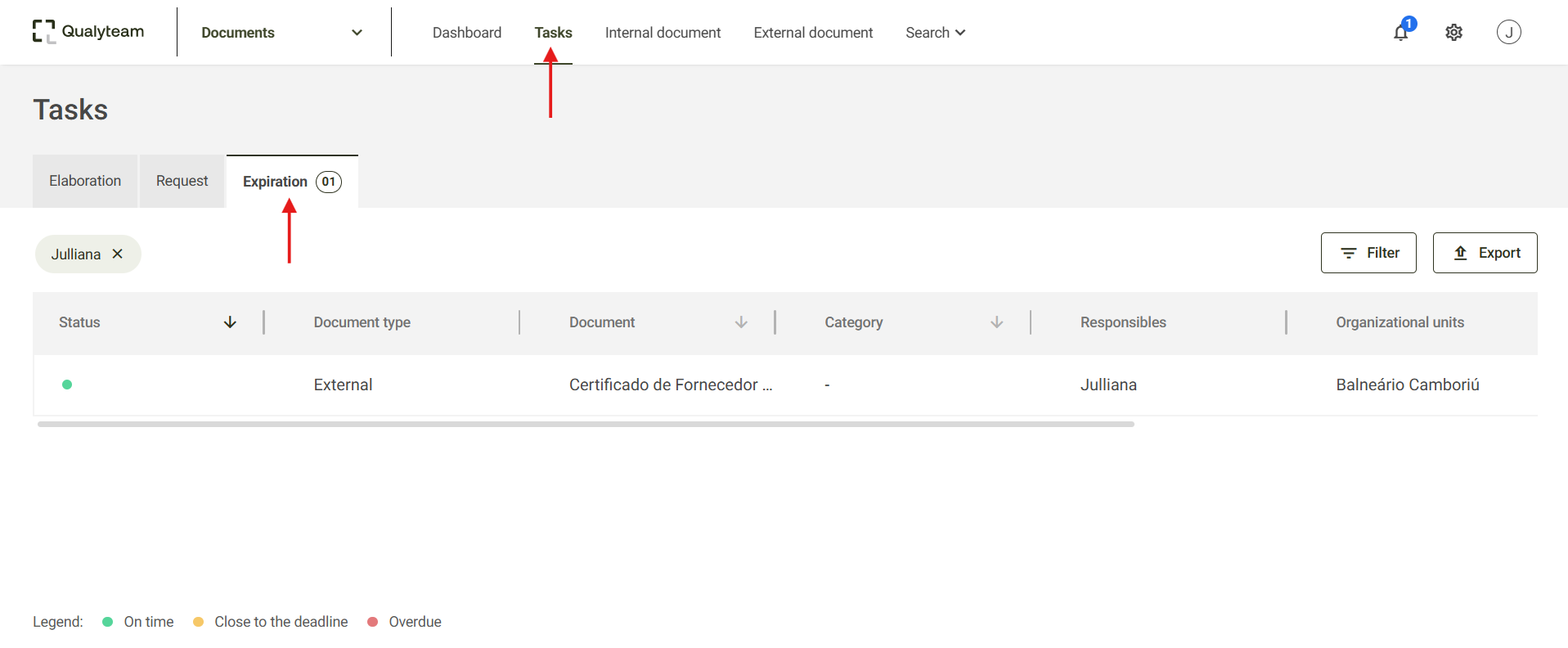
- Upon clicking on the pending task, the screen for updating the document will open.
1 - In the Expiration* field, enter the new expiration date of the document.2 - If it is necessary to add new files, click +Add.
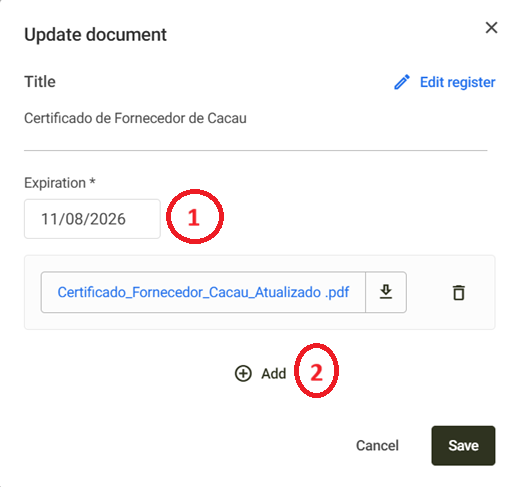
After updating the document, click Save to save the changes.
Additional information
It is also possible to update the expiration date of an external document through the search screen. To do this, follow the steps below:
- Access the search screen and locate the external document you wish to update.
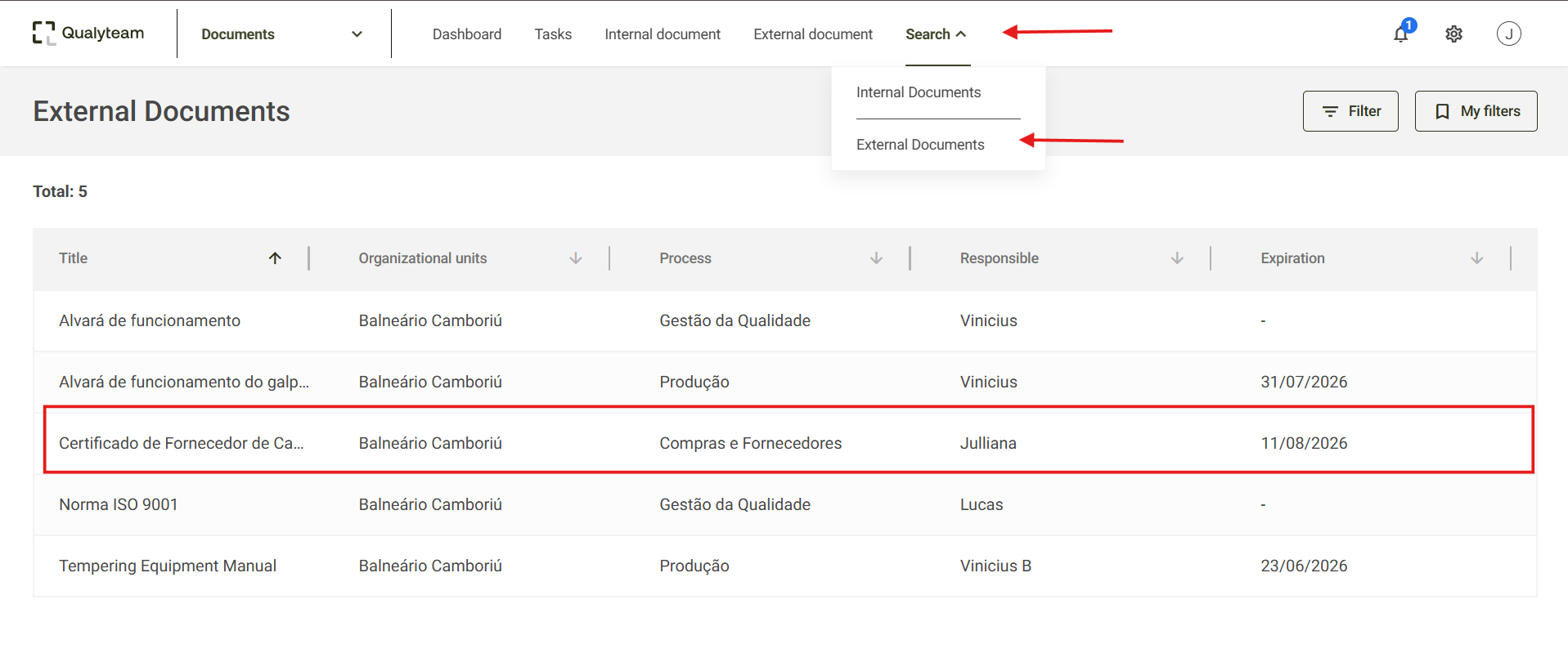
- Click on the document and then click Edit register.
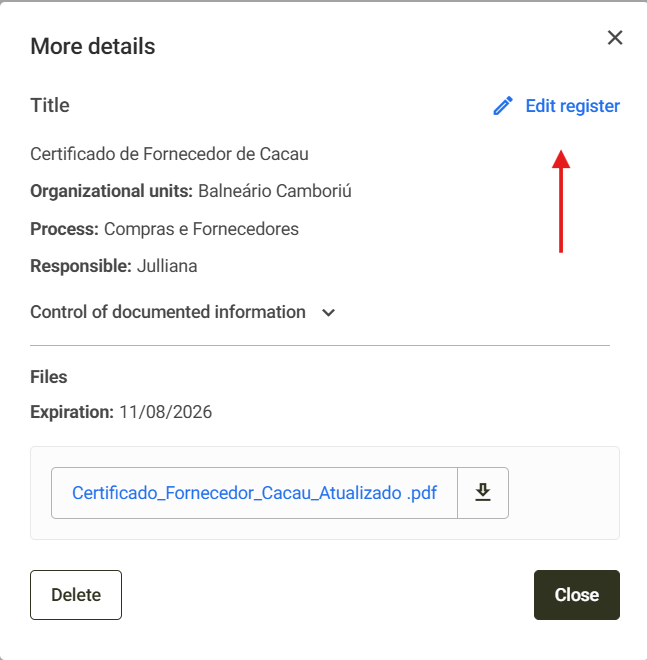
- On the registration editing screen, simply go to Validity settings and change the expiration date to the desired date.