
Objective
The registration of external documents has the function of storing documents of external origin that are necessary for the control and operation of the Quality Management System, allowing their application in the corresponding sectors within the organization. These documents come from suppliers, customers, licensing and certification bodies, among others.
Prerequisites
- Have the permission Register external document, for more details about Documents module permissions, Click here.

Step-by-step
Step-by-step descriptive
- Click on the tab External document.

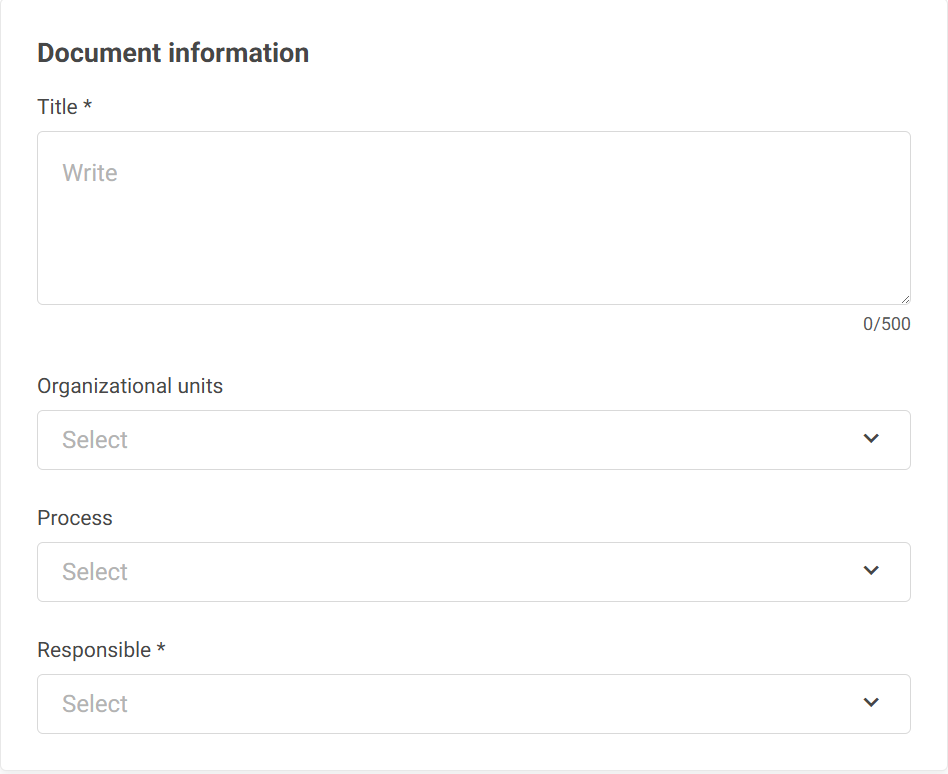
- The document registration screen will open, with the possibility of filling in the following fields:
- Title: Enter the name of the document being registered.
- Organizational units: Select the units to which the document belongs.
- Process: Select the processes of which the document is part.
- Responsible: Select the user responsible for the document.
- Click on the arrow
 to expand the section Control of documented information.
 By default, the system already selects the options that correspond to full control of the document by the system itself, however, it is possible to change depending on the status of the document.
 - Select the screen options according to the definitions of the registered document.
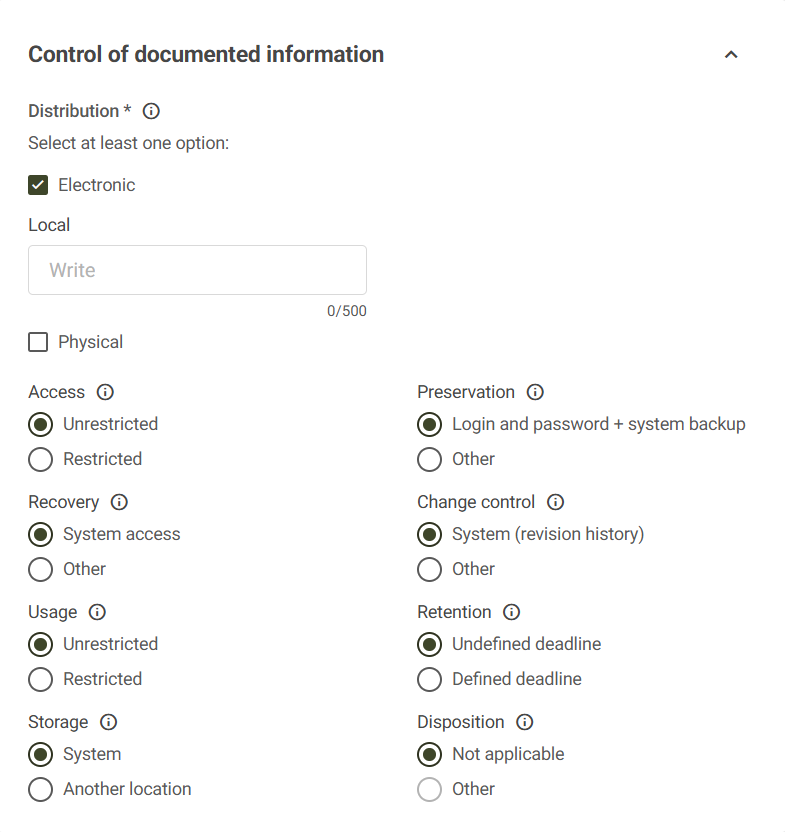 a. If it is necessary to change the selected option, a field will be displayed that must be filled with the document control information, as shown in the example below: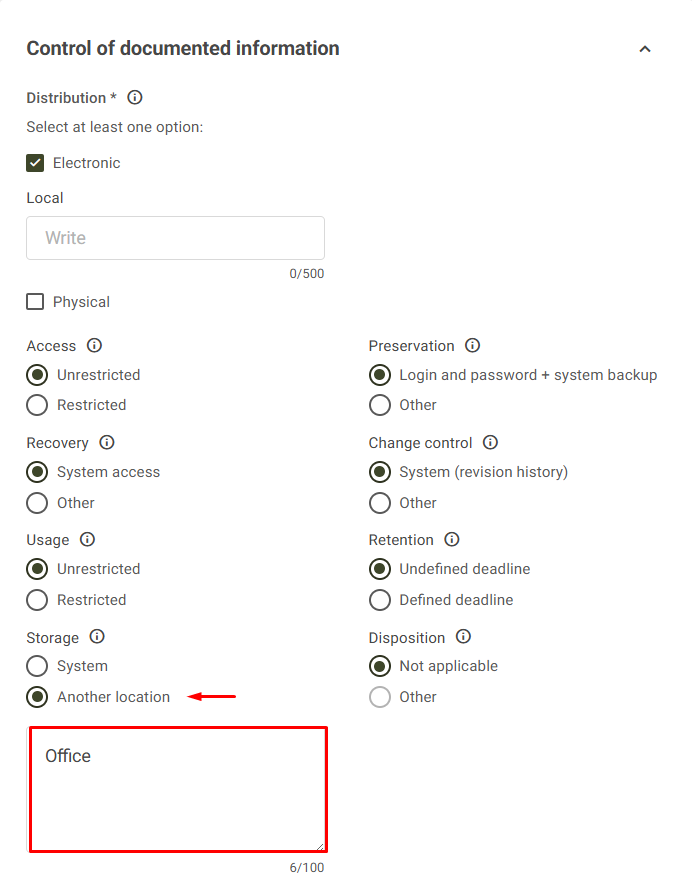
b. When placing the mouse over the question mark icon , the system will display the definition for the selected control option. This feature can be used in any control option.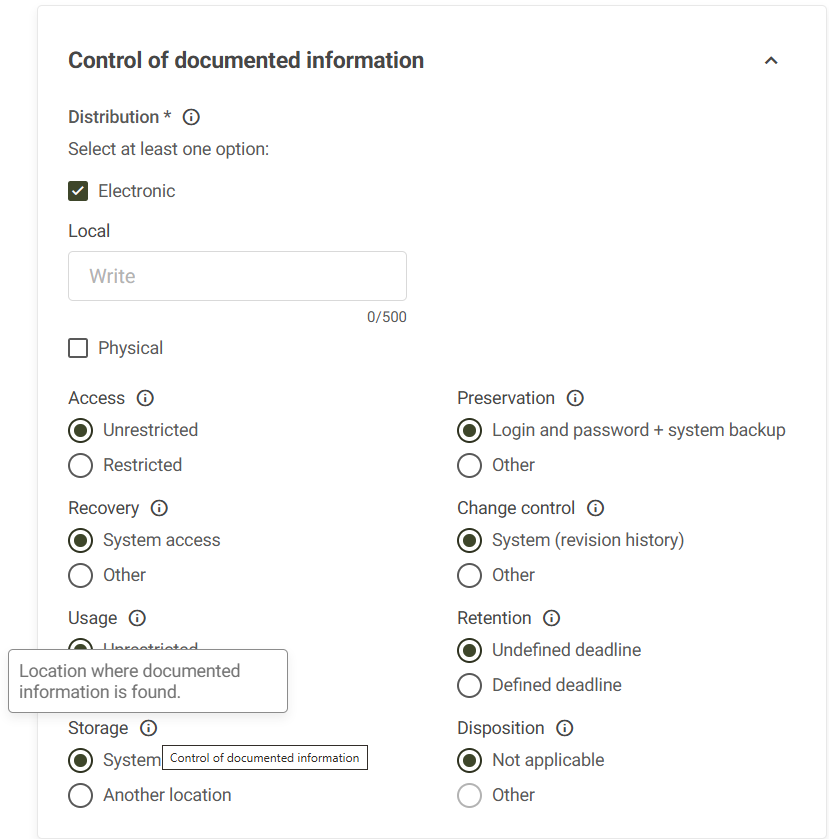
- In validating parameterization, it is possible to follow 3 different paths, they are:
- No expiration: The document is registered without validity.
- Set a default validity for all files: All files inserted in this document will share the same validity
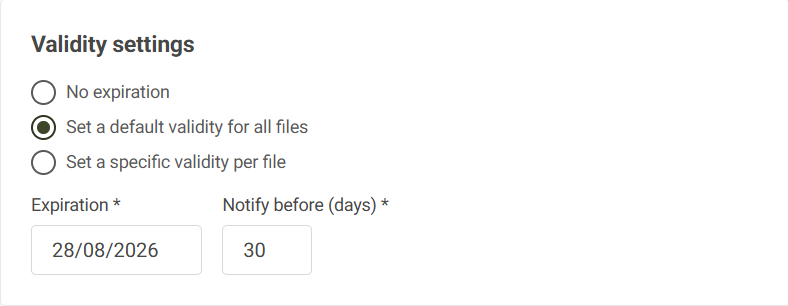
- Set specific validity per file: It will be necessary to set an expiration date for each file inserted in the document registration.
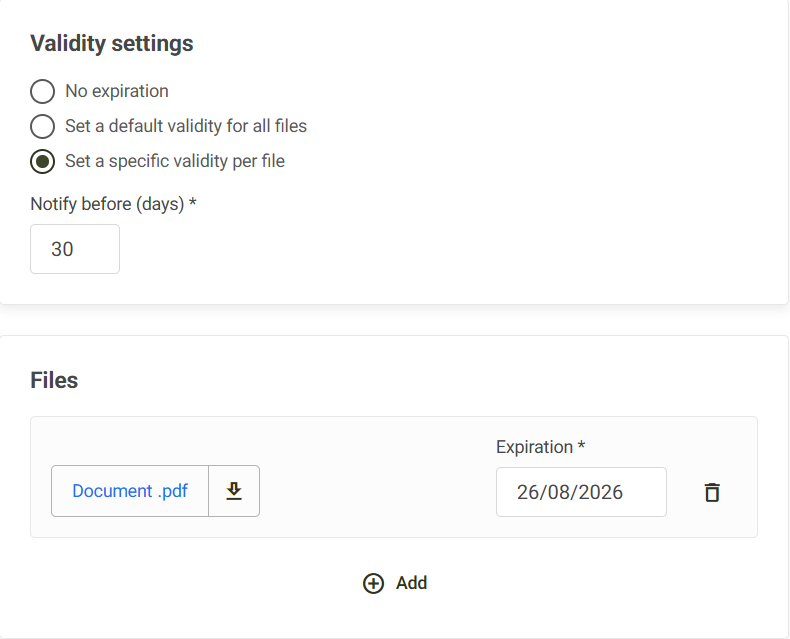
The field Notify bafore (days) has the function of sending an email to the user responsible for the document based on the number of days parameterized in it, before the expiration date. That is, if 30 days are set, an email will be sent to the person responsible to update the file in question 30 days before the validity set in the document.
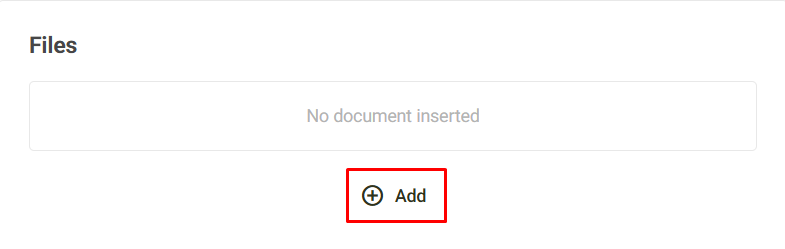
- To insert files into the external document, click Add.
- Select the desired file(s), and when finished, click Save.
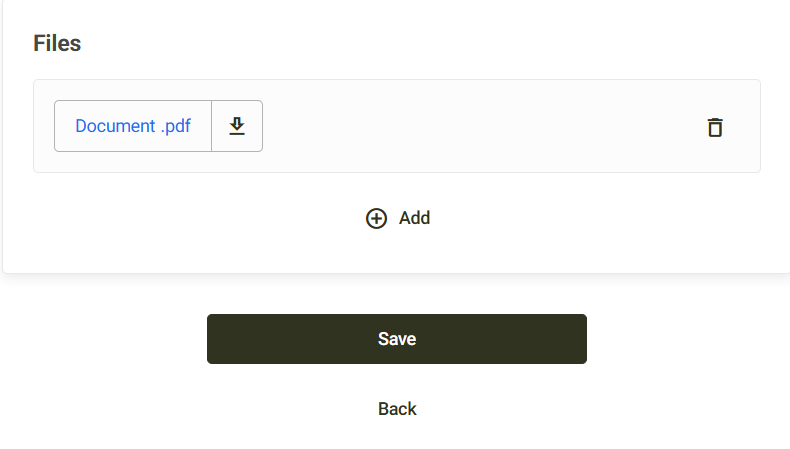
The system will display this message bubble, indicating that the registration was successful:
