
Objective
The occurrence details screen is the place where you can check specific information about the registered occurrence, in addition to viewing those responsible for registering and approving it, among other information.
INDEX
Prerequisites
- Have the permission Search NCR. To find out more details about the permissions of the Non-Conformities module, Click here.

Step-by-step
- Click Search -> Occurrences. Find the occurrence using the available search or filters. To learn more about query filters, Click here.
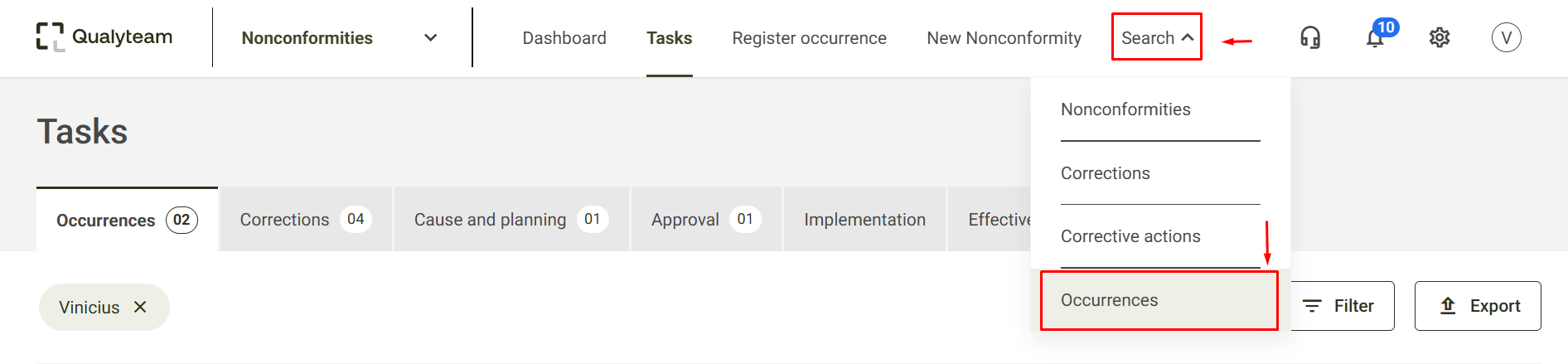
- Click on the occurrence you want to see details about:
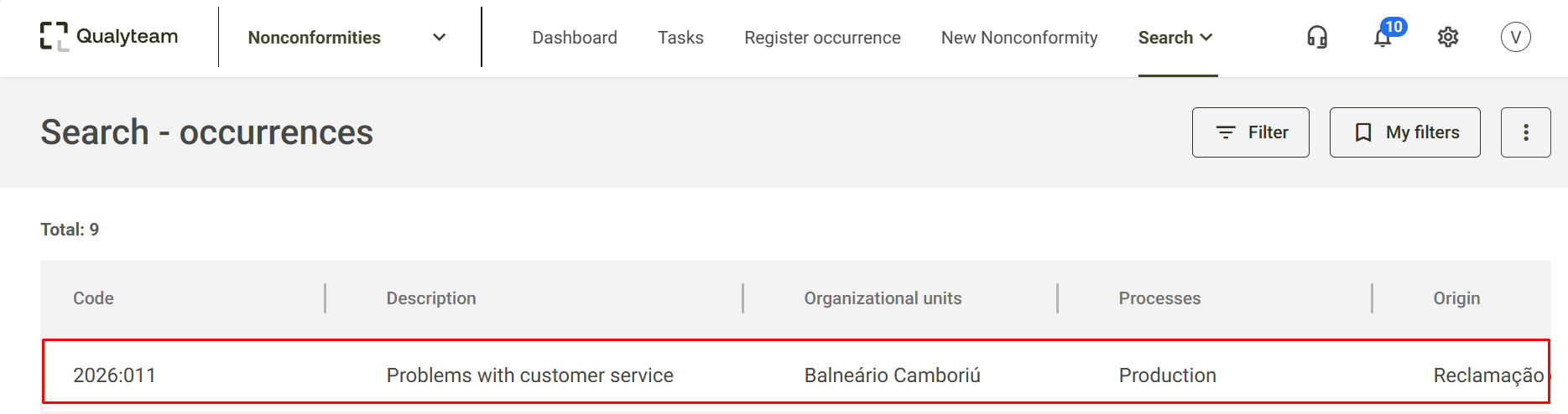
Occurrence details
When clicking on the occurrence, a screen will open that will display the following information: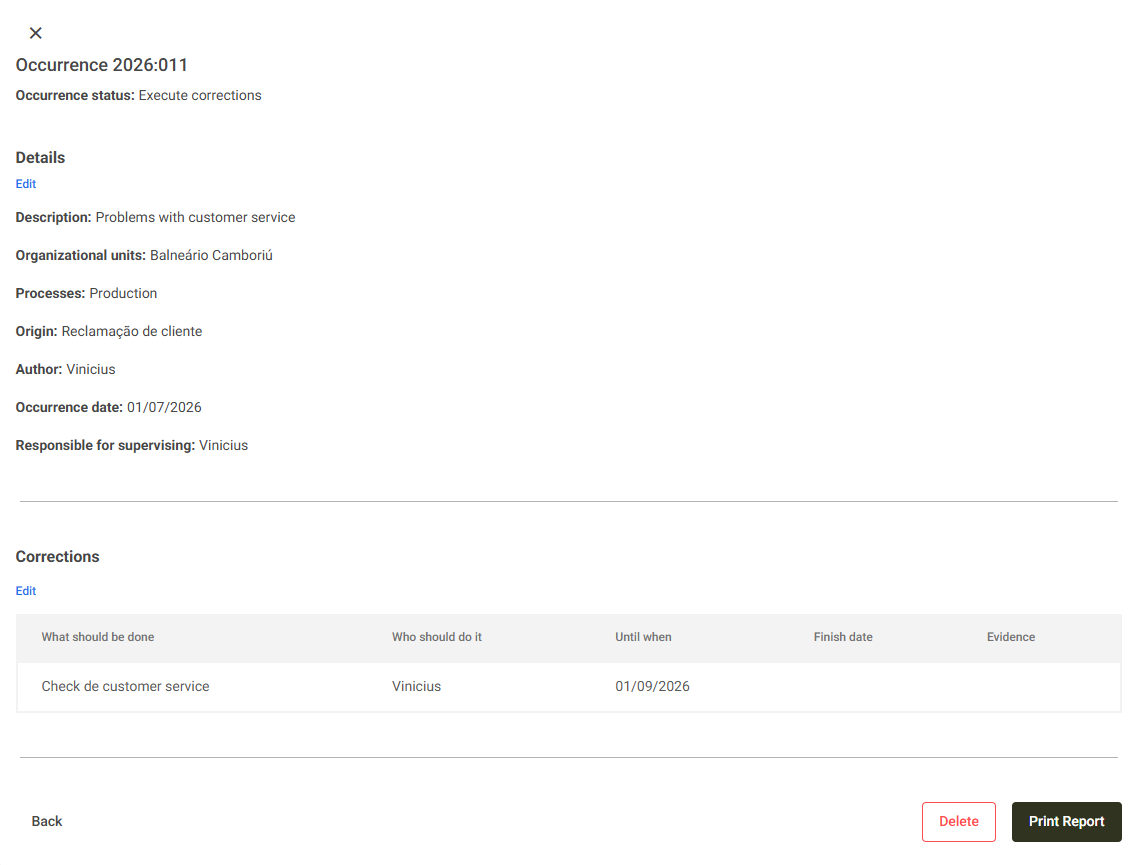 Fields:
- Occurrence status: The current status of the issue. Example: Take immediate actions
- Description: The registered name of the occurrence.
- Organizational units: The units to which the occurrence belongs.
- Processes: The processes to which the occurrence belongs.
- Origin: The selected source of the occurrence.
- Author: The user who registered the occurrence.
- Occurrence date: The date on which the occurrence occurred.
- Responsible for supervising: The person responsible selected in the registration for supervising the occurrence.
- Corrections: Tab that shows information such as: What should be done, Who should do it, Until when, Finish date and Evidence of each action registered in the occurrence.
Available actions
In the details pane, it may be available (if you have permission Edit and delete occurrence):
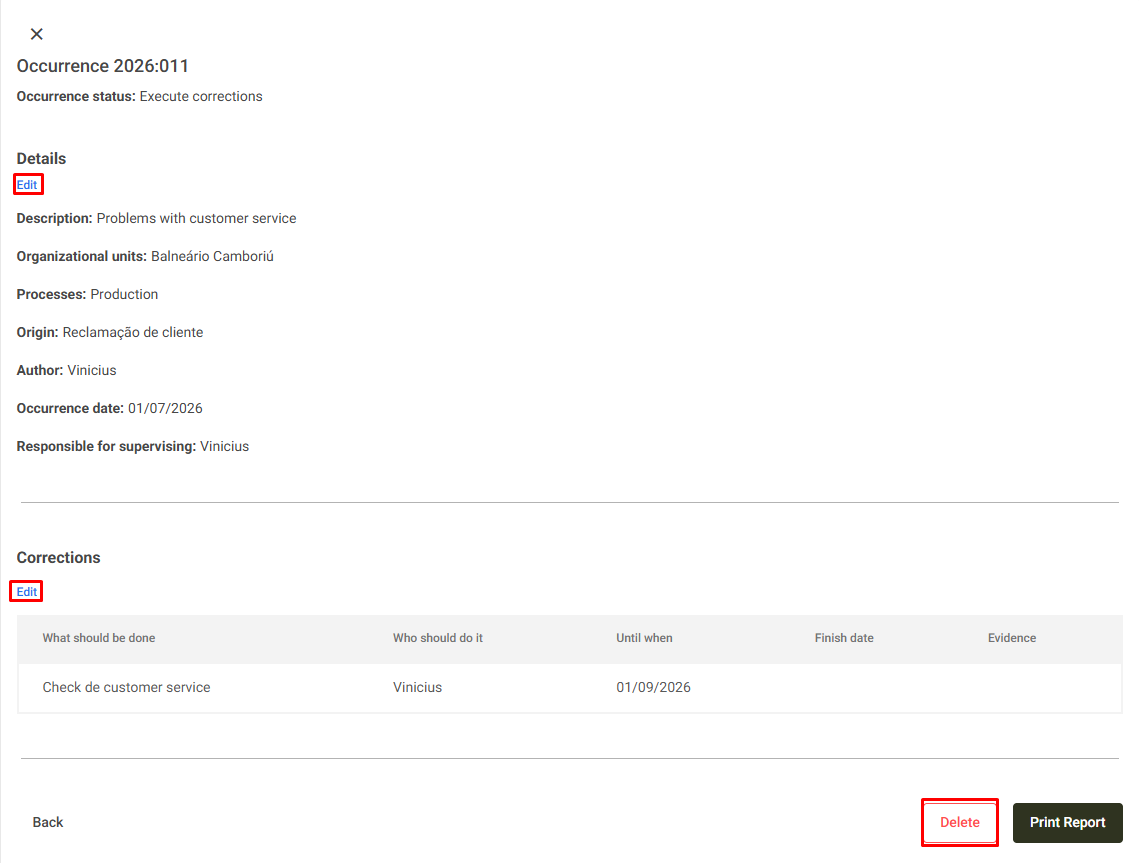
- Edit (Details): Allows you to edit the occurrence registration information. To find out more, Click here.
- Edit (Corrections): Allows you to edit registered immediate actions, close and even delete actions.
- Delete: Allows you to delete the occurrence. To find out more, Click here.
- Print Report: You can print an incident report. To find out more, Click here.