
Objective
The Nonconformities module allows you to register and track occurrences and nonconformities.
This article will provide a step-by-step guide on how to register an occurence and fill in the necessary information.
Prerequisites
- To log an occurrence, the user must have the Register occurrence permission enabled in their permission group. To learn more about module permissions, click here.

INDEX
Step-by-step
Register an occurrence
1. In the system's main menu, access the Register occurrence option.

2. Fill in the required fields and, if necessary, attach any documents related to the occurrence.
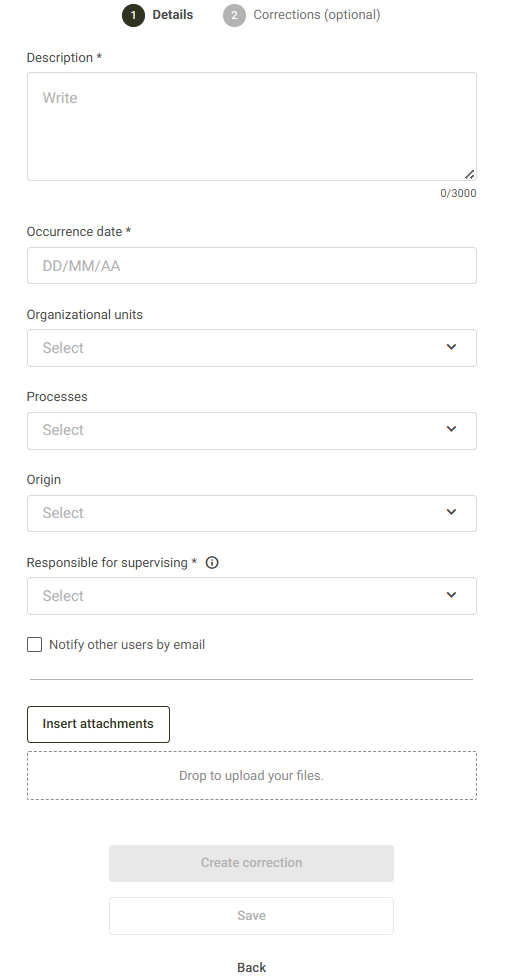
- Description: Clearly and objectively register what happened during the occurence, including details relevant to its recording and follow-up.
- Occurrence date: enter the date on which the occurrence took place. You can enter the current date or a past date. The system does not allow registering an occurrence with a future date.
- Organizational units: select the organizational unit to which the occurrence is related. If you need to create new ones, click here.
- Processes: select the process related to the occurrence. If you need to create new ones, click here.
- Origin : Select the source of the occurence. If you need to create new ones, click here.
- Responsible for supervision: select the user responsible for supervising the occurence and deciding whether to close it or open a non-conformity register.
- Notify other users by email: select this option if you want to notify other users about the occurrence register.
- Insert attachments: add files that may supplement or assist in identifying and monitoring the occurrence.
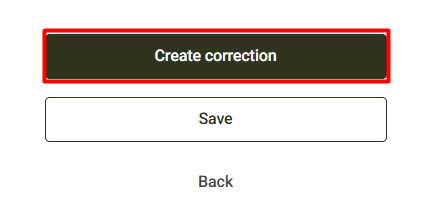
3. After filling in all the required fields, the Create immediate actions and Save buttons will be available .
Create immediate actions
1. If it is necessary to register immediate actions during the occurrence register, click the Create corretion button.
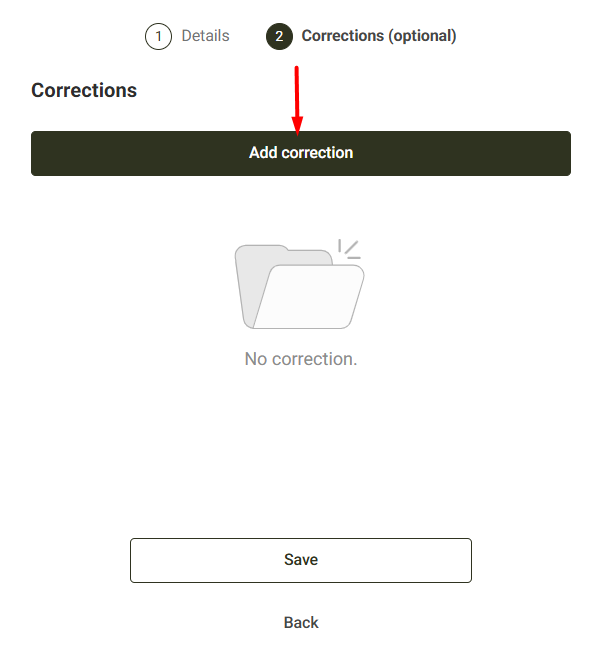
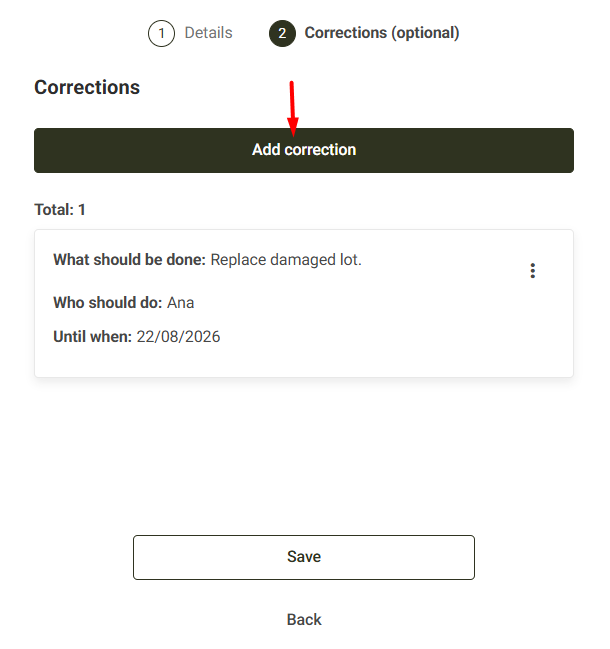
2. On the screen that appears, click the Add correction button and fill in the required fields.
3. After completing the form, click the Save button.
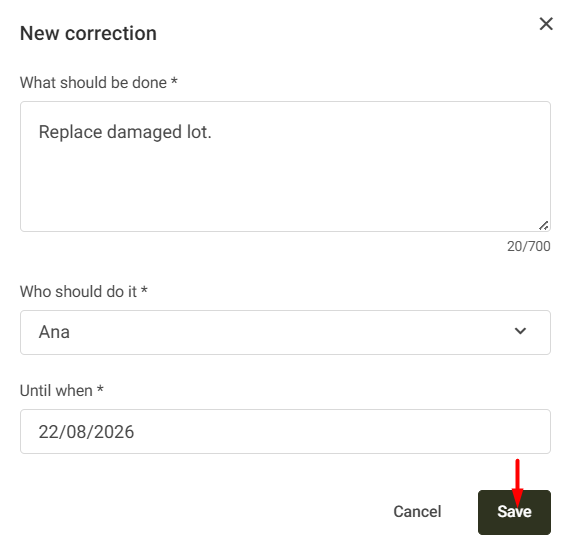
It is possible to register more than one immediate action. After completing the registration of the first action, click on Add correction to register the others. When finished, click on Save.
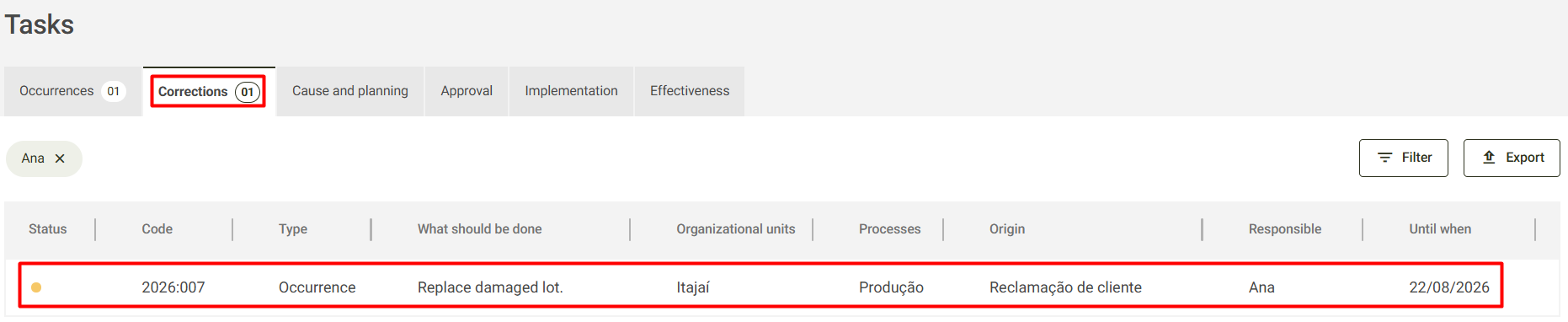
After registering the immediate action, a task will be generated for the user selected in the Who should do it field. For more details, click here.
Recording the occurence without taking immediate action.
If it is not necessary to register immediate actions, click the Save button. The system will display a message confirming the successful registration of the occurrence.

After registration, a task will be generated for the user selected in the Responsible for supervising field.
If no immediate action has been registered, the pending item will be displayed as follows:
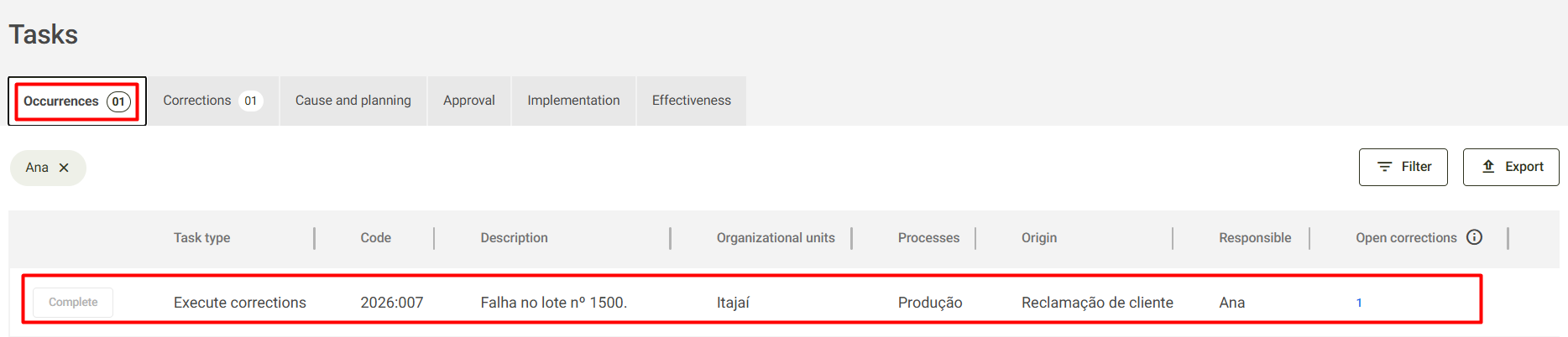
In this task, the person in charge can close the occurrence; to learn more, click here.