
Objective
The Document Management module allows documents to be inactivated so they are no longer used due to discontinuation.
Prerequisites
- If your user is not responsible for elaborating the document, you may request the document inactivation from the person responsible for drafting it. For more details, click here.
- If your user is responsible for elaborating the document, follow the steps below to inactivate a document.
Step-by-step
- Access the Search tab, locate and select the document you want to inactivate. You may use the filters to refine your search. To better understand how to consult a document, click here.
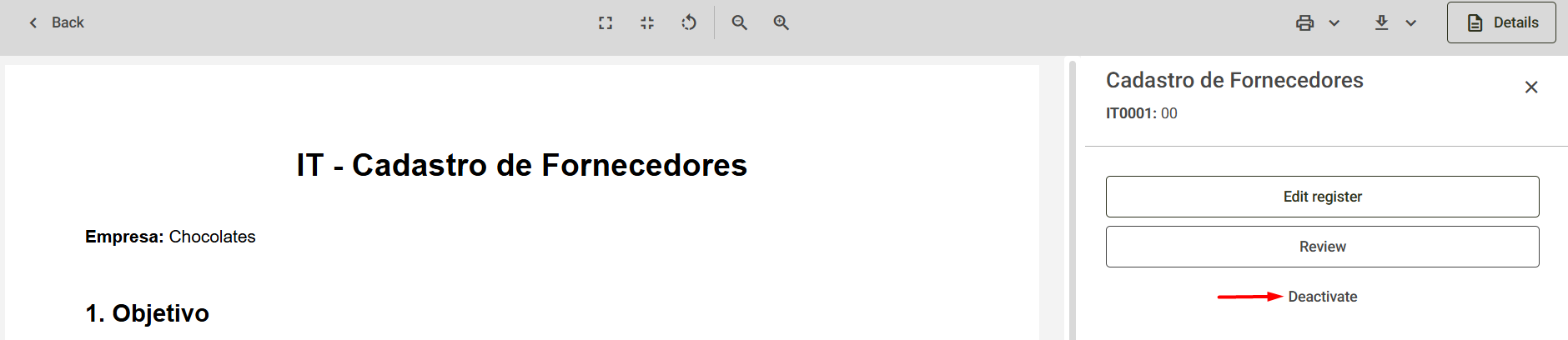
- When clicking on the selected document, its view will be opened and, on the right side, the details panel will be displayed. To learn more about this screen, click here.
- Then, select the Deactivate option displayed on the screen.
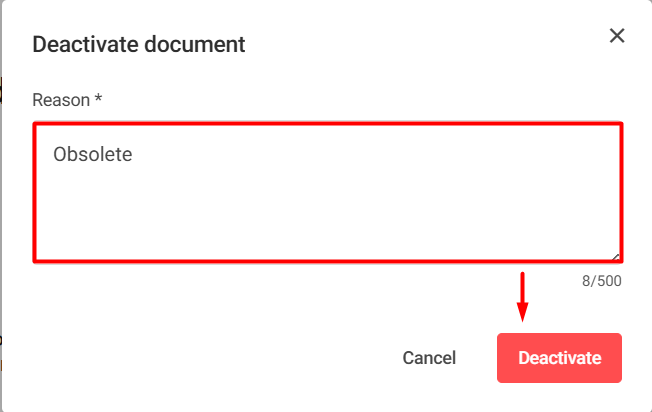
- The system will request that you enter the Reason for the inactivation. After entering it, click Deactivate.
- Next, the document will be inactivated, and the system will display the message: Document deactivated.
