Objective
Once the action plan is planned in Planning stage, those involved in implementing the action plan will be notified via email to start developing the actions, that is, after we really understand what happened, it is time to take the necessary measures to remedy it. To do this, it is necessary for the person responsible for implementation to monitor the stage.
INDEX
Prerequisites
- Own an implementation task for your user.
Step-by-step
- Click Tasks:

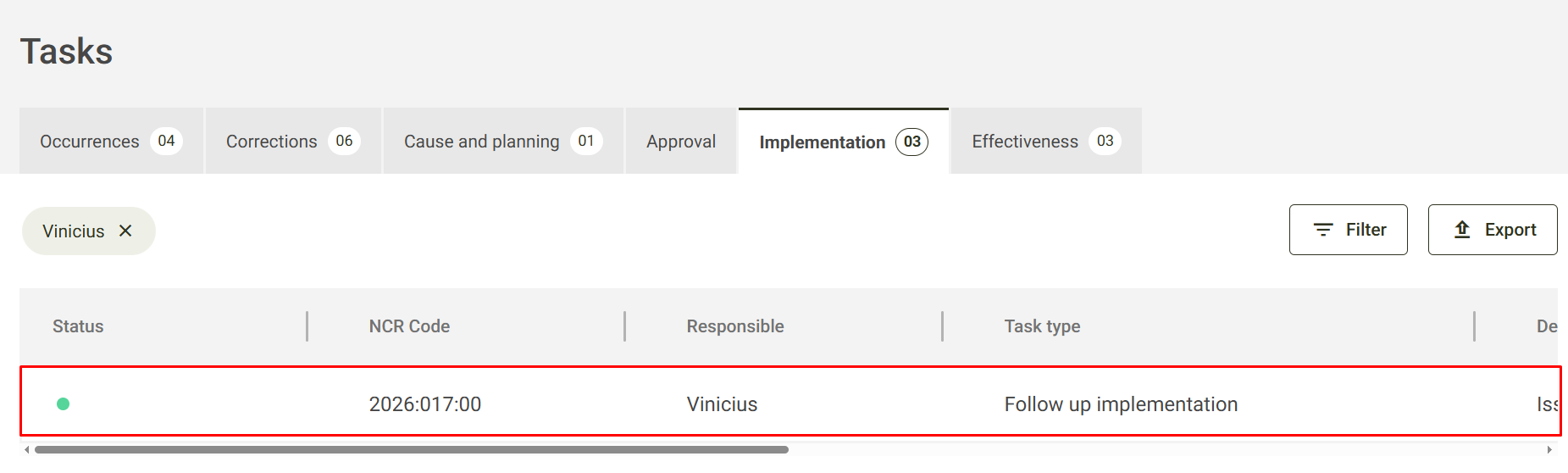
- Click on the tab Implementation:

Follow up implementation
- When accessing this tab, you can identify the task: Follow up implementation. Click on the task to run it:
- In this task, it is possible to follow the plan, viewing all the actions registered in it, it is also possible to access the actions and even fill in the action information. To do this, click on the action you want to check/perform:
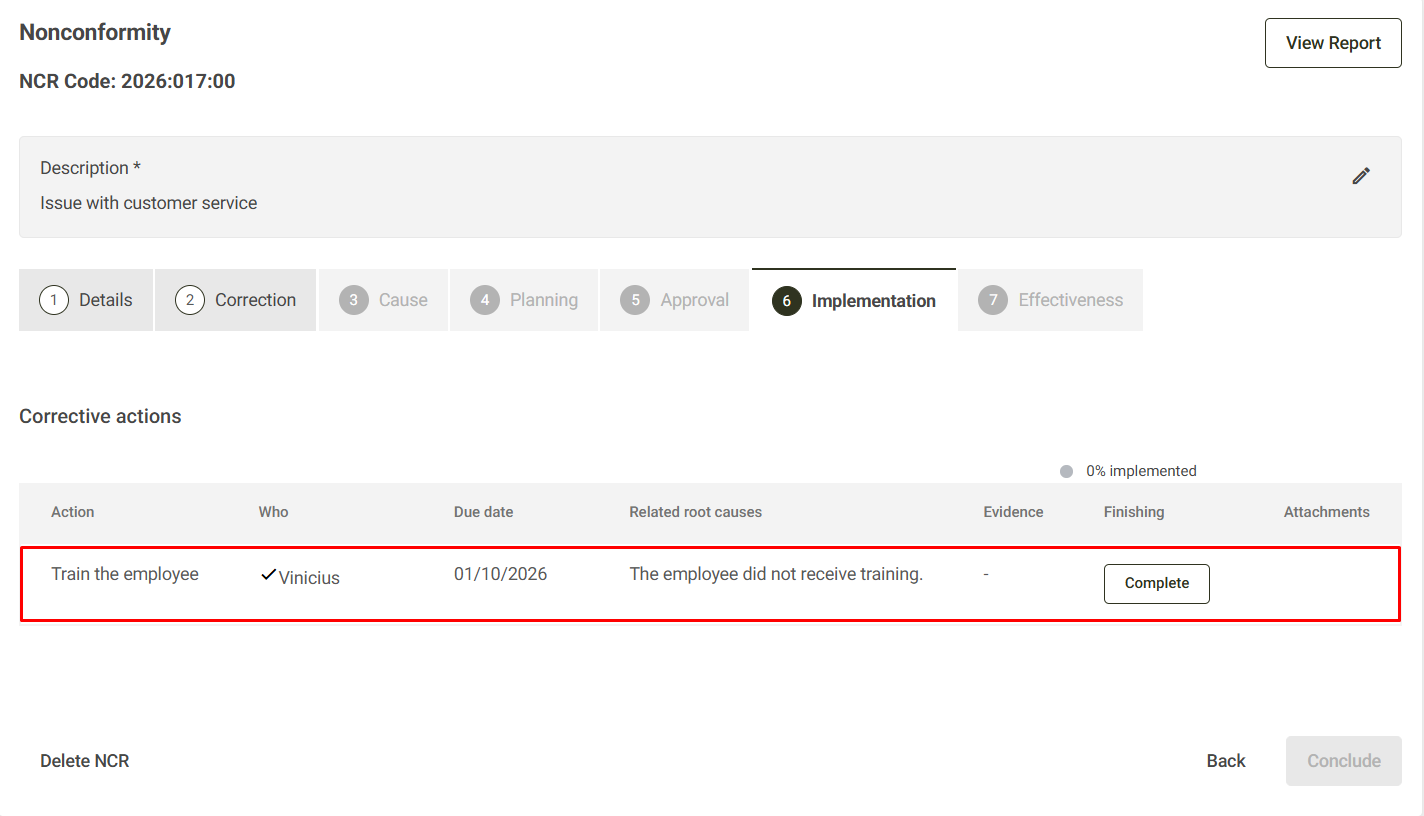
When you click on the action, this screen will open: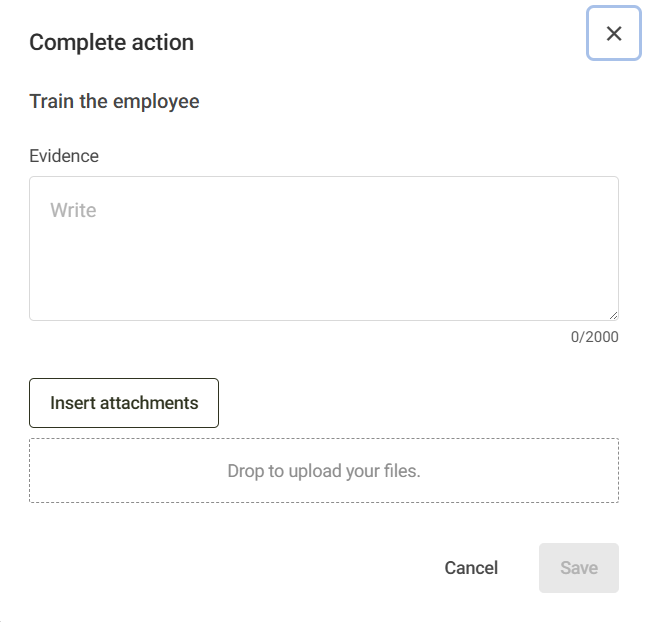
In this way, making it possible to execute and complete an action that was under the responsibility of another user.
Implement actions
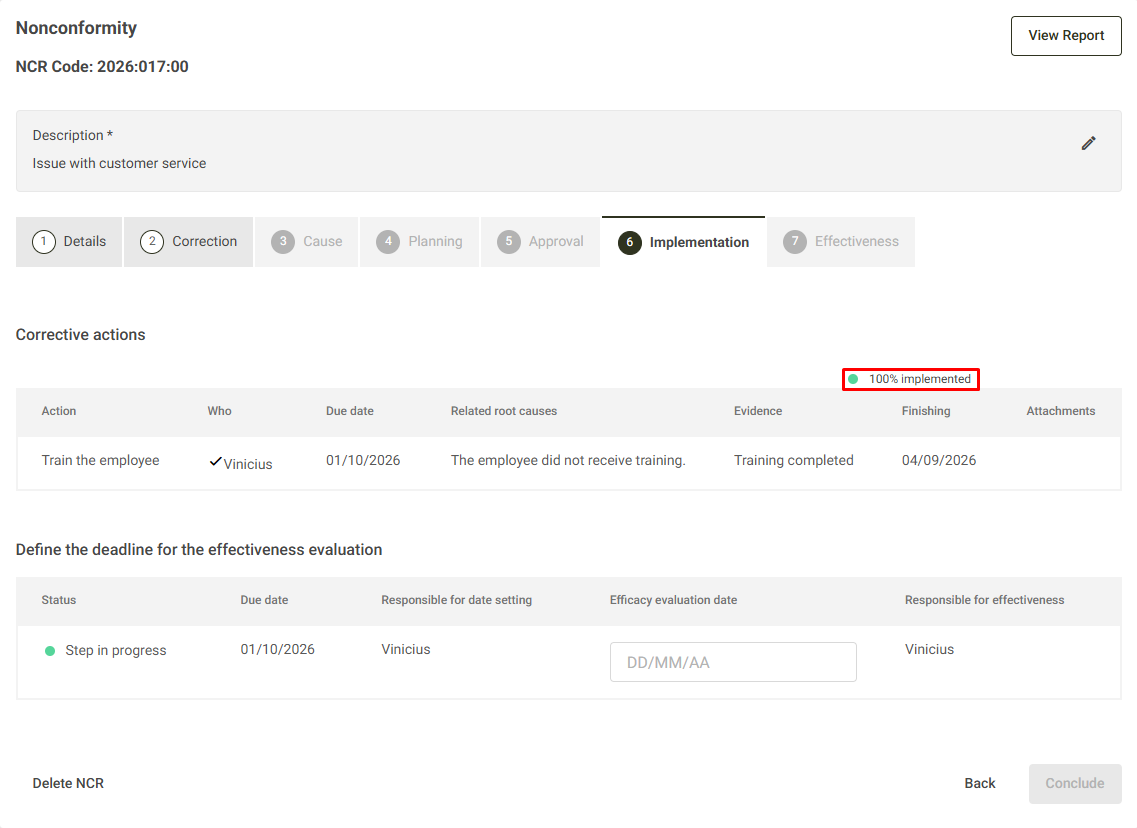
- To move forward with implementation, all plan actions must be completed. When all are completed, the system will display that the plan is 100% implemented:
To learn more about implementing actions, Click here.
Define the deadline for the effectiveness evaluation
- As soon as all plan actions are completed, a new section will appear in the implementation monitoring task, which is the Define the deadline for the effectiveness evaluation:
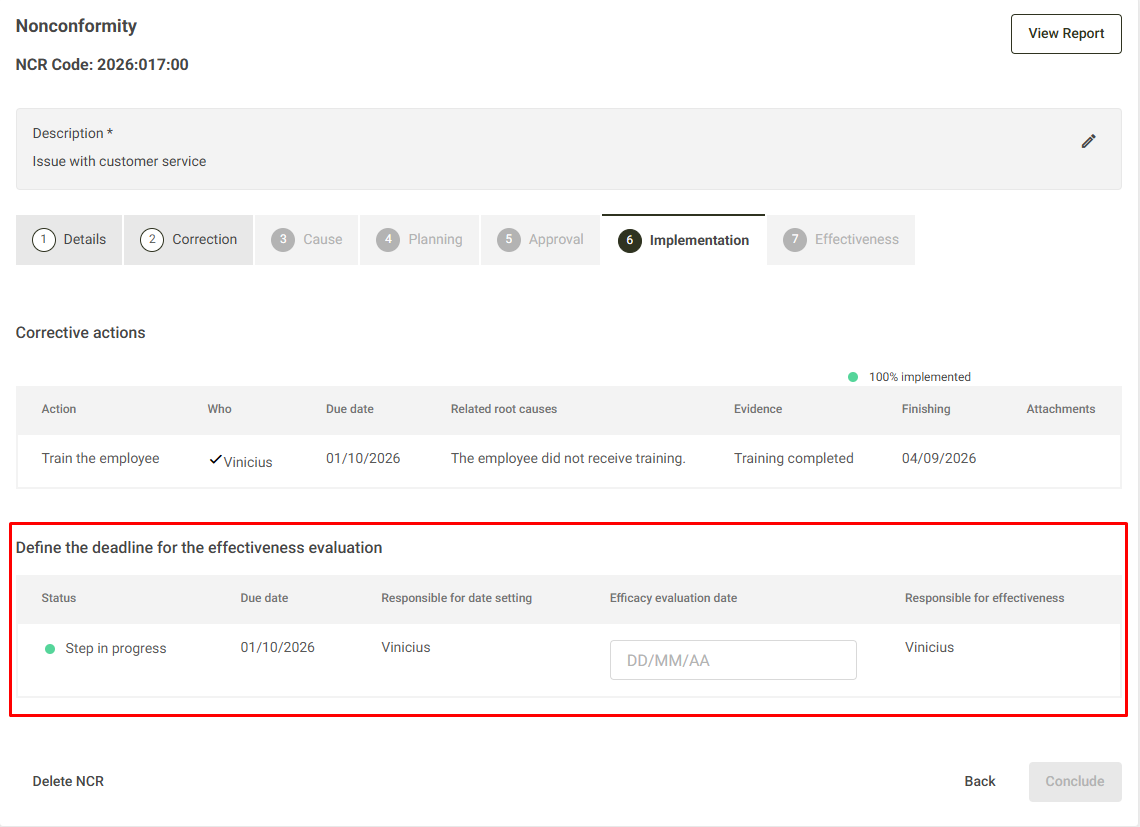
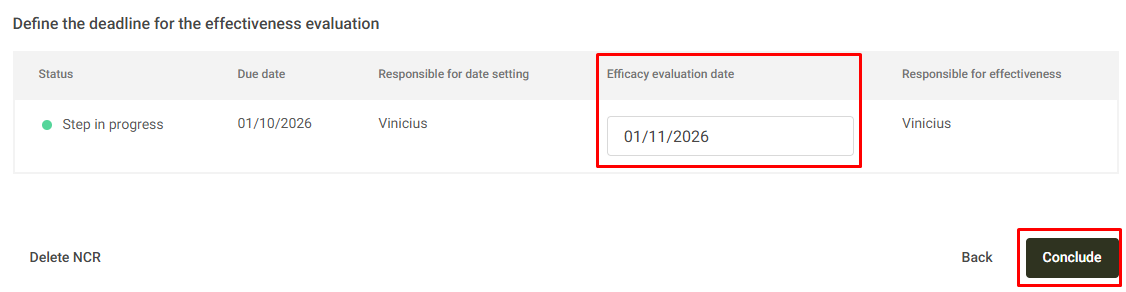
To continue and complete this stage, it will be necessary to inform the date on which the effectiveness evaluation in the field will take place. Efficacy evaluation date, and then click Conclude:
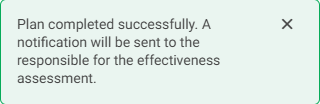
When you do this, the system will display this message, indicating that the step has been completed, and has now moved on to the last step, the Effectiveness.
Additional information
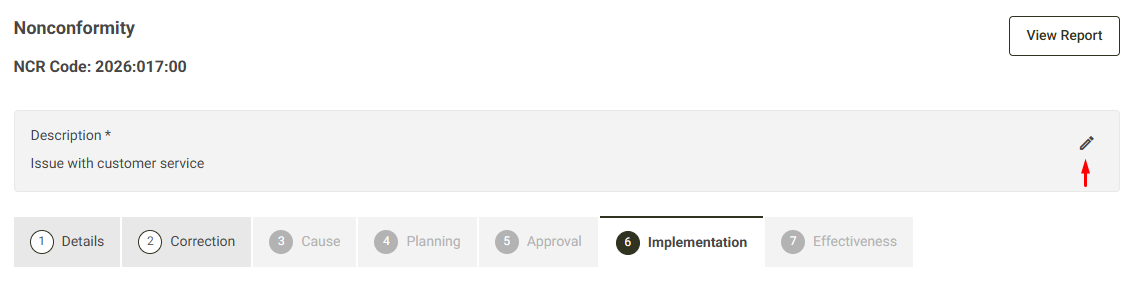
On the implementation monitoring screen, it is possible to view the non-conformity report, using the View report button, located in the upper right corner of the screen:
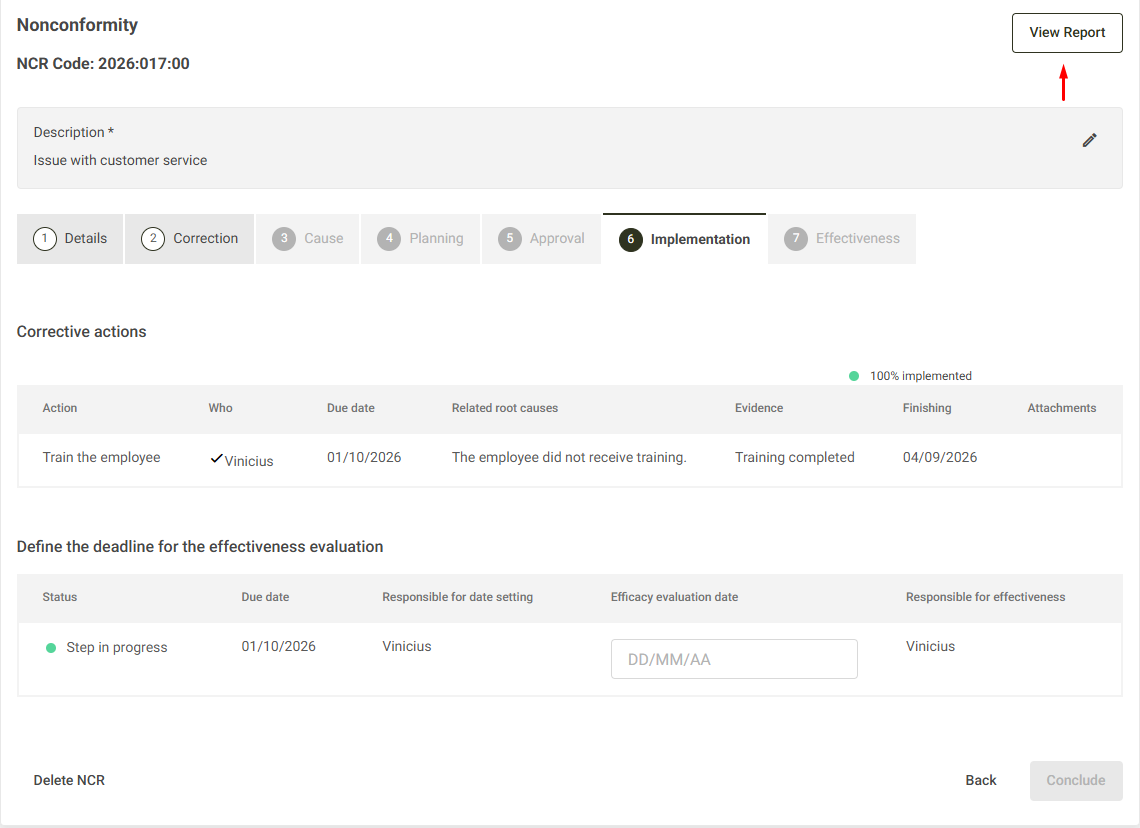
When you click on the button, you will be redirected to the query for the non-conformity in question.
If the user has permission Edit open NCR in your permission group, the system will allow you to change the title of the Non-Conformity through the monitoring screen, using the icon