
Objective
The system allows you to export the master document list to an Excel file, so you can view all the documents in that file and perform the necessary controls.
Prerequisites
- To view documents, the "Search documents" permission must be enabled in the user's permissions group, For more information on configuring permissions, click here.

Step by step
- On the home screen, locate the "Search" tab in the menu and access the master list of documents. To better understand how to query a document, click here.
- On the Search screen , locate the icon
 in the upper right corner of the screen and click on it.
 - The system will present two options, including the Columns option , where you can define which columns will be needed in the master list and which you want to export.
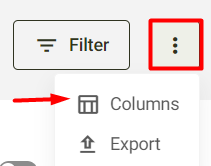
- On the Columns screen , select the desired information and then click Save to save the changes:
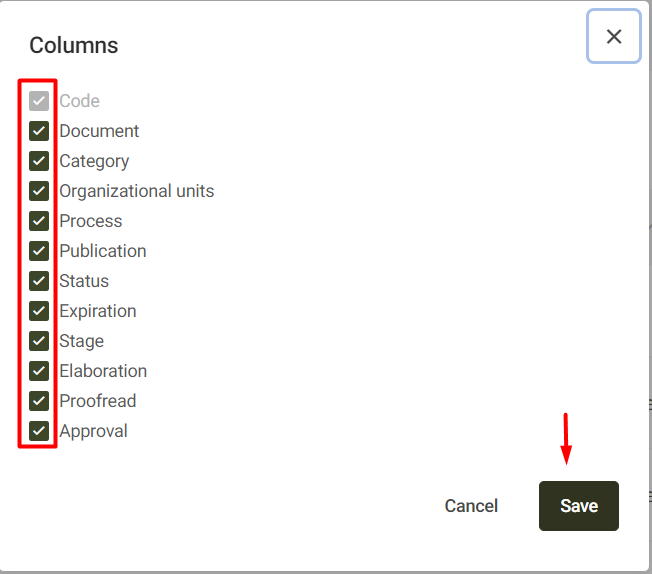
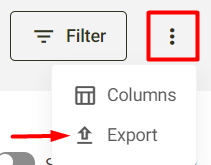
- After saving, click the icon again
 and select the Export option to download the master list with the defined columns.
When exporting, the system will download the Excel file, which you can open in your browser, locate in your computer's Downloads folder, or in the folder you specified for saving it.
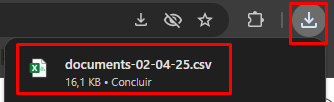
In the Excel file, you can filter and manipulate the data as desired:
