
Objective
If you have documents that require control and need to be printed, the Document Management module allows you to print controlled copies. To do this, follow the steps below:
Prerequisites
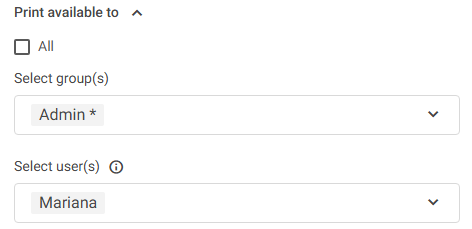
- Have printing permission for the document you want to print
Step-by-step
To print a controlled copy, follow the steps below:
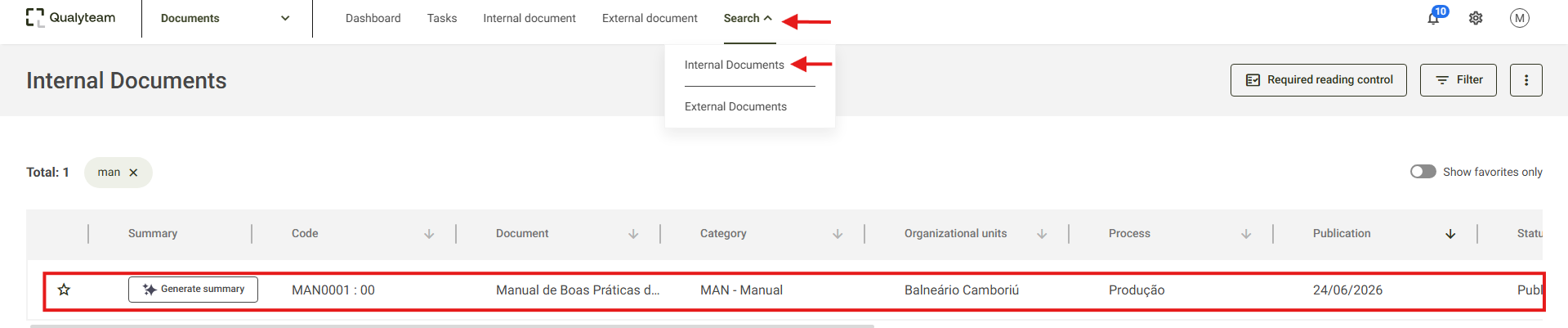
- Access the Search tab, click on Internal documents, locate and select the document you want to print:
- Upon opening the desired document, click the print icon
 in the upper right corner and select the Controlled copy option:
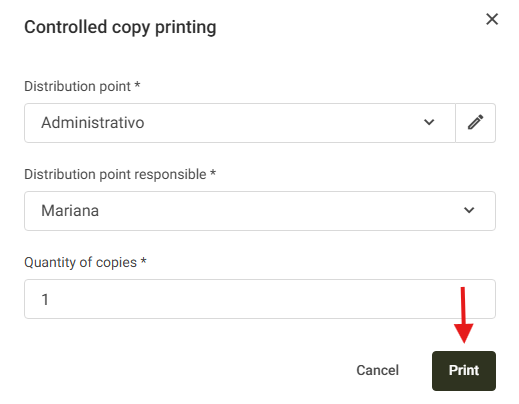
- On the controlled copy printing screen, fill in the control information: Distribution location, Location responsible and Number of copies, and then click the Print button to print the document:
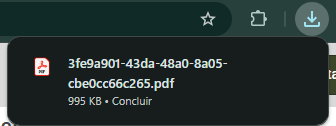
- Upon printing the copy, the file will be downloaded as a PDF. It is possible to open it from the browser bar or in the Downloads folder of your computer.
- On the side of the file, the system will identify that it is a controlled copy and show some information about the copy, according to the example:

- After opening the file, simply print it on the printer installed on your computer.
Additional information
If your user role allows the deletion of a controlled copy, simply search for the desired document and, in its information, locate the "Distributed copies" field. Upon accessing it, you will find the controlled copy deletion icon . To learn more, click here.