Objective
The Documents module allows you to request the inactivation of a document so that it is no longer used due to its discontinuation.
Prerequisites
- Do not be the person responsible for drafting the document.
- If your user is responsible for drafting it, inactivation can be performed without submitting a request. To do this, follow the steps in this article.
Step-by-step
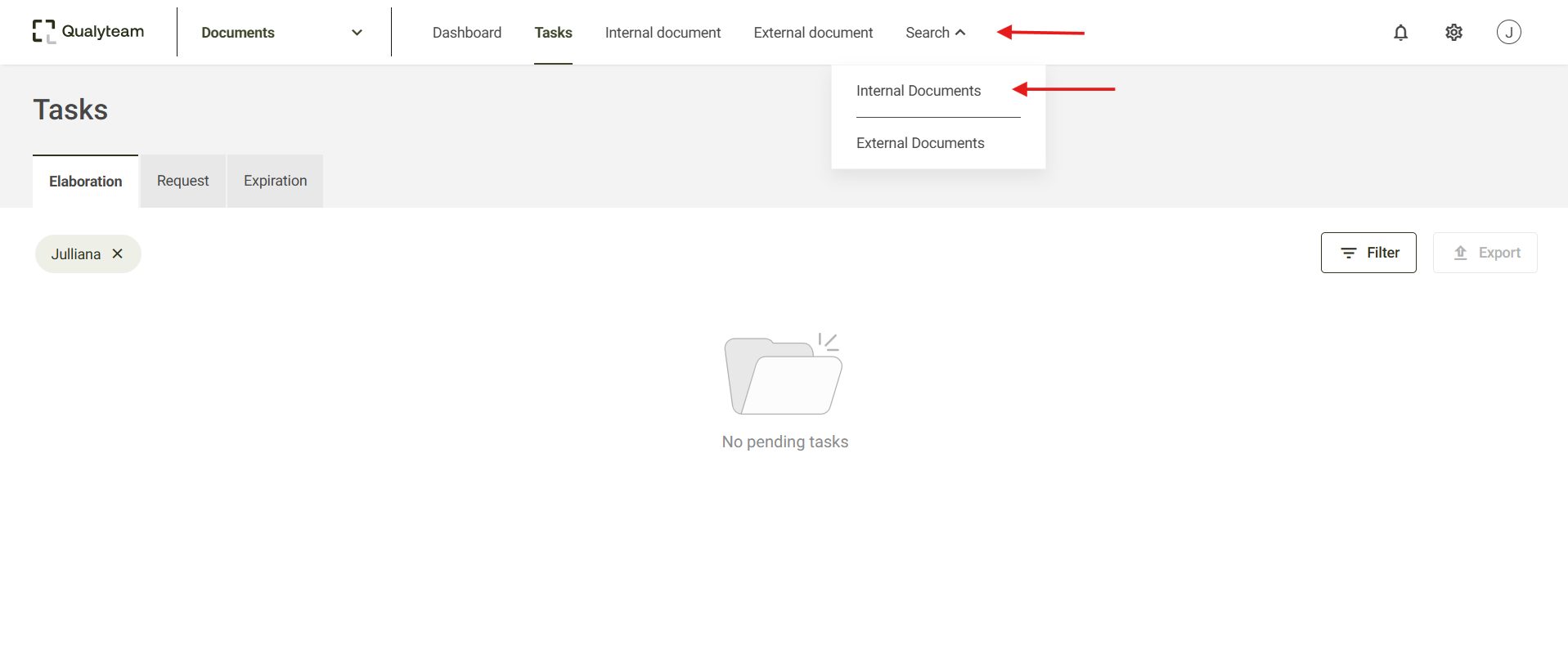
- Access the Search tab and click Internal Documents, then locate and select the document you want to inactivate. You can use filters to refine your search. For more details, click here.
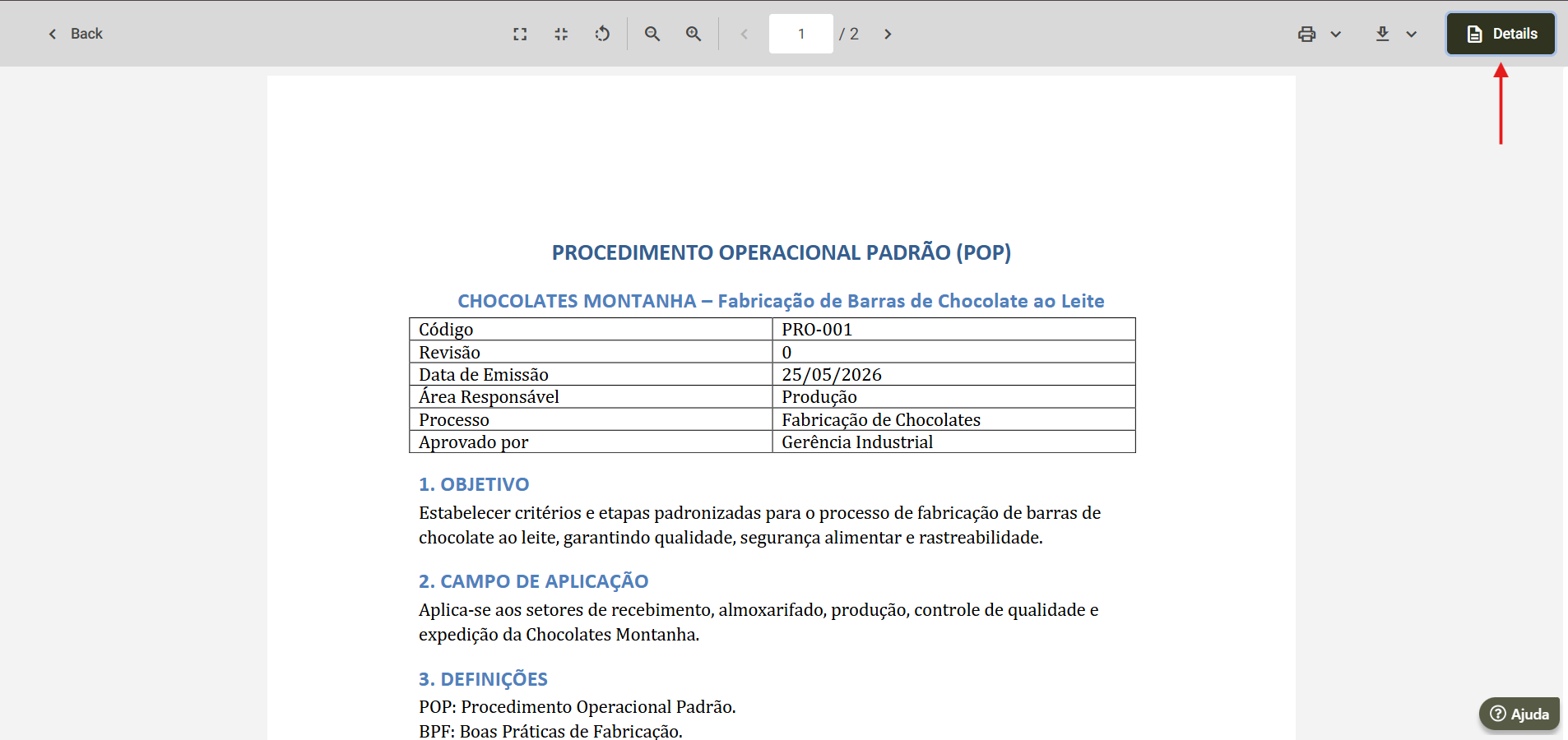
- Next, the screen displaying the document will open. Click Details to expand the specific information for the document. For more details on this option, click here.
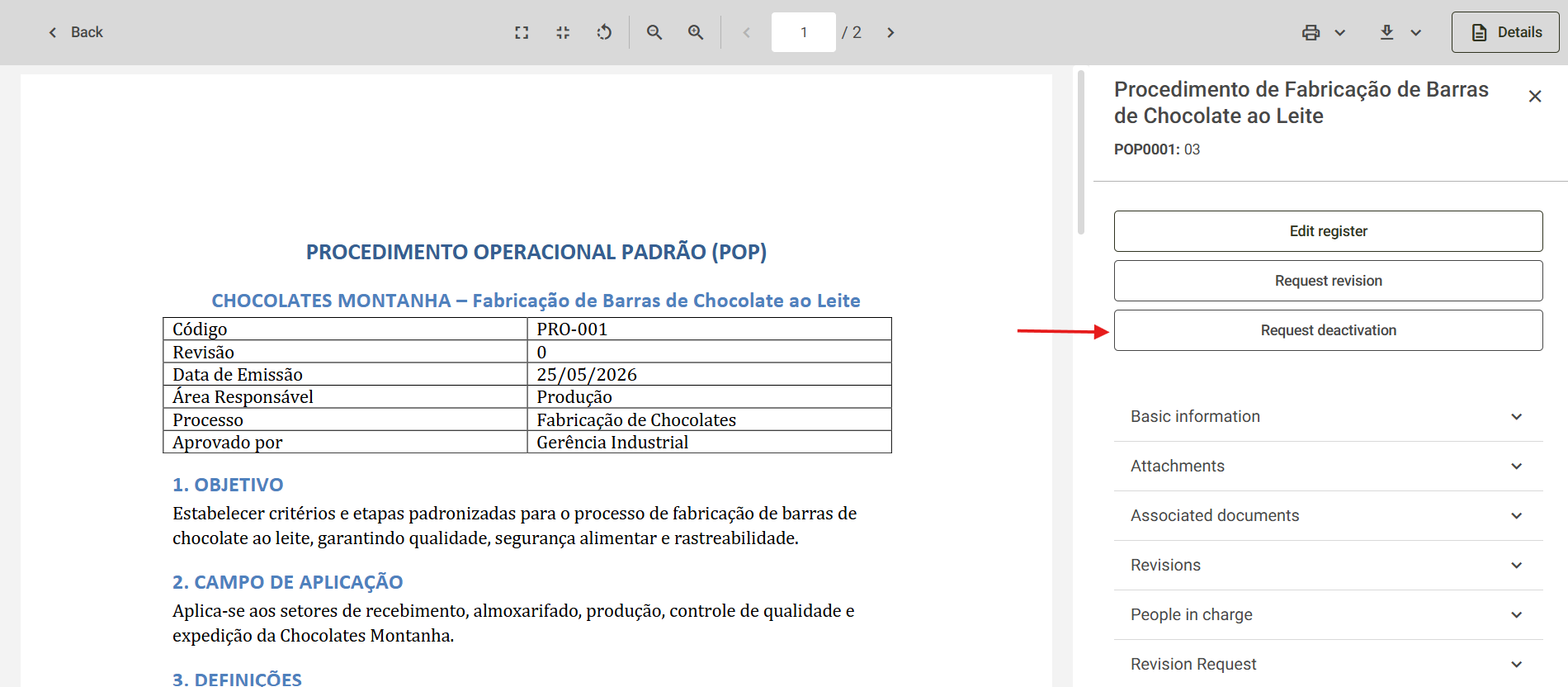
- If your user is not responsible for drafting the document, the option Request deactivation will appear. Click it to proceed with the inactivation.
- Then enter the justification for inactivating the document in the Reason field and click Save.
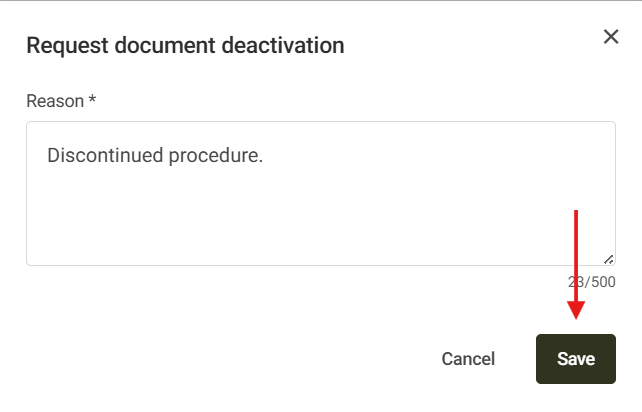
After that, the system will notify you that the document inactivation request has been sent to the user responsible for drafting it. This user will need to review your request and approve it for the document to be inactivated.
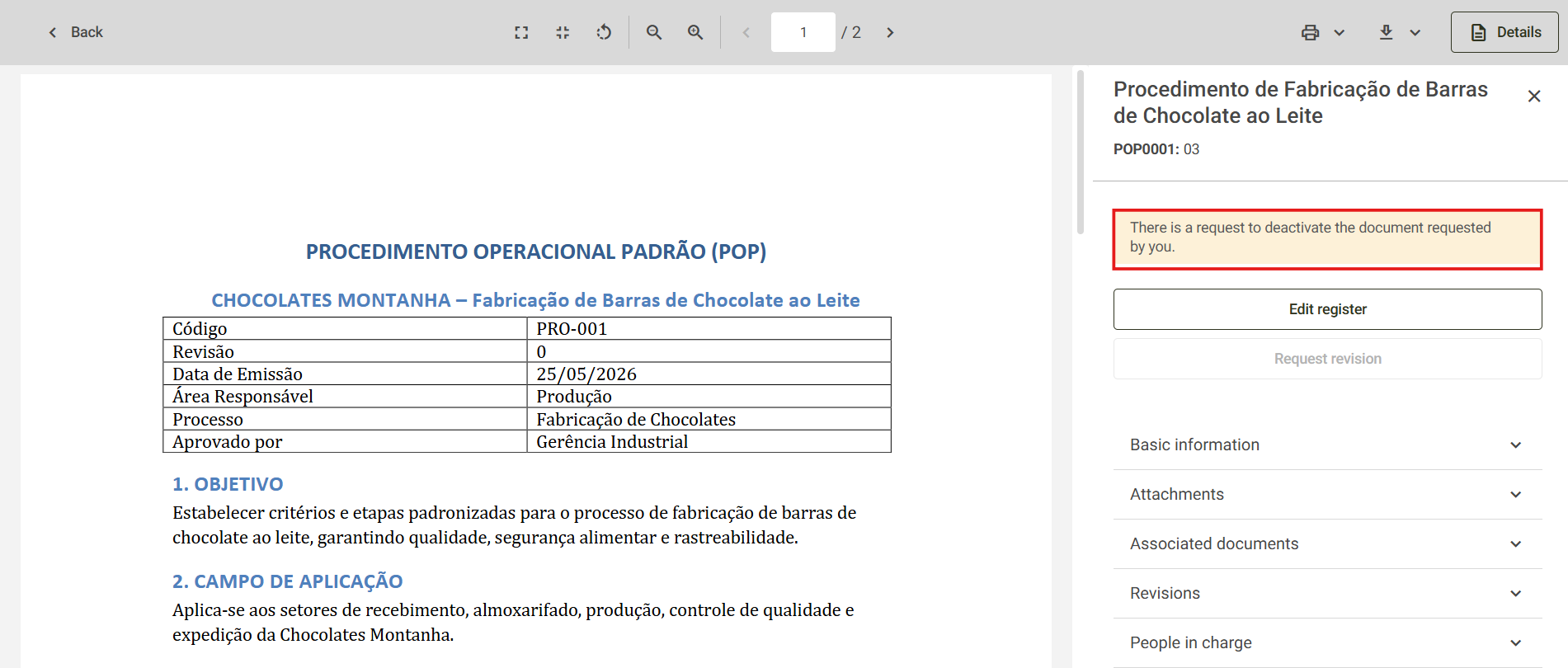
When accessing the document details screen, information will be displayed indicating that its inactivation has been requested.