
Objective
This article will show you how to view the details of a published document, allowing you to see information such as who is responsible for the review workflow, review history, views, attachments, associated documents, controlled copies, and other available information.
Index
Prerequisites
- To have permission to Search documentos.

- Have permission to view the desired document.
Step by step
1. Access the menu Search -> Internal Documents. Locate the document using the search or available filters. To learn more about the query filters, click here. Click on the desired document.

2. On the preview screen, click the Details button.

Document details panel
When you open the panel, you will be able to view the following information.
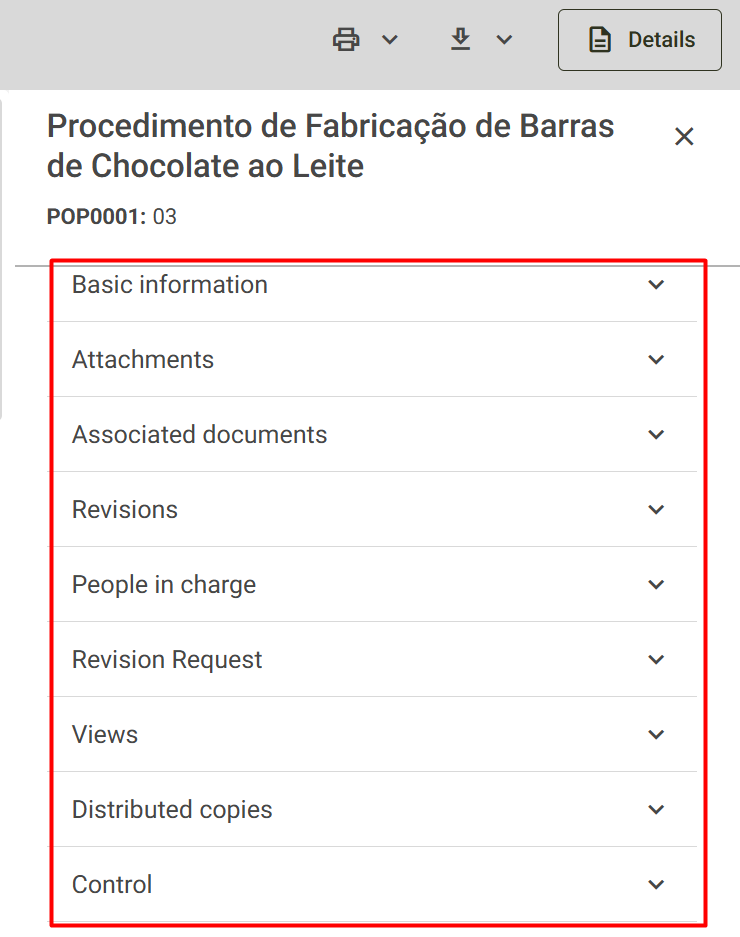
- Basic Information: Displays all the information registered in the document, such as process, organizational units, and category.
- Attachments: Displays the attachments added during the document creation process. If the user has the "Edit published file" permission , it will also be possible to add, replace, or remove attachments.
- Associated documents: Displays documents related to the current document, if any associations are registered.
- Revisions: Displays the document's revision history, containing information such as: Revision number ; Publication date; User responsible for requesting the revision. ( Expanding a revision also allows you to see the reason for the revision.)
- People in charge: Displays the individuals responsible for each step in the review workflow, as well as the completion date for each step.
- Revision Request: Revision request history, if any.
- Views: Shows the users who have read the document and the date they viewed it.
- Distributed Copies: If there are distributed controlled copies, their details will be displayed. If the user has the Delete Distributed Controlled Copy permission , the trash can icon will also be displayed to delete the print history. To learn more about permissions, click here.
- Control: Displays the Documented Information Control information defined in the document category. To learn more, click here.
Available actions
In the details panel, the following may be available (depending on permissions):
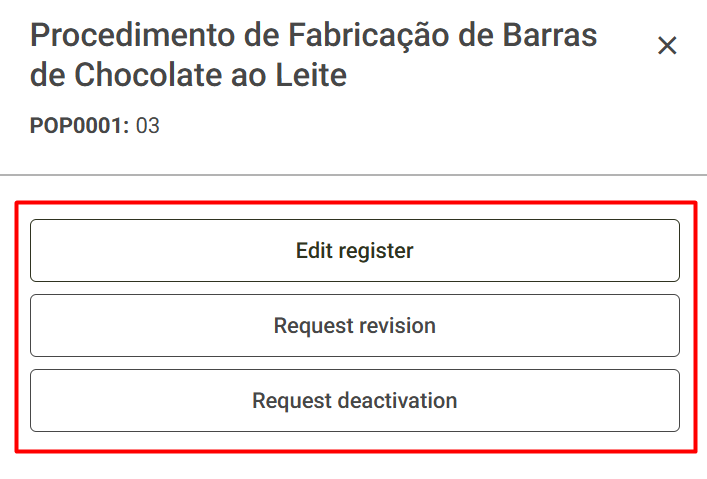
- Edit register: Allows you to edit the document's registration information. To learn more, click here .
- Request Revision: Allows you to request a review of the document. To learn more, click here.
- Request deactivate: Allows you to request the deactivation of the document. To learn more, click here.
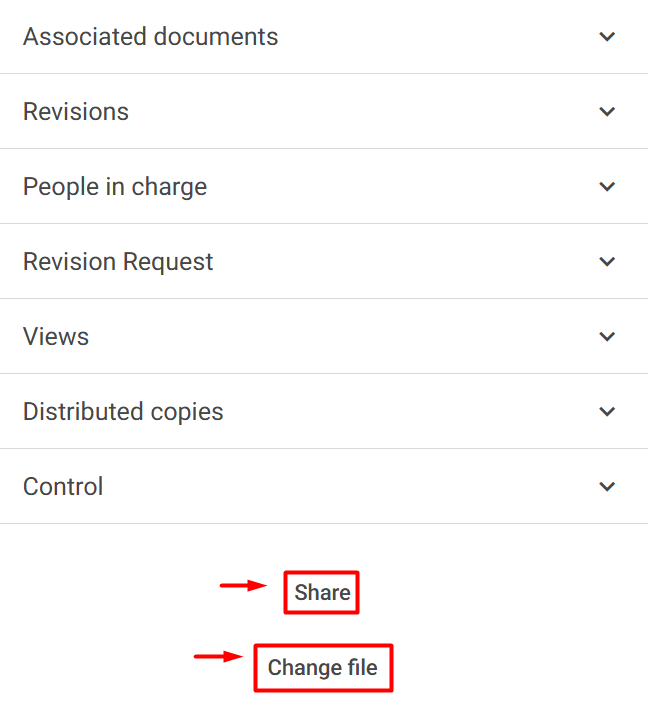
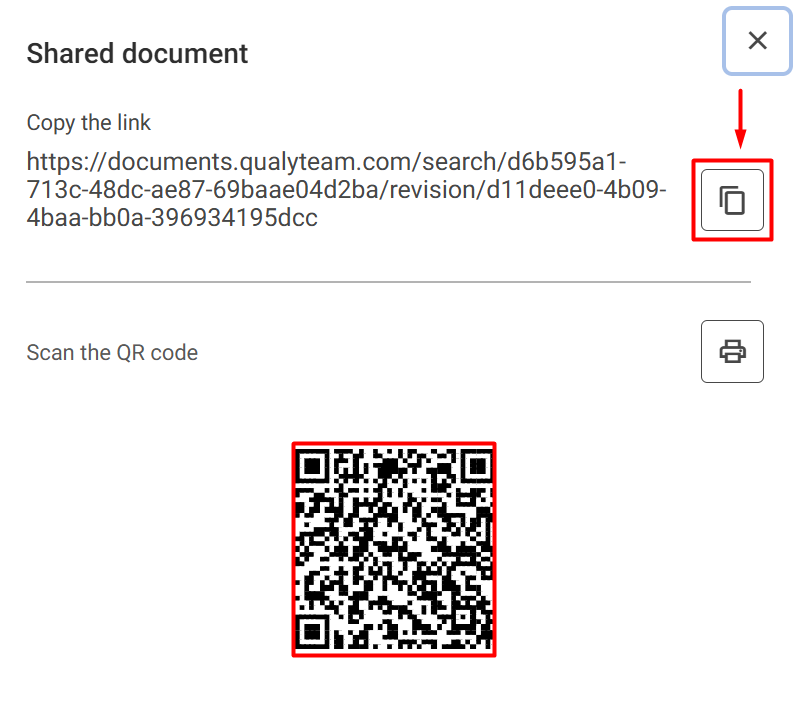
- Share: Allows you to copy the document link to share with other company employees or view the QR code for access via mobile devices.
- Change file: Users with the Edit published file permission will be able to modify or delete the published file; for more details click here.
To close the details panel, click the X icon in the upper right corner, or to return to the query screen, click the Back button in the upper left corner of the screen.

Additional Information
- The options displayed may vary depending on the user's permissions and responsibilities.
- Some sections only appear when there is registered information.
- The actions of editing, reviewing, and deactivating depend on the permissions enabled in the user group; to learn more, click here.