Objective
The system allows document categories to be edited, enabling their settings to be updated whenever necessary.
Prerequisites
- To edit a category, the Register Internal Document permission must be enabled in the user's permission group.

For more information about permission settings, click here.
Step-by-step
1. On the home screen, locate and click the Internal Document tab. Then, find the Category field and select the category you want to edit. After selecting the desired category, click the pencil  .
.
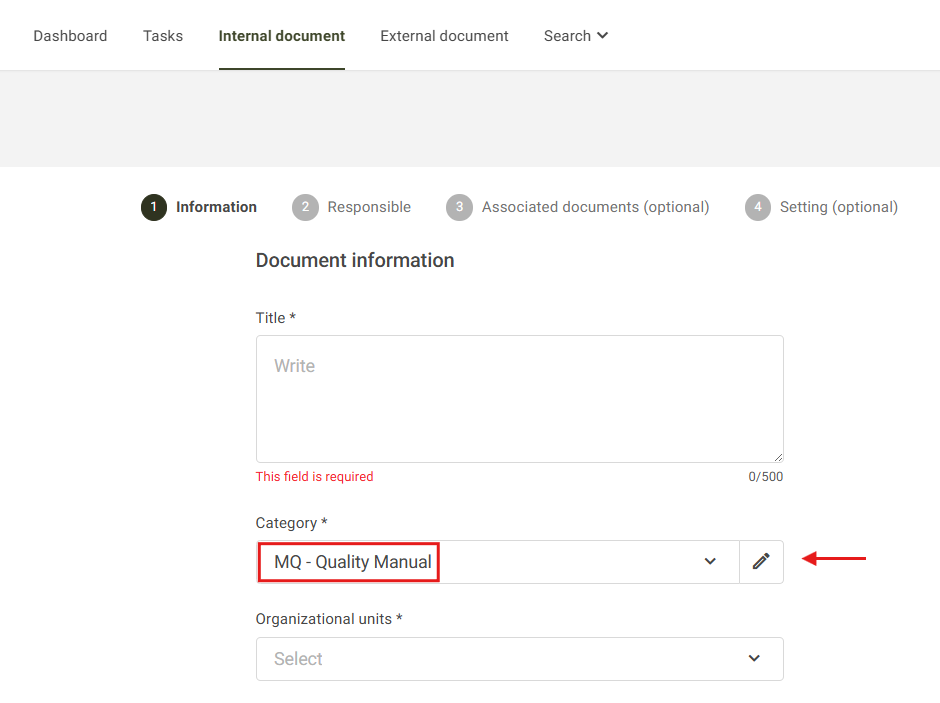
2. On the Edit Category screen, you can modify the Initials and Name fields, as well as remove or add document workflow stages (Proofread and Approval).
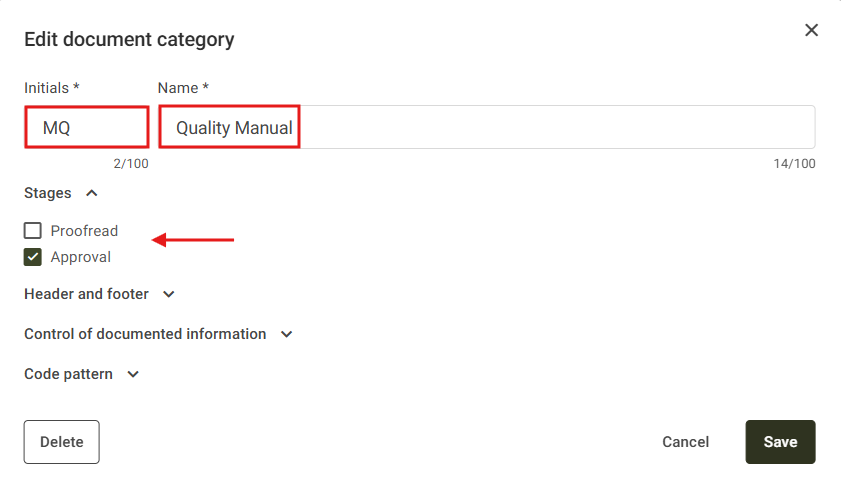
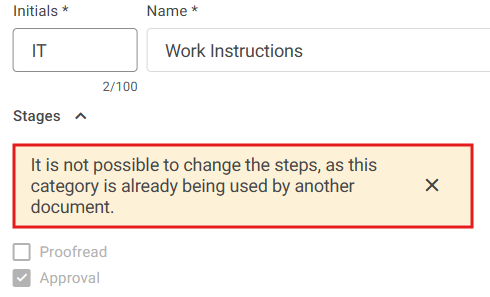
Note: If there are already documents registered under the category being edited, it will not be possible to add or remove workflow stages, as shown in the example below:
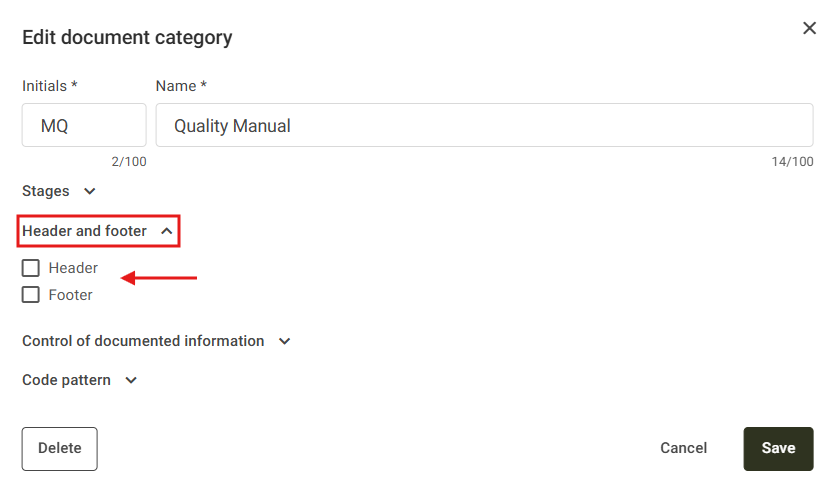
3. In the Header and Footer section, you can add or remove headers and footers from documents created in the system. For more details, click here.
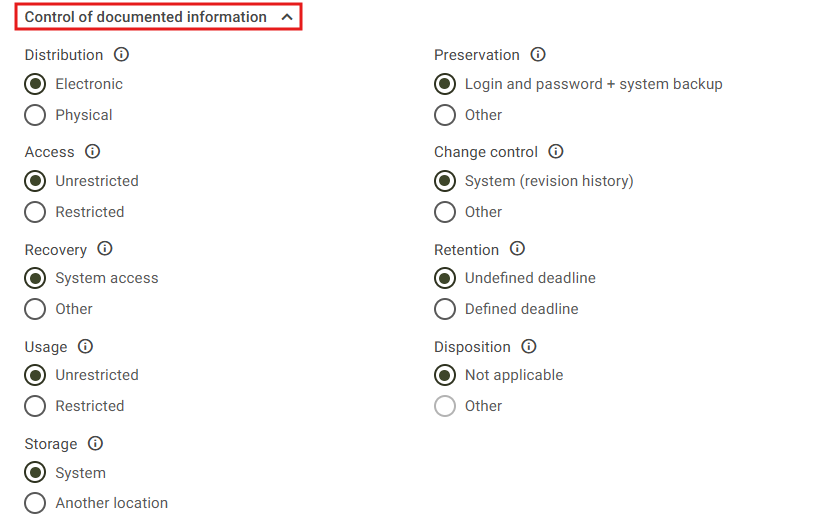
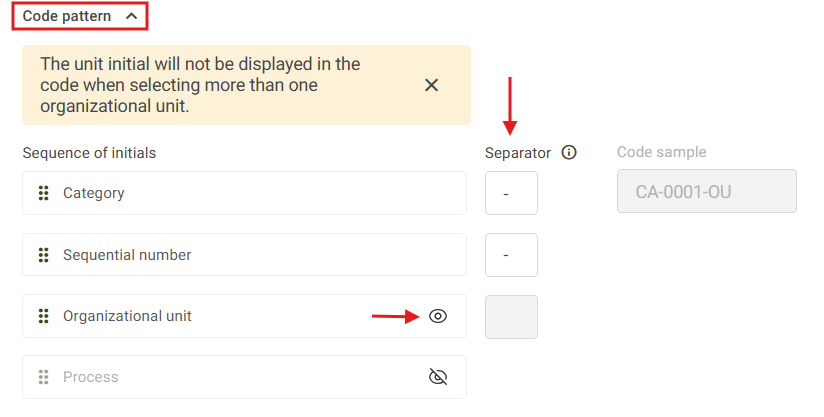
5. In the Code Pattern section, you can edit the sequence of abbreviations that make up the document code. The available options include:
- Category abbreviation
- Sequential number
- Organizational Unit abbreviation
- Process abbreviation
In the Separator field, you can define the character that will be displayed between the abbreviations.
Next to the Process and Organizational Unit fields, there is an option to show or hide the abbreviations, as these are optional pieces of information. For more details, click here.
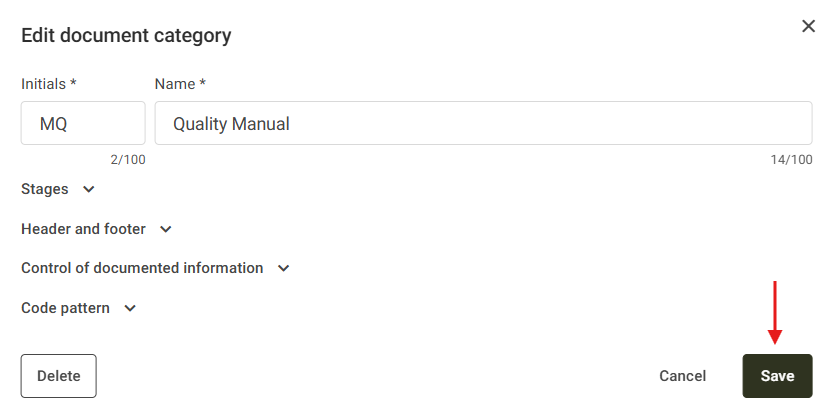
6. After making the necessary changes, click Save.