
Objective
To guide the user on how to close an occurrence and the options available for its completion.
Prerequisites
To be responsible for overseeing the occurrence or to have received the decision to close it.
Step-by-step
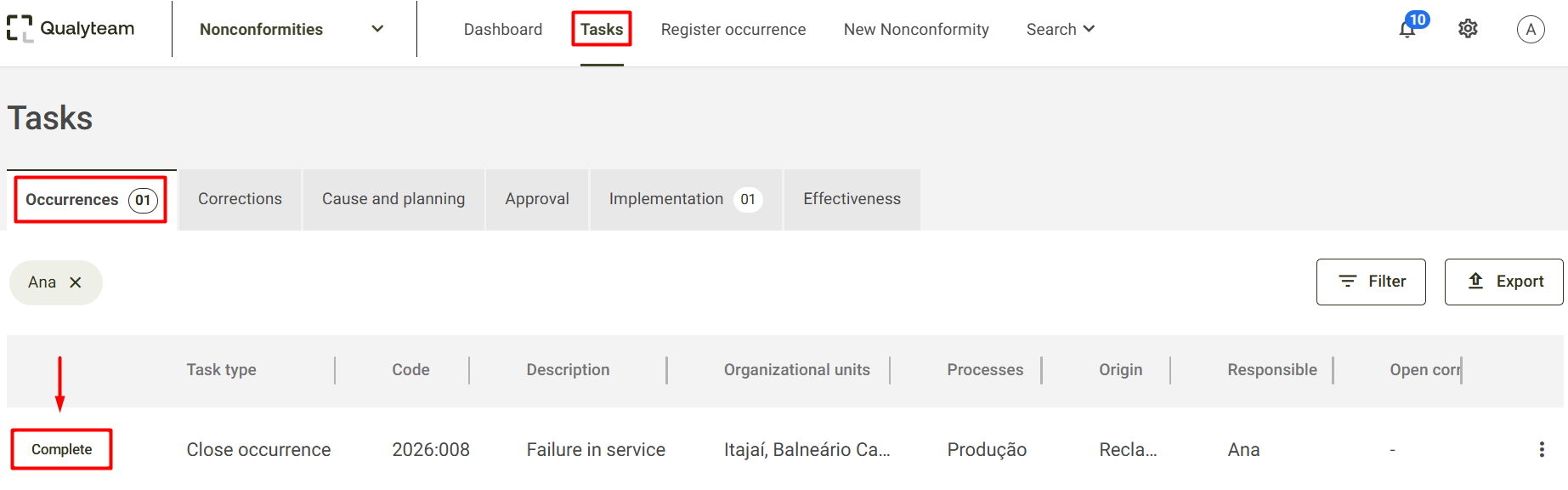
The user assigned in the Responsible for Supervising field during occurrence registration will receive a pending item on the Tasks screen, under the Occurrences tab.
Access the Occurrences tab on the tasks screen. Locate the occurrence you wish to close and click Complete .
The Close occurrence screen will be displayed , with the following options:
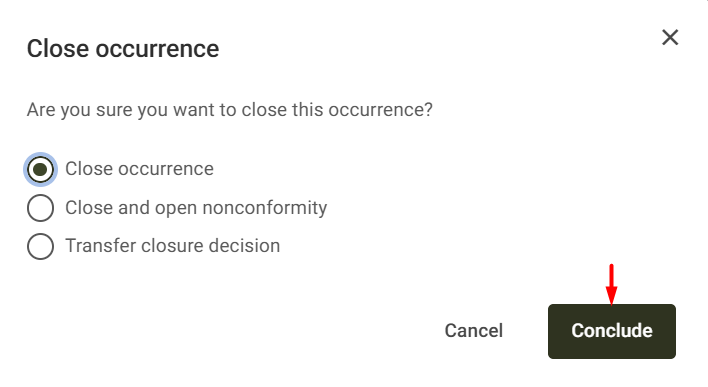
Close occurrence: closes the occurrence and keeps its record in the system.
Close and open a nonconformity: closes the occurrence and allows you to proceed with opening a nonconformity for handling. To learn more, click here .
Transfer closure decision: allows you to designate another person responsible for making the closure decision. When you select this option and save, the pending item will be displayed on the new responsible person's screen.
After selecting your desired option, click Conclude .
Additional information
On the tasks screen, at the end of the pending item's line, the ⋮ button allows access to other actions available for that item:
Add immediate actions: allows you to record actions to address the occurrence. To learn more, click here .
Edit occurrence: allows you to change the occurrence information. To learn more, click here .
More information: allows you to view more details about the occurrence report.
Delete: Allows you to delete the occurrence. To learn more, click here .
The Filter and Export options are also available , which help in locating and viewing pending items. To learn more about these features, click here .