
Objective
For cases where it is necessary to delete a specific controlled copy, the Document Management module allows this deletion to be performed.
Prerequisites
- To delete controlled copies, the Delete Distributed Controlled Copy permission must be enabled in the user's permission group, for more information about permission settings, click here.

Step-by-step
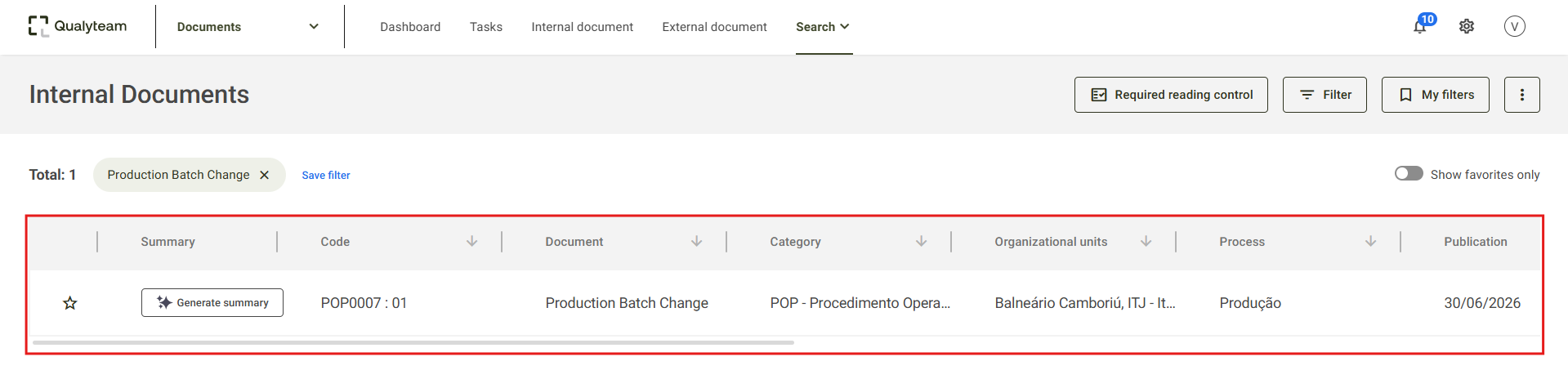
1. Go to Search > Internal Documents and search for the document whose controlled copy you want to delete. For more information about searching for documents, click here.

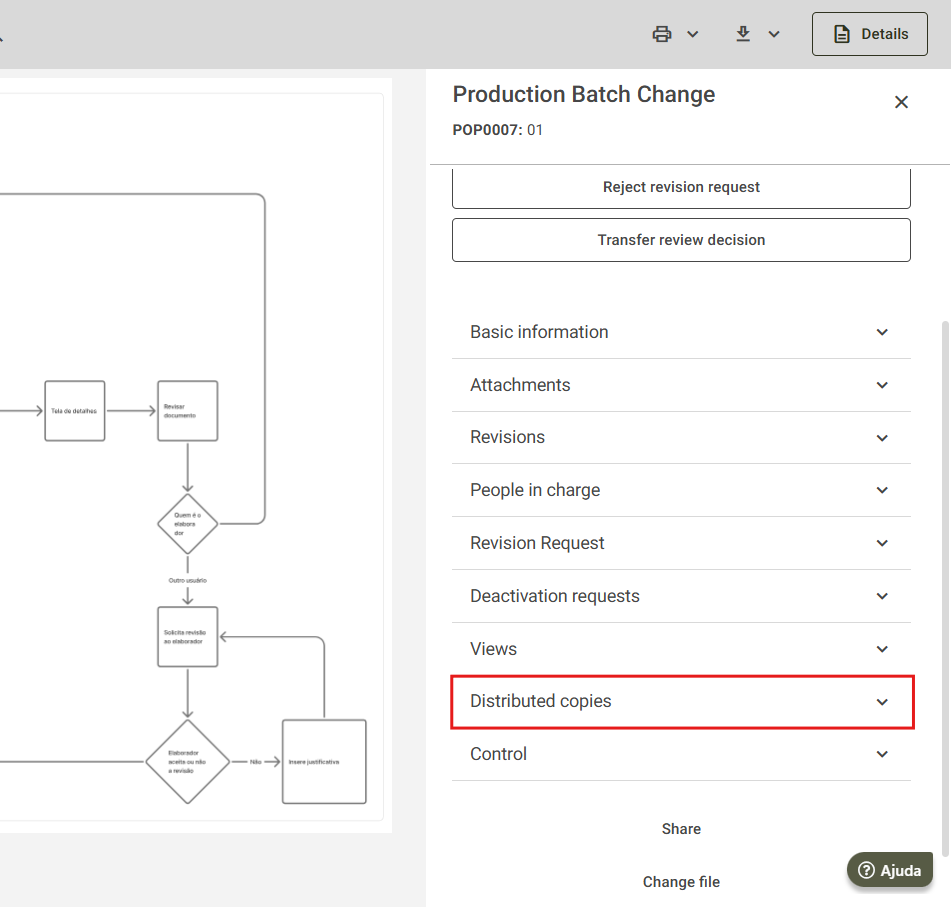
2. Click the desired document and, on the details screen, locate the Distributed Copies section. For more information about the details screen, click here.
3. In this section, check the last available column, where you will find the option to delete the controlled copy.
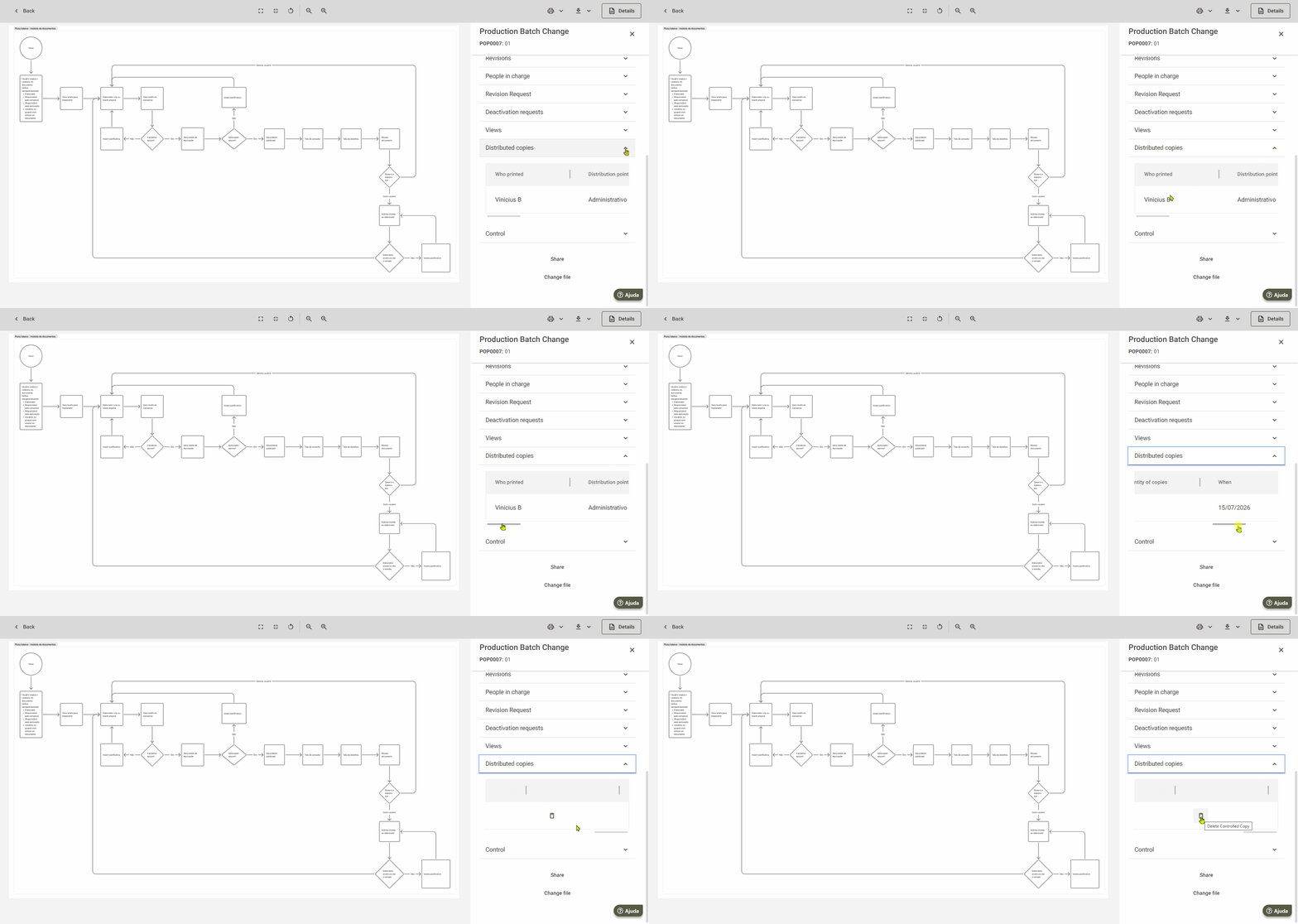
4. Click the trash icon to delete the controlled copy, then confirm the action.
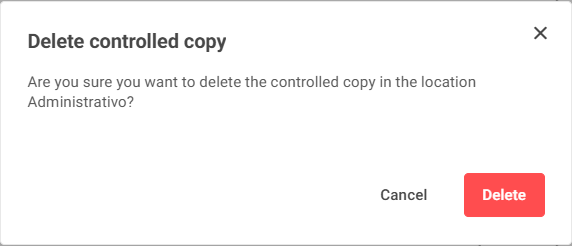
After confirmation, a success message will be displayed on the screen.

Additional information
If the "Distributed Copies" section is not available on the document's details tab, it indicates that there are no controlled copies associated with that document.