
Objective
Whenever necessary, the system allows document deletion, ensuring that discontinued or incorrectly registered records do not remain available for use. There are two ways to perform this action: through the search screen or through the edit screen.
ÍNDICE
Prerequisites
- To delete documents, the Delete documents permission must be enabled in the user’s permission group, for more information about permission configuration, click here.

Step-by-step
- Access the Search tab and select External documents. Use filters to refine your search if necessary. To better understand how to search for a document, click here.
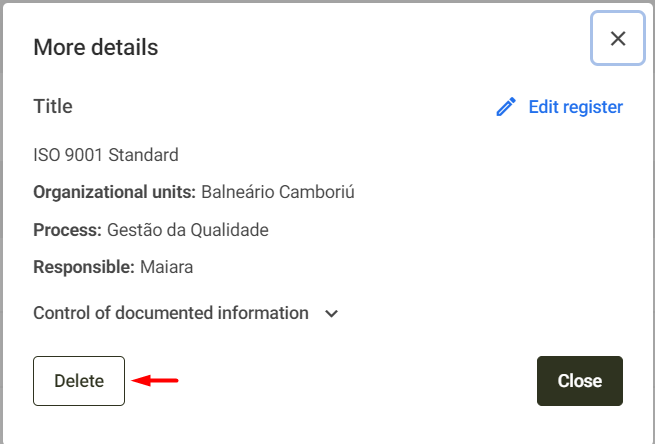
- Click on the selected document to open its details screen.
- On the screen displayed, click the Delete button located at the bottom of the page.
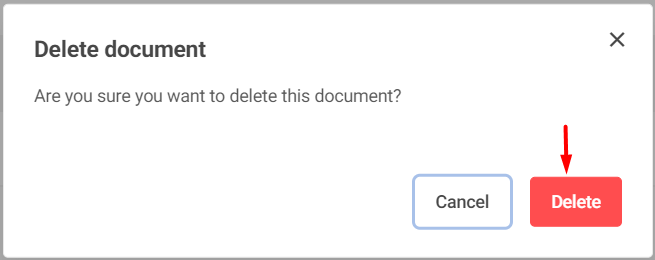
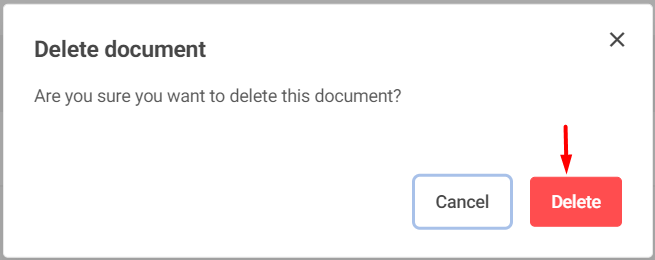
- Then, in the confirmation window, click Delete to confirm the action.
Done — the system will display the following message confirming the document deletion.

Edit Screen
- Access the Search menu and select External documents. Use filters to refine your search if necessary. To better understand how to search for a document, click here.
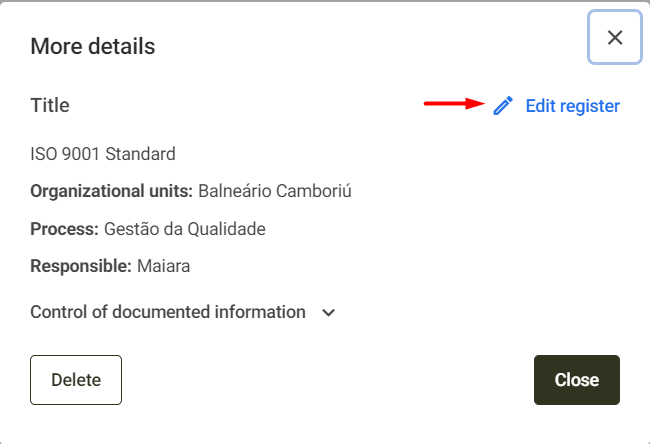
- Click on the selected document to open its details screen. On the right side, click the Edit register button.
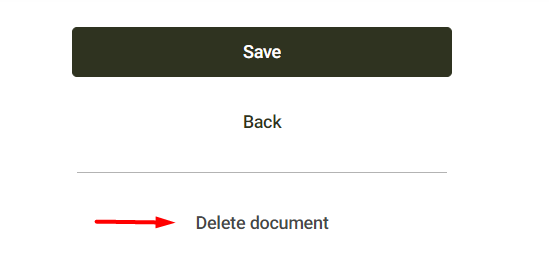
- On the screen displayed, click the Delete document button located at the bottom of the page.
- Em Then, in the confirmation window, click Delete to confirm the action.
Done — the system will display the following message confirming the document deletion.

Note: After deletion, the document cannot be recovered.