
Objective
The immediate actions query allows users to quickly locate immediate actions registered in the system, using filters and search features to refine the results as needed.
Prerequisites
- Have the Search NCR permission. For more information about configuring permissions, click here.

Step-by-step
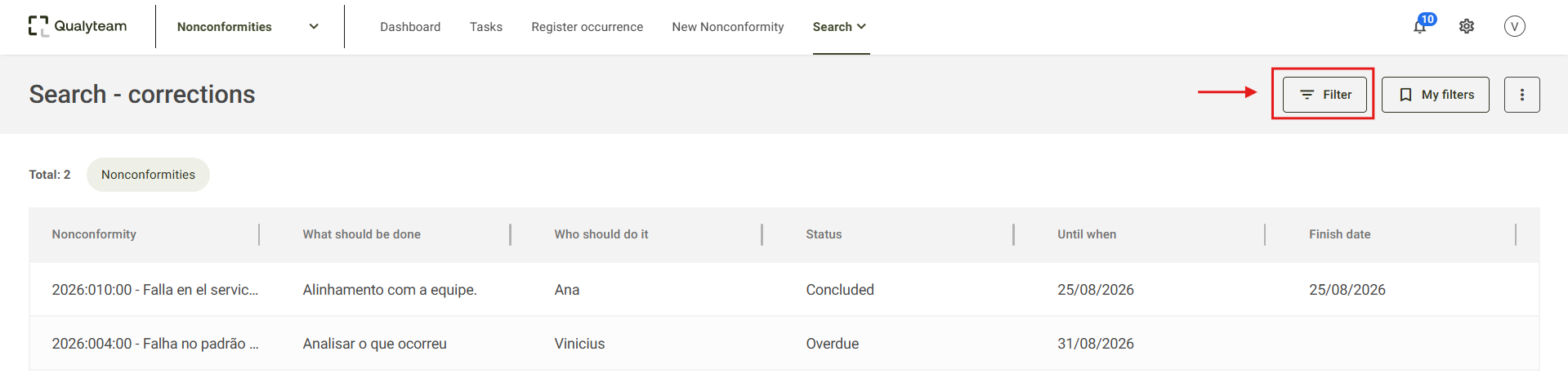
1. Go to the Search tab > Corrections. By default, all immediate actions registered in the system will be displayed.

2. Click Filter to locate specific immediate actions.
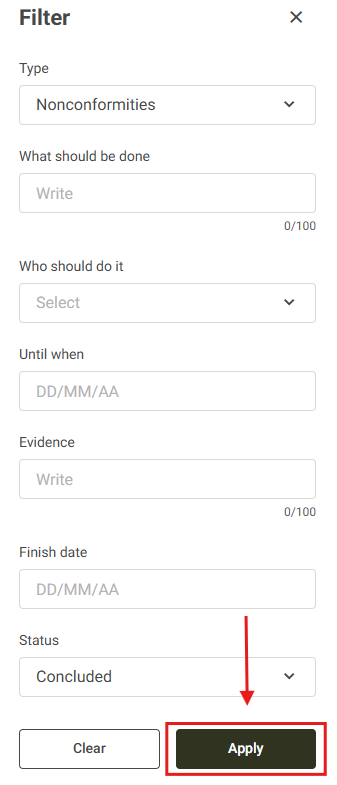
3. Enter the desired criteria for the query. The available filters are:
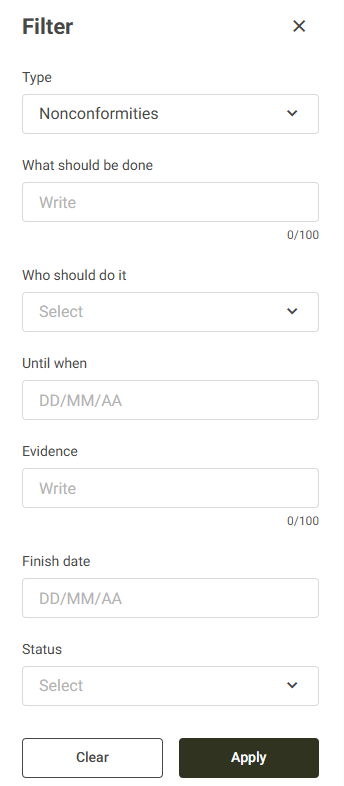
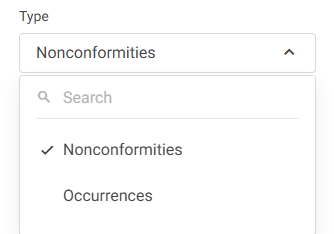
Type: this field allows you to search by registration type (Nonconformities or Occurrences).
What should be done: this field allows users to search by the description of what needs to be done in the immediate action.
Who should do it: select the user identified as responsible for the immediate action.
Until when: this field allows users to search by the deadline for the initial action.
Evidence: this field allows users to search by the evidence entered in the immediate action.
Finish date: this field allows users to search by the date on which the initial actions were completed.
Status: this field allows users to search by the status of the immediate actions. The system uses the following statuses:
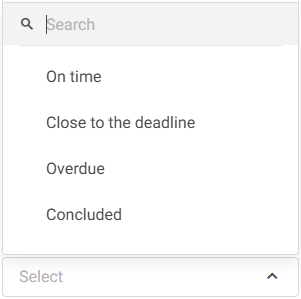
- On time: this status will show only the initial actions that are still within the deadline.
- Close to the deadline: this status will show only the initial actions that are about to become overdue.
- Overdue: this status will show only the initial actions that are past their deadline.
- Concluded: this status will show only the initial actions that have been completed.
4. After defining the search criteria in the filter, click Apply.
5. The options selected in the filters will be displayed in the query header. To remove an applied filter, click the X next to the corresponding filter.

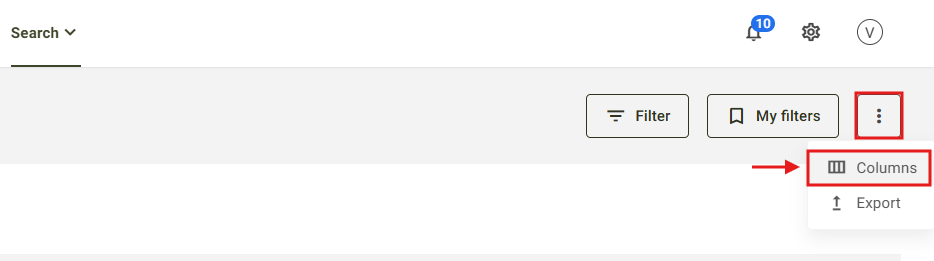
6. It is possible to customize the immediate actions query by adding or removing columns from the view. To do so, click the icon located in the upper-right corner of the screen, and select the Columns option.
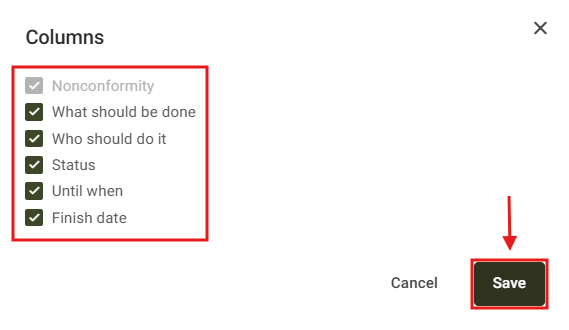
7. Select the fields you want to display in the query and click the Save button.
Additional information
It is possible to export the information from the queried immediate actions. For more details on how to perform the export, click here.