
Objective
The nonconformity search feature allows users to quickly locate nonconformities registered in the system by using filters and search tools to refine the results according to their needs.
Prerequisites
- Have the Search NCR permission, for more information about configuring permissions, click here.

Step-by-step
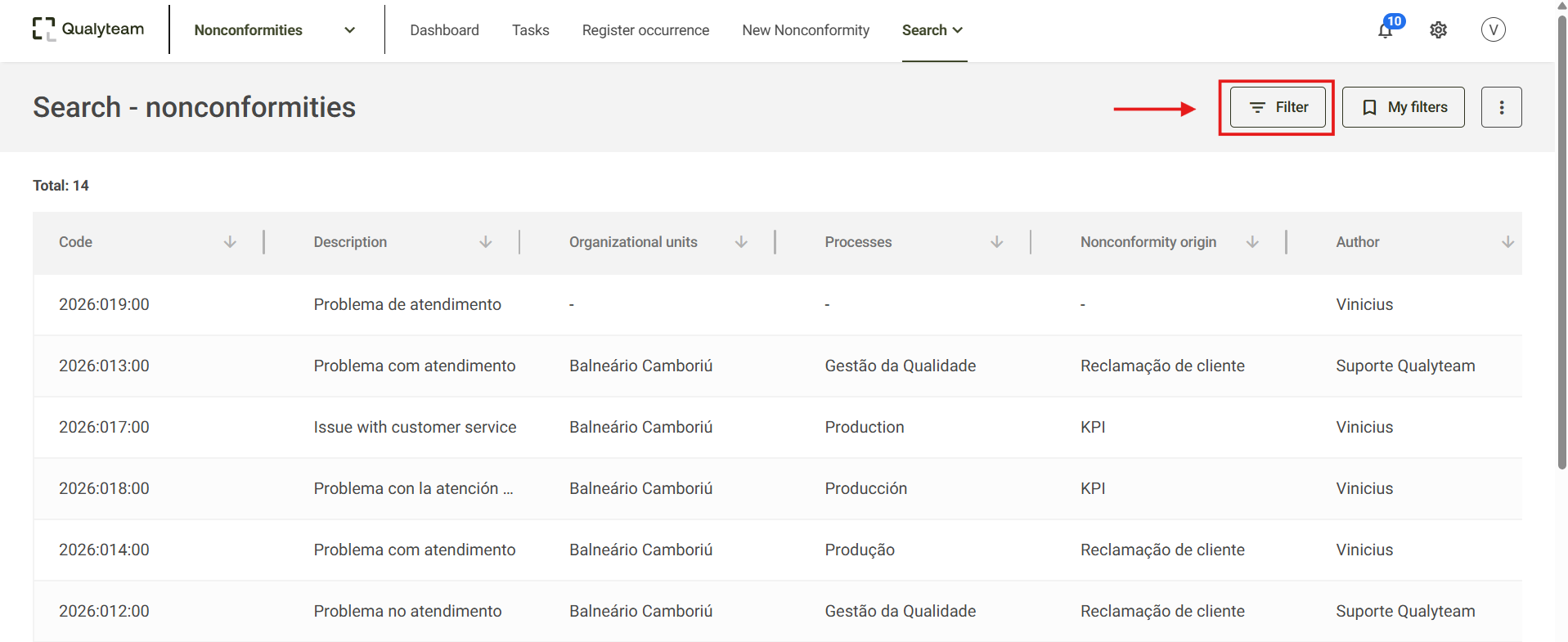
1. Go to the Search tab > Nonconformities. By default, all nonconformities registered in the system will be displayed.

2. Click Filter to find specific nonconformities.
3. Fill in the desired search criteria. The available filters are:
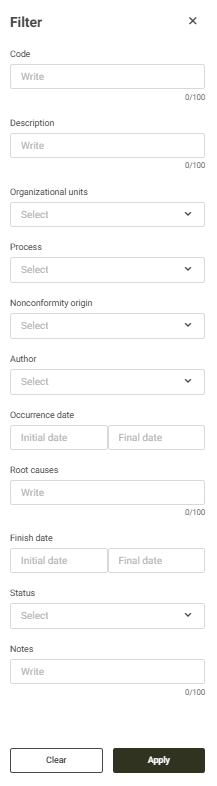
Code: Allows you to search by the code assigned to the nonconformity.
Description: Allows you to search by the nonconformity description.
Organizational Units: Select the company's organizational unit(s) to search for registered nonconformities.
Process: Select the area or department whose nonconformities you want to view.
Nonconformity origin: Allows you to select where the issue was detected, such as internal or external audits, management review meetings, or indicators.
Author: Select the person who registered the nonconformity in the system.
Occurrence date: Allows you to search by the date the occurrences were identified.
Root causes: Allows you to search by the identified root causes.
Finish date: Allows you to search by the date the nonconformities were closed.
Status: Allows you to search for nonconformities according to their status. The system provides the following options:
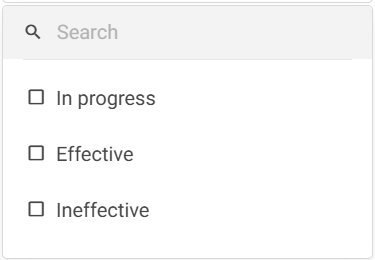
- In progress: Searches for all nonconformities that have not yet been closed.
- Effective: Searches for all nonconformities that have been closed effectively.
- Ineffective: Searches for all nonconformities that have been closed ineffectively.
Notes: Allows you to search for comments recorded in nonconformities.
4. After setting the search criteria in the filter, click Apply.
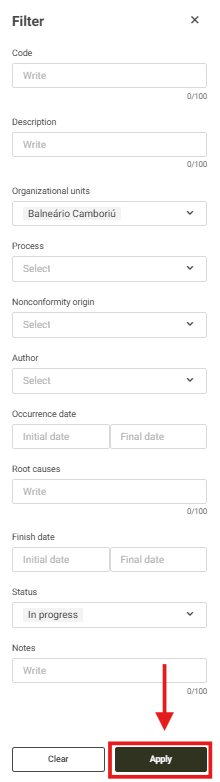
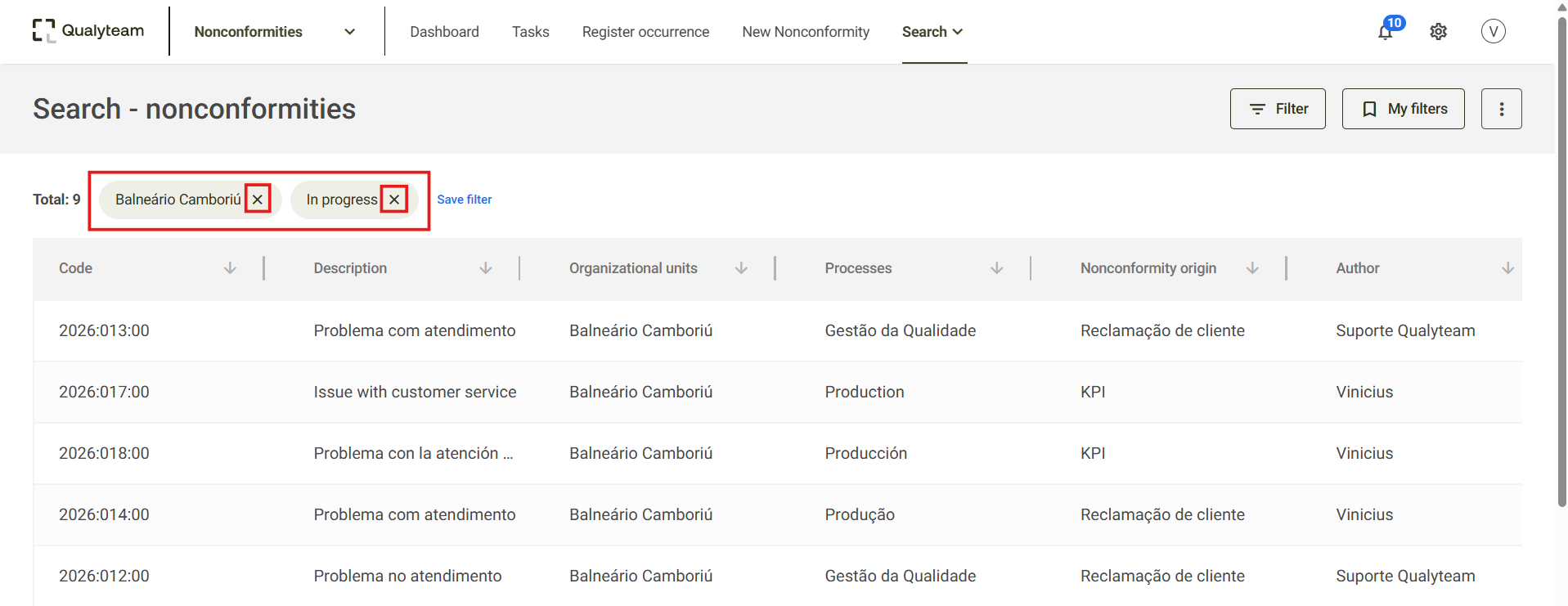
5. The selected filter options will be displayed in the search header. To remove an applied filter, click the X next to the corresponding filter.
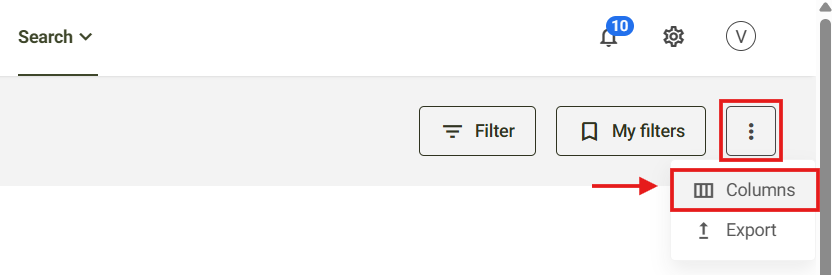
6. You can customize the nonconformity search by adding or removing columns from the view. To do so, click the icon located in the upper-right corner of the screen and select the Columns option.
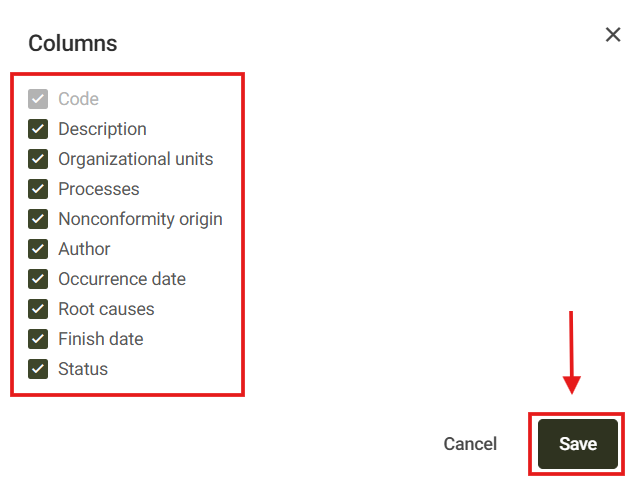
7. Select the fields you want to display in the search results and click Save.
Additional information
You can export the information from the nonconformities displayed in the search results. For more details on how to export this information, click here.