
Objective
If you have documents that do not require control but need to be printed, the Document Management module allows you to print uncontrolled copies. To do this, follow the steps below:
Prerequisites
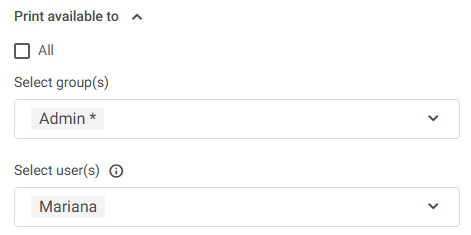
- Have printing permission for the document you want to print
Step-by-step
To print an uncontrolled copy, follow the steps below:
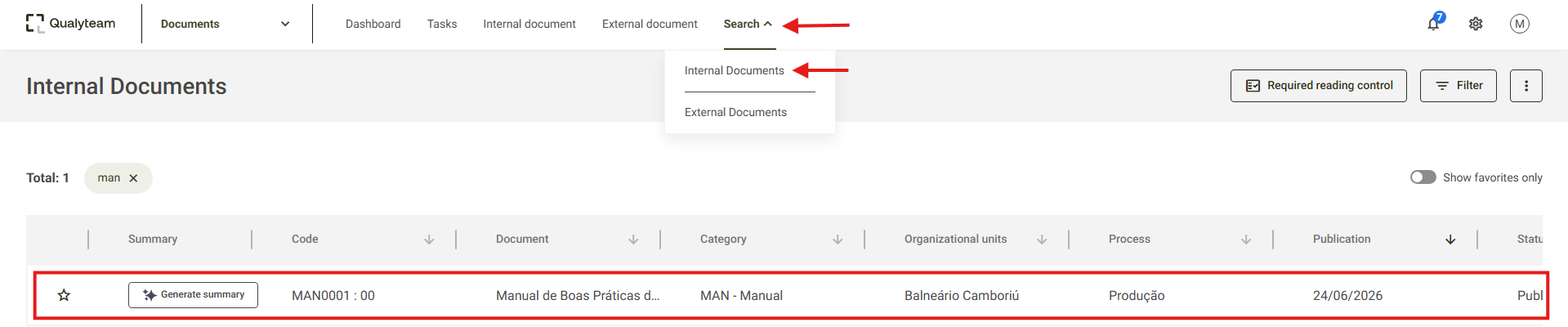
- Access the Search tab, click on Internal documents, locate and select the document you want to print:
- Upon opening the desired document, click the print icon
 in the upper right corner and select the Uncontrolled copy option: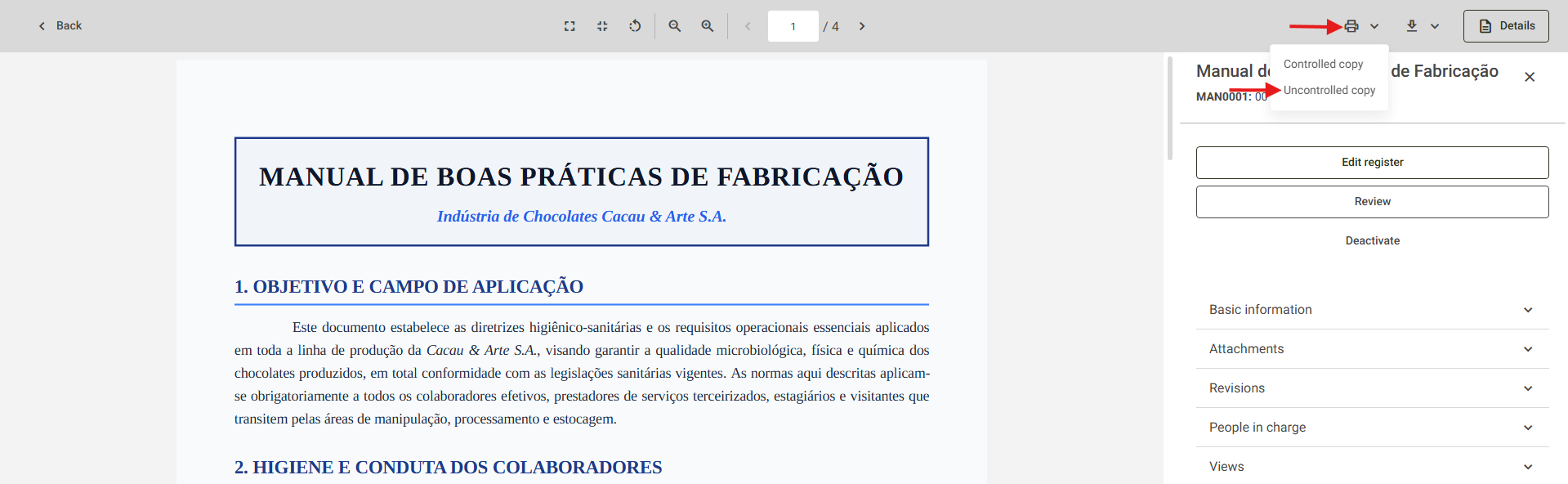
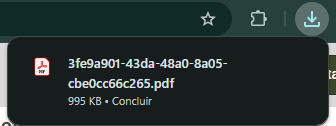
- Upon printing the copy, the file will be downloaded as a PDF. It is possible to open it from the browser bar or in the Downloads folder of your computer.
- On the side of the file, the system will identify that it is an uncontrolled copy and show some information about the copy, according to the example:

- After opening the file, simply print it on the printer installed on your computer.