
Objective
The document lookup feature allows you to quickly locate documents registered in the system, using filters and search features to refine the results as needed.
Prerequisites
Have the View all tasks permission.For more information on configuring permissions, click here.

Step by step
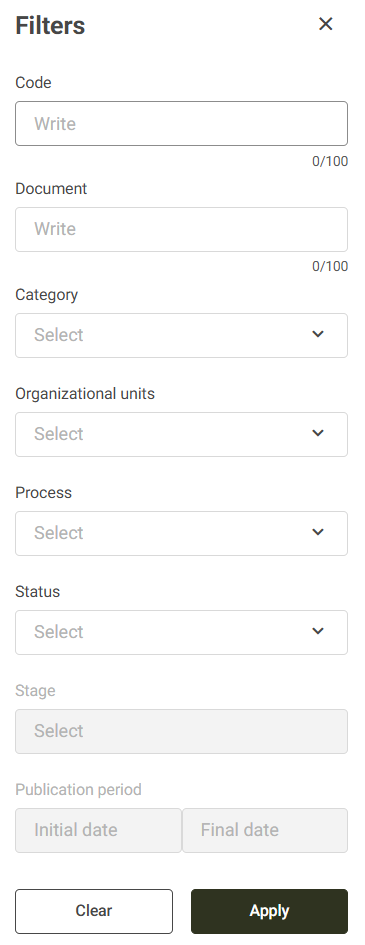
1. Access the Search > Internal Documents tab and then click the Filter icon to locate specific documents.

2. Fill in the desired search criteria. The available filters are:
- Code: search by document code.
- Document: search by document title.
- Category: search documents from one or more categories.
- Organizational Units: search documents from one or more units.
- Process: searching for documents related to one or more processes.
- Status: allows you to view Published, Unpublished, or Inactive documents.
- Stage: Allows you to view documents in the Drafting, Consensus, or Approval stages ( will only be displayed when the Status is set to Unpublished).
- Publication period: allows you to filter documents by publication date.
3. The options defined in the filters will be displayed in the query header. To remove an applied filter, click the X icon next to the respective filter.

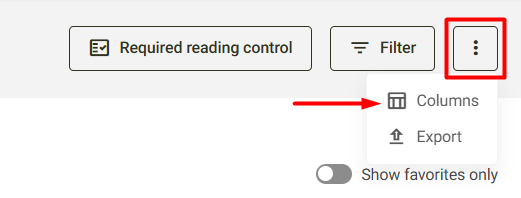
4. You can customize the document query by adding or removing columns from the view. To do this,
click the icon  located in the upper right corner of the screen and select the Columns option.
5. Select the fields you want to view in the query and click the Save button.
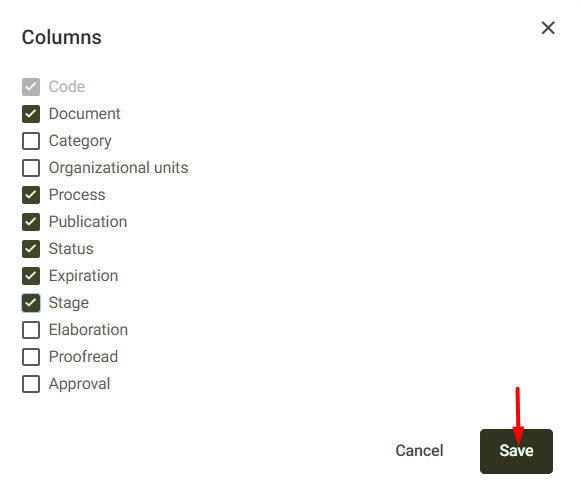
To exit the screen, select the Cancel or X option located in the upper right corner of your screen.
Additional Information:
Other actions you can perform on this screen:
- Exporting data: It is possible to export information from the consulted documents. For more details on how to export, click here .
- To favorite documents: Click the star icon to mark a document as a favorite. Then, enable the "Show only favorites" option to filter and view only the marked items.

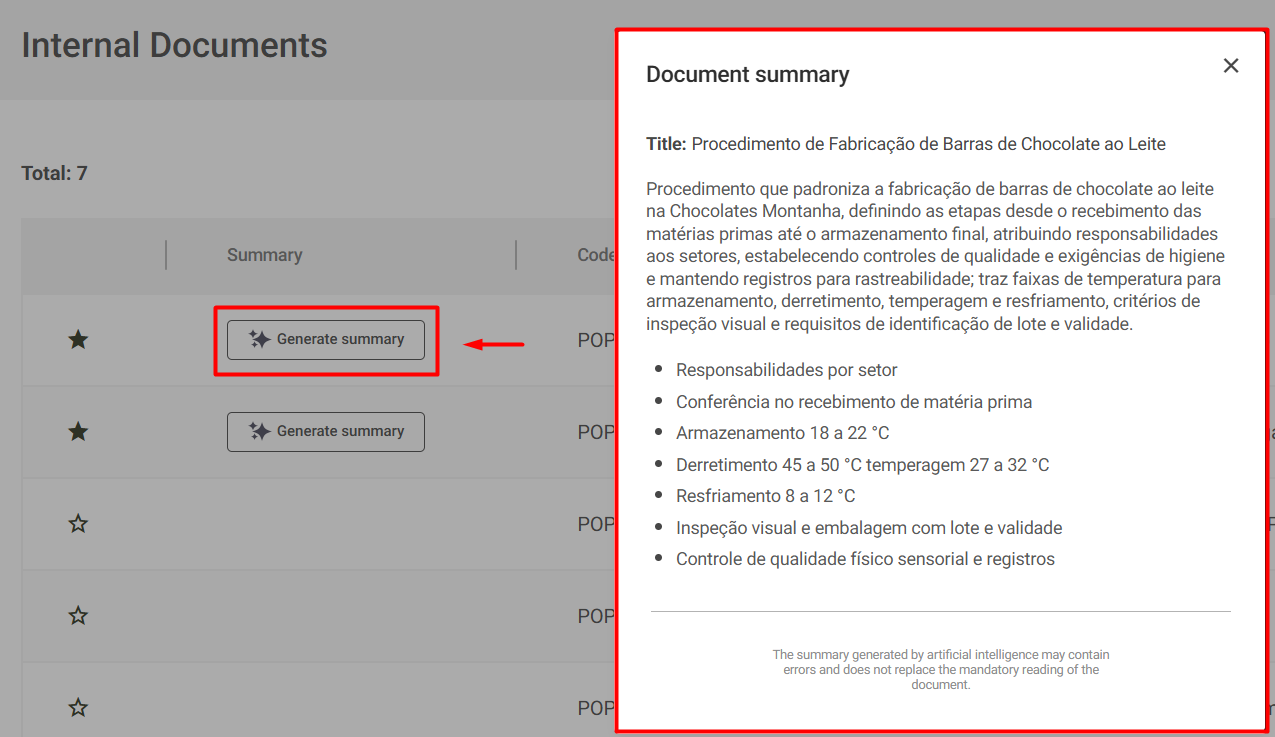
- Generate summary: To quickly view the main information of a document without having to open it completely, click Generate summary. The system will display a window with the unified document data.
- Required reading control: Click on Required reading control to see which documents have this setting enabled. To learn more about this feature, click here.
