Objective
The Tasks screen allows users to track all pending actions related to documents, such as drafting, consensus, and approval. It also enables users to view pending requests generated by other users, such as document reactivation and deactivation requests, as well as monitor document expiration dates to ensure documents remain up to date.
Index
Elaboration
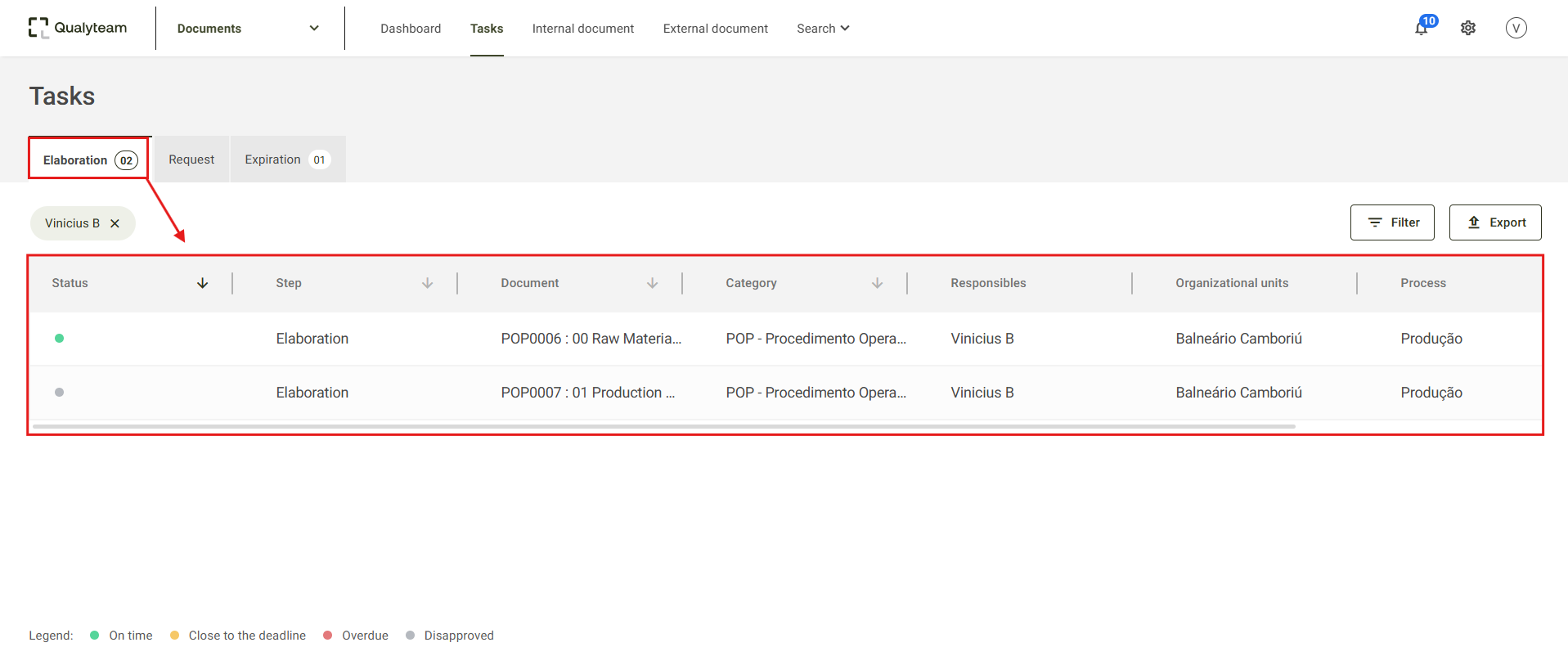
In the Elaboration tab, you can track all document tasks pending elaboration, proofread, or approval assigned to your user account.
This screen displays the Status, Step, Document, Category, Responsibles, Organizational Units, Process, and Due Date for each pending item in the list of documents.
By clicking the icon  you can sort the tasks according to your needs.
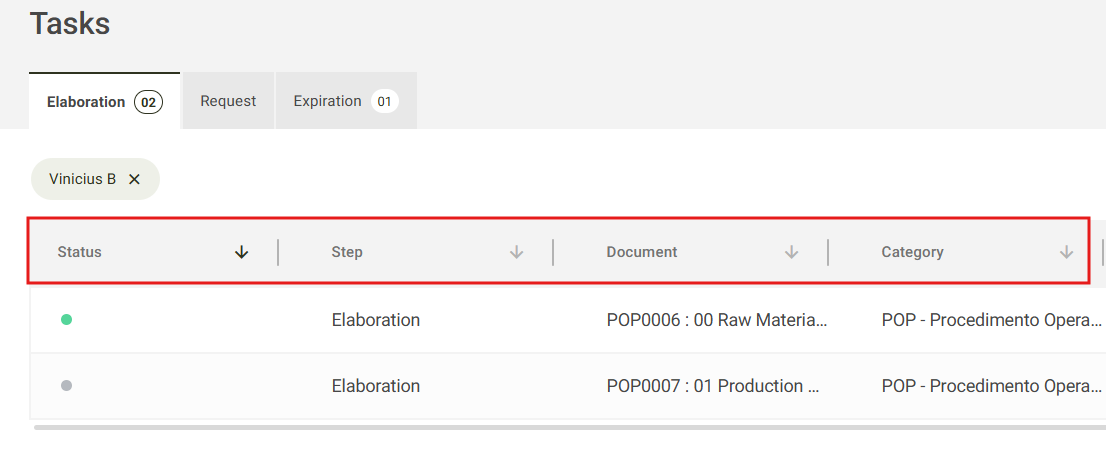
Note: This sorting feature is also available in the Request and Expiration menus.
Request
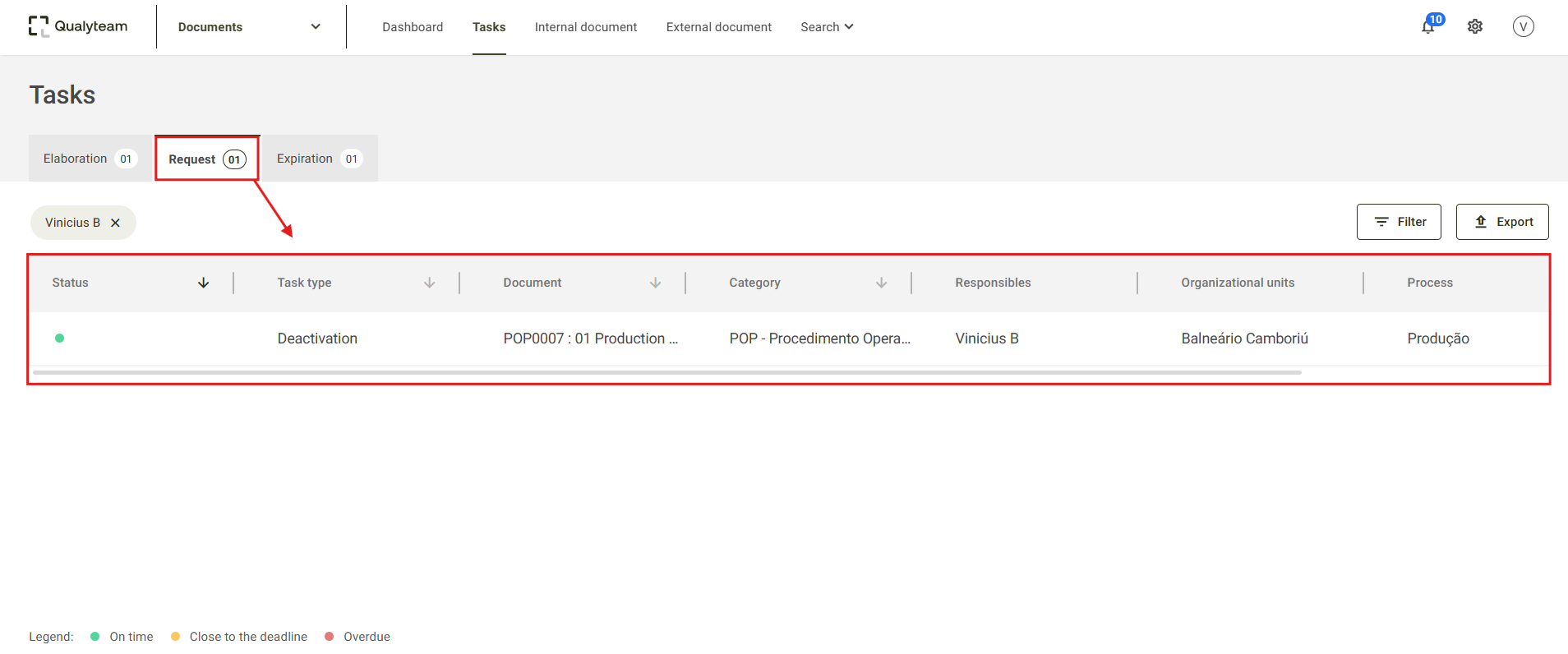
In the Request menu, you can view all pending document-related tasks, including revision, deactivation, reactivation, required reading, and controlled copy updates.
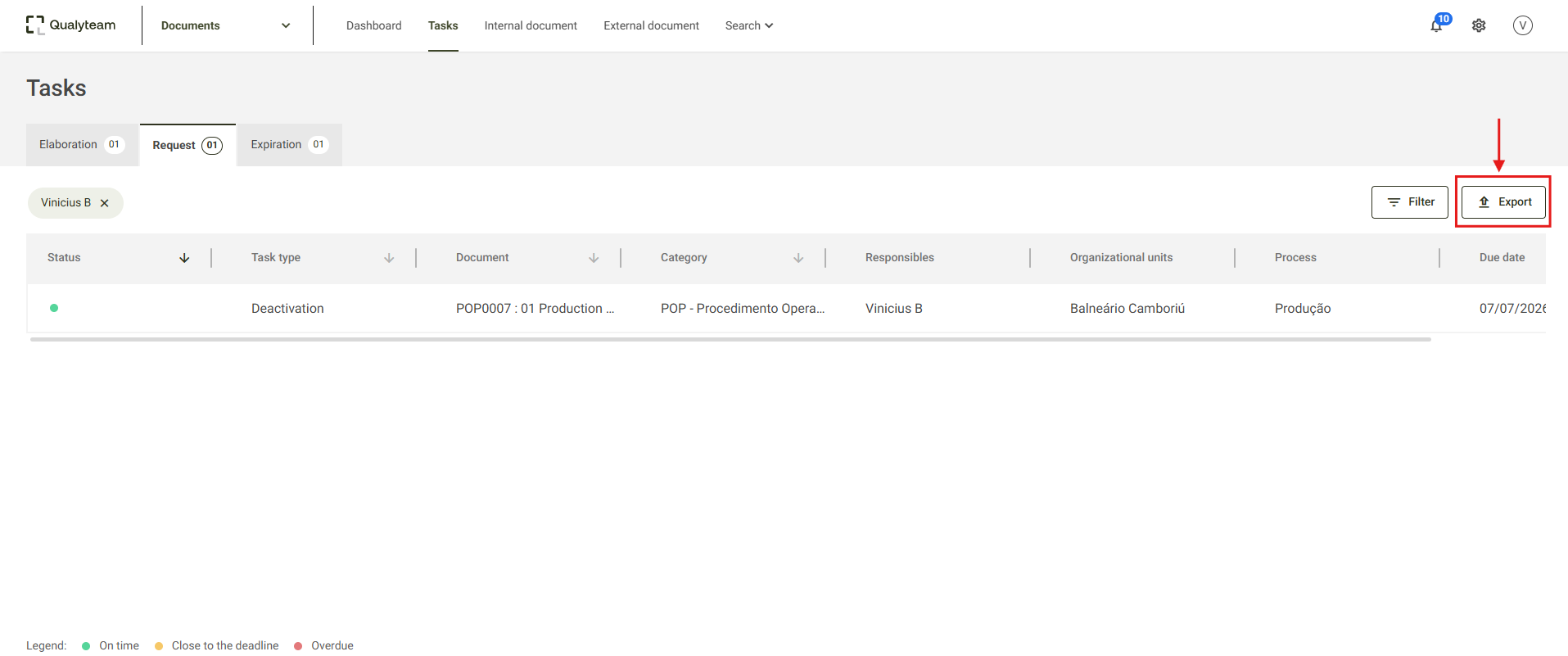
This screen displays the Status, Task Type, Document, Category, Responsibles, Organizational Units, Process, and Due Date for each pending request listed.
Expiration
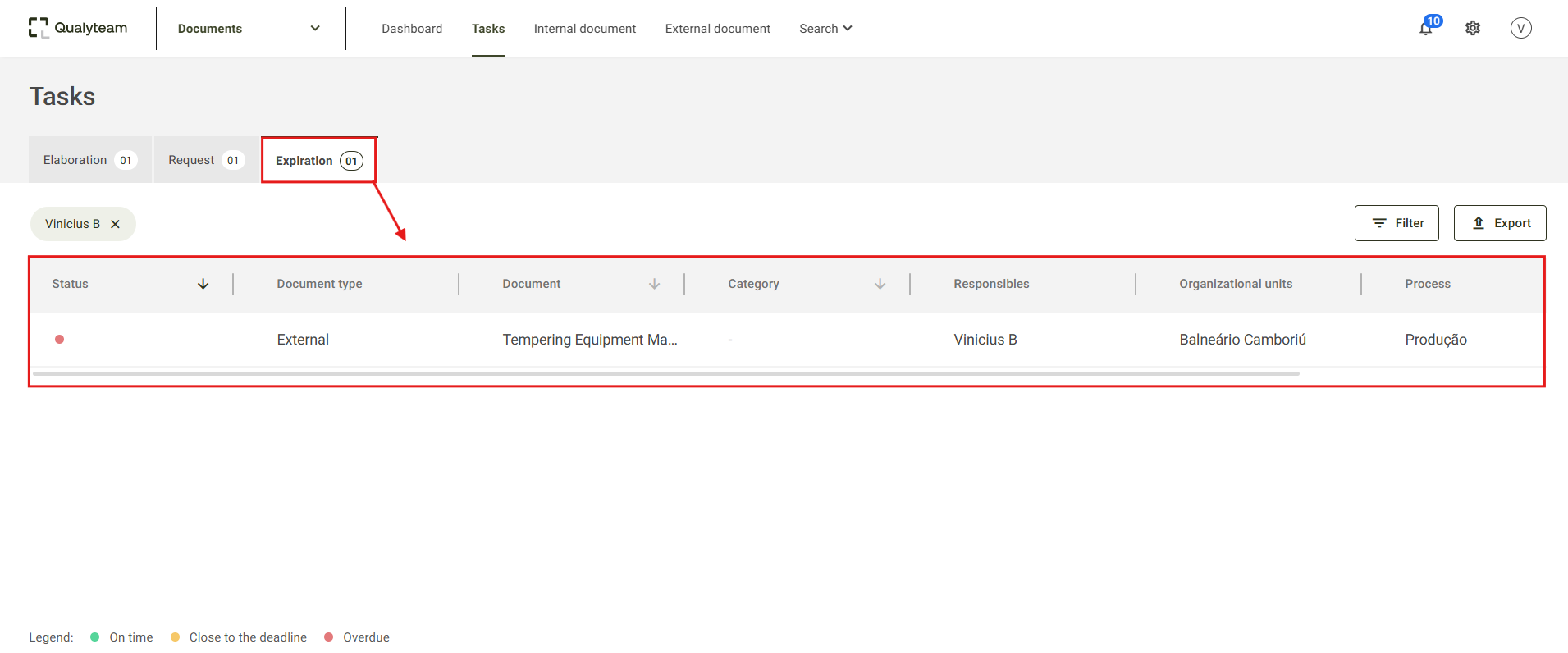
In the Expiration menu, you can view all pending review tasks generated due to the expiration of internal and external document validity.
This screen displays the Status, Document Type, Document, Category, Responsibles, Organizational Units, Process, and Due Date for each pending validity task listed.
Task Status
Each task displayed in the menus is identified by a color. The legend for each status(color) is displayed at the bottom of the Tasks screen.
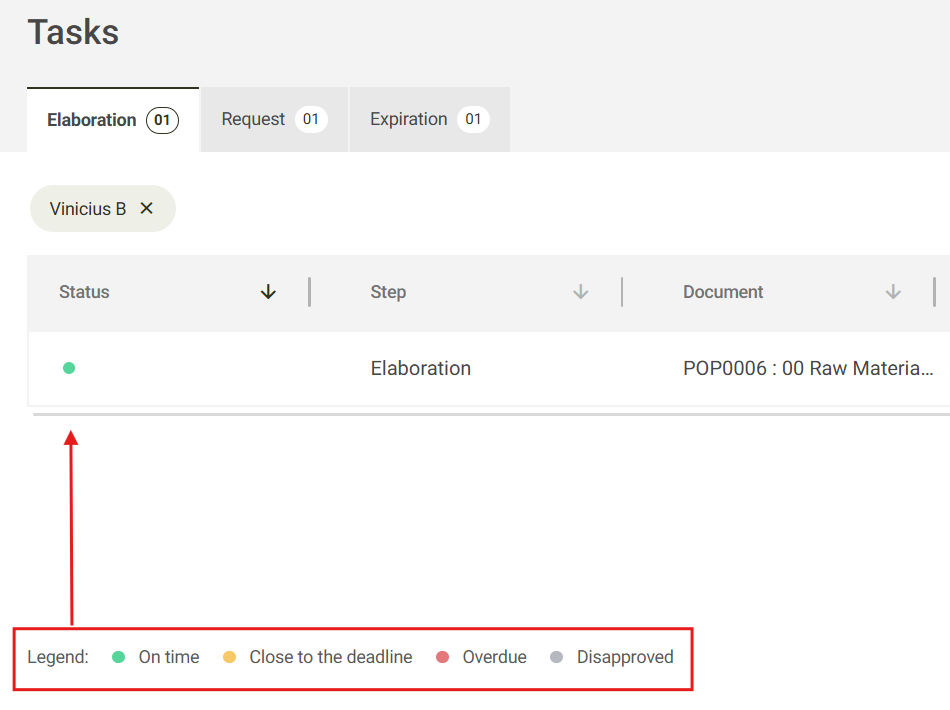
On Time: The pending task is still within its due date.
Close to the deadline: The pending task changes to this status on its due date.
Overdue: This status is displayed after the due date for completing the pending task has passed.
Disapproved: This status is displayed when the document is rejected during the proofread and/or approval stages.
Filtro
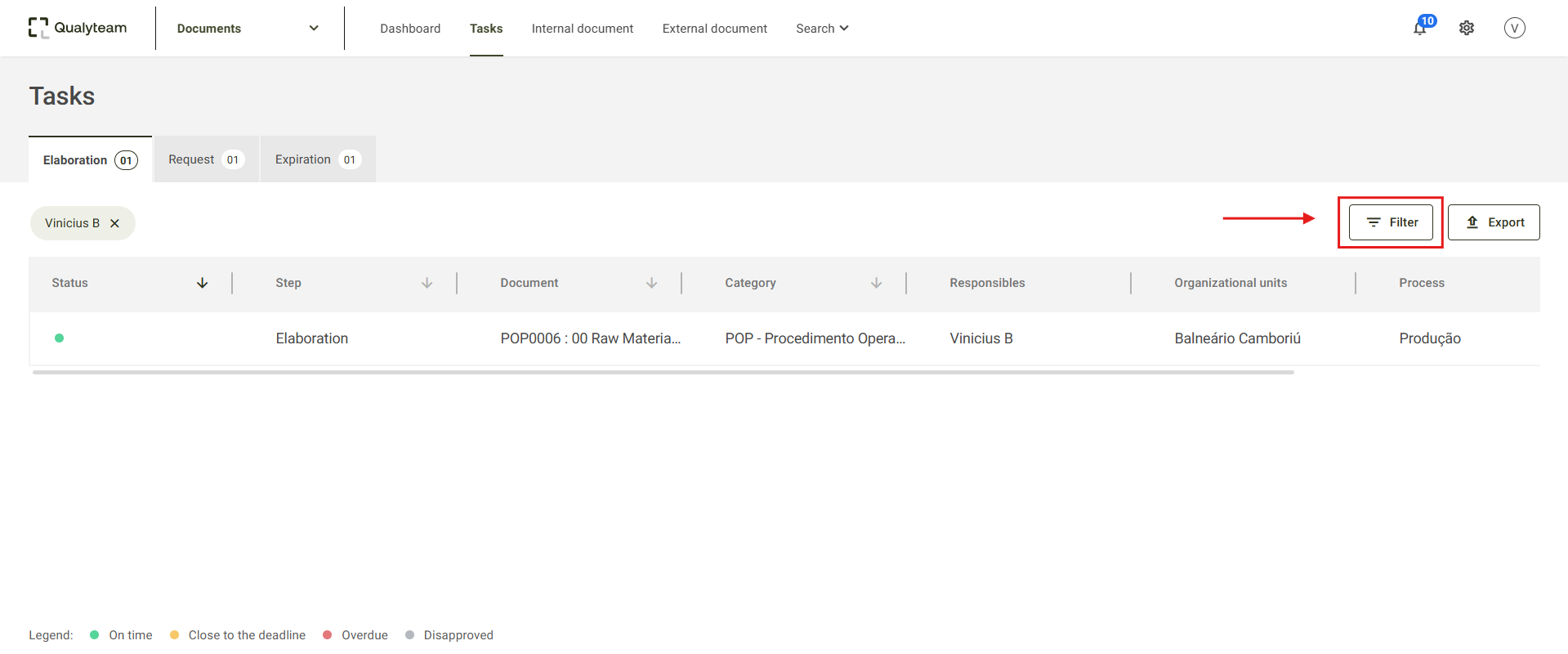
In each of the Elaboration, Request, and Expiration menus, you can apply filters. To do so, click the Filter button located on the right side of the screen.
After clicking, the system will display the fields available for selection.
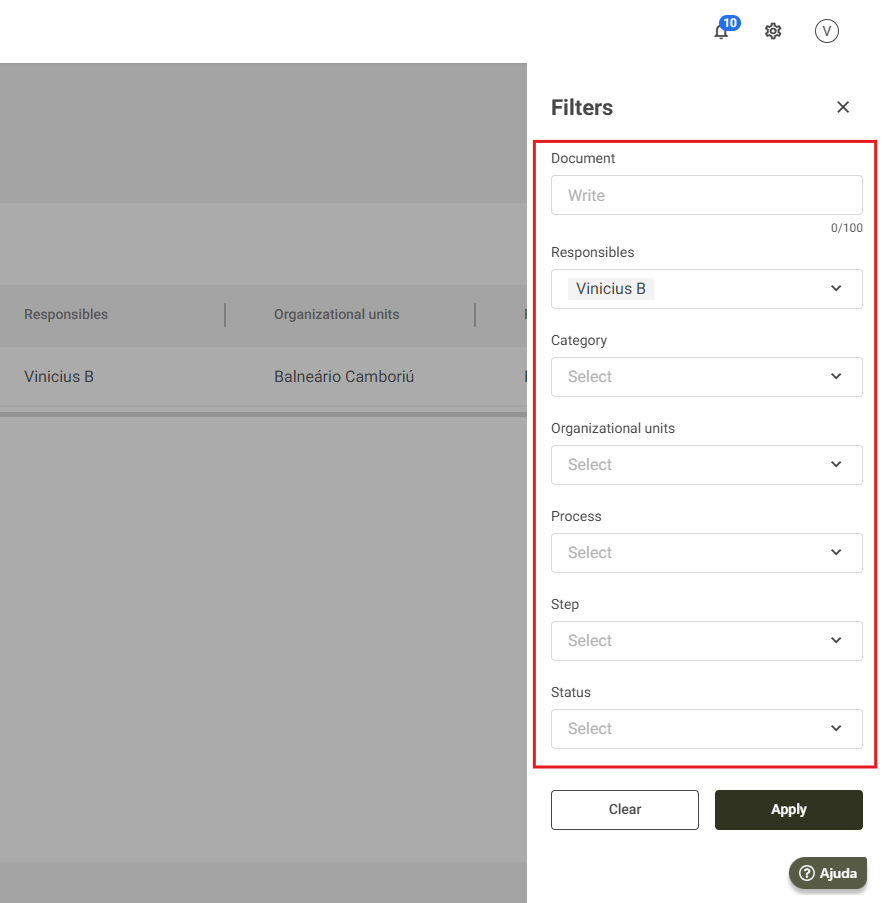
Document: In this field, enter the name or code of the document you want to locate.
Responsibles: In this field, you can filter by responsible users, allowing you to view tasks assigned to other users. By default, the system will populate this field with the logged-in user.
If the user does not have permission to view other users’ tasks, this field will be hidden and only their own tasks will be displayed. For more details about permissions, click here.
Organizational Units: Define in this field the organizational unit you want to filter to view tasks.
If no unit is selected, the system will return all units by default.
Process: Define in this field the process you want to filter to view tasks.
If no process is selected, the system will return all processes by default.
Elaboration Menu:
- Step: In this field, you can filter by task stage: Elaboration, Proofread, and Approval.
Requests Menu:
- Task Type: In this field, you can filter by request type: Deactivation, Revision, Required reading, Reactivation, and Controlled Copy Update.
Status: In this field, you can filter by task status: On Time, Close to the deadline, Overdue, Disapproved.
Export
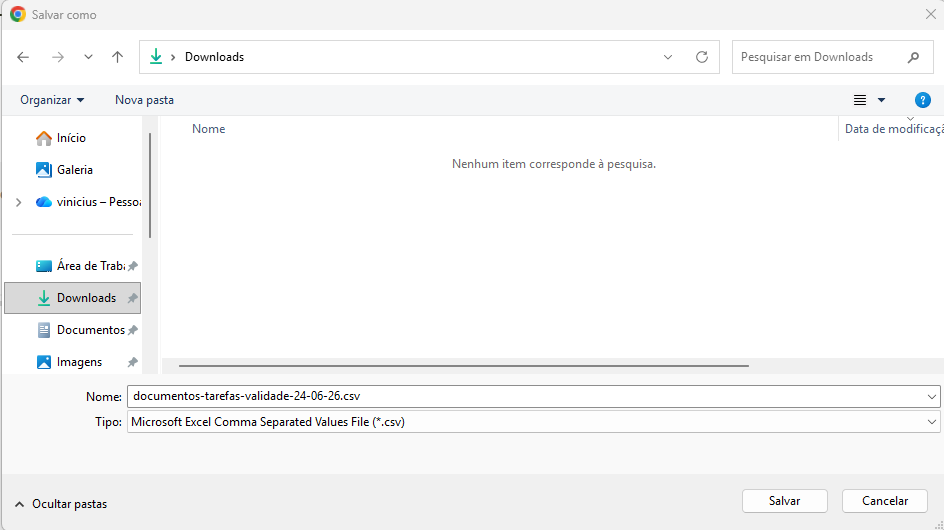
The system allows you to export tasks to an Excel file. To do so, click the Export button located on the right side of the screen.
A window will open so you can select where the file will be saved. If it does not appear, files will be saved by default in your computer’s Downloads folder.