Objective


Exporting corrections allows you to generate a spreadsheet containing information about the actions registered in the system, making it easier to consult, monitor, and manage these records.


Prerequisites


To export corrections, the user must have two permissions enabled in the permission group to which they belong:


  • Search NCR: Allows the user to view the corrections that will be exported.


  • Export lists: Allows the user to export the corrections.


For more information about permission settings, click here.


Step-by-step


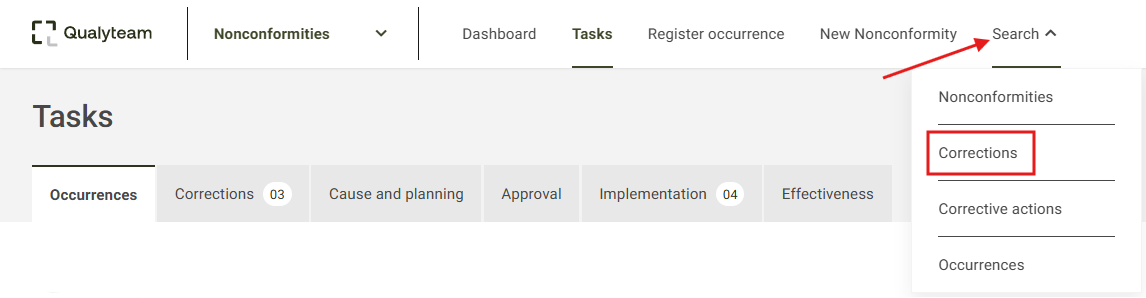
1. Go to the Search menu and click the Corrections option.


2. By default, all corrections will be displayed. If necessary, you can filter the corrections to be exported using the Filter option. For more information about the available search filters, click here.


3. You can define which columns will be exported. To do so, click the three-dot menuon the right side and then click Columns.

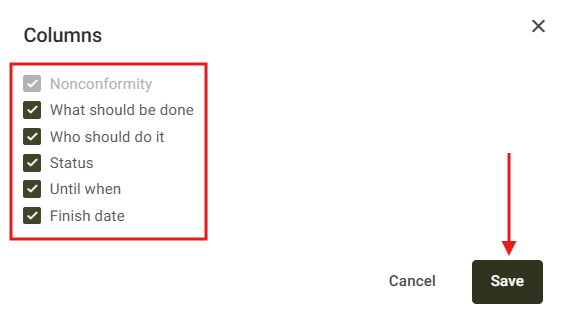


A screen displaying the available columns for selection will be shown. Select the desired information and click Save.


4. After selecting the columns and filtering the data you want to export, click the three-dot menuagain and then click Export.


Depending on your browser settings, the generated file will either be saved in the default Downloads folder configured in your browser, or you will be prompted to select a location to save the file on your computer.


Additional Information


Depending on the number of records to be exported, the system may take longer to process the data.