Objective
Perform document approval, advancing the document to the next stage if approved, or returning it to the drafting stage if rejected.
Prerequisites
- For the approval task to appear, the user must be assigned as the approver for that document.
- The document must have an active revision and be in the approval stage.
Step-by-step
Descriptive step-by-step
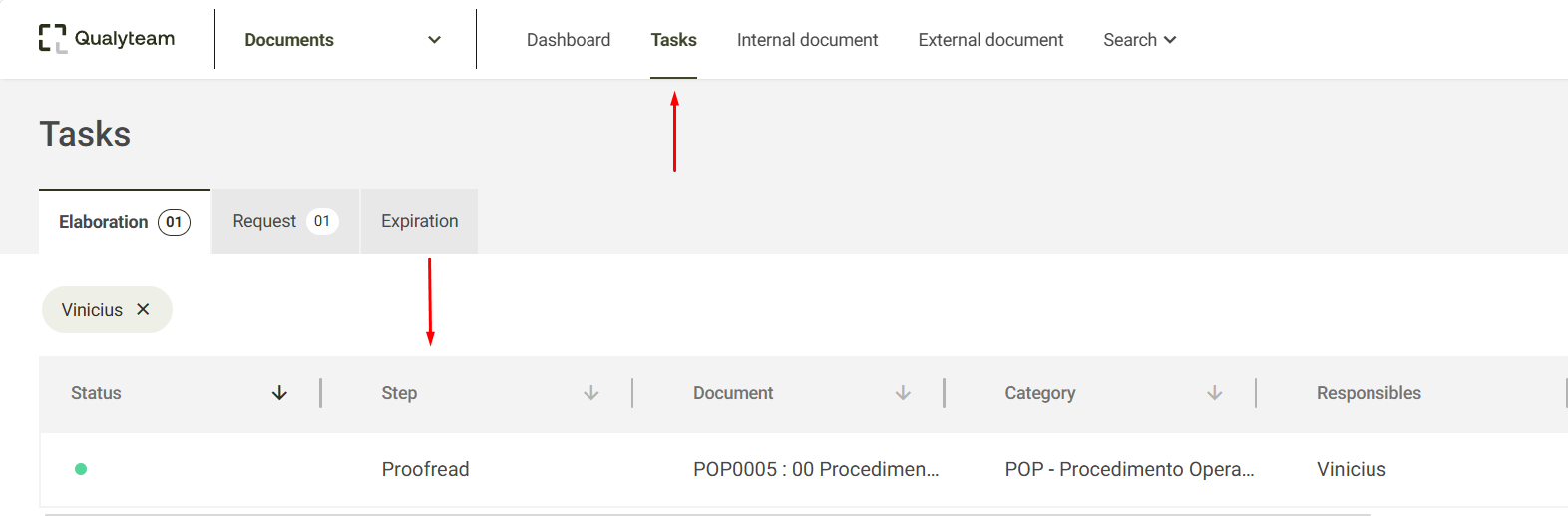
- On the Tasks tab, click the approval task:
- Click Open File to view the file created/uploaded during the drafting stage:
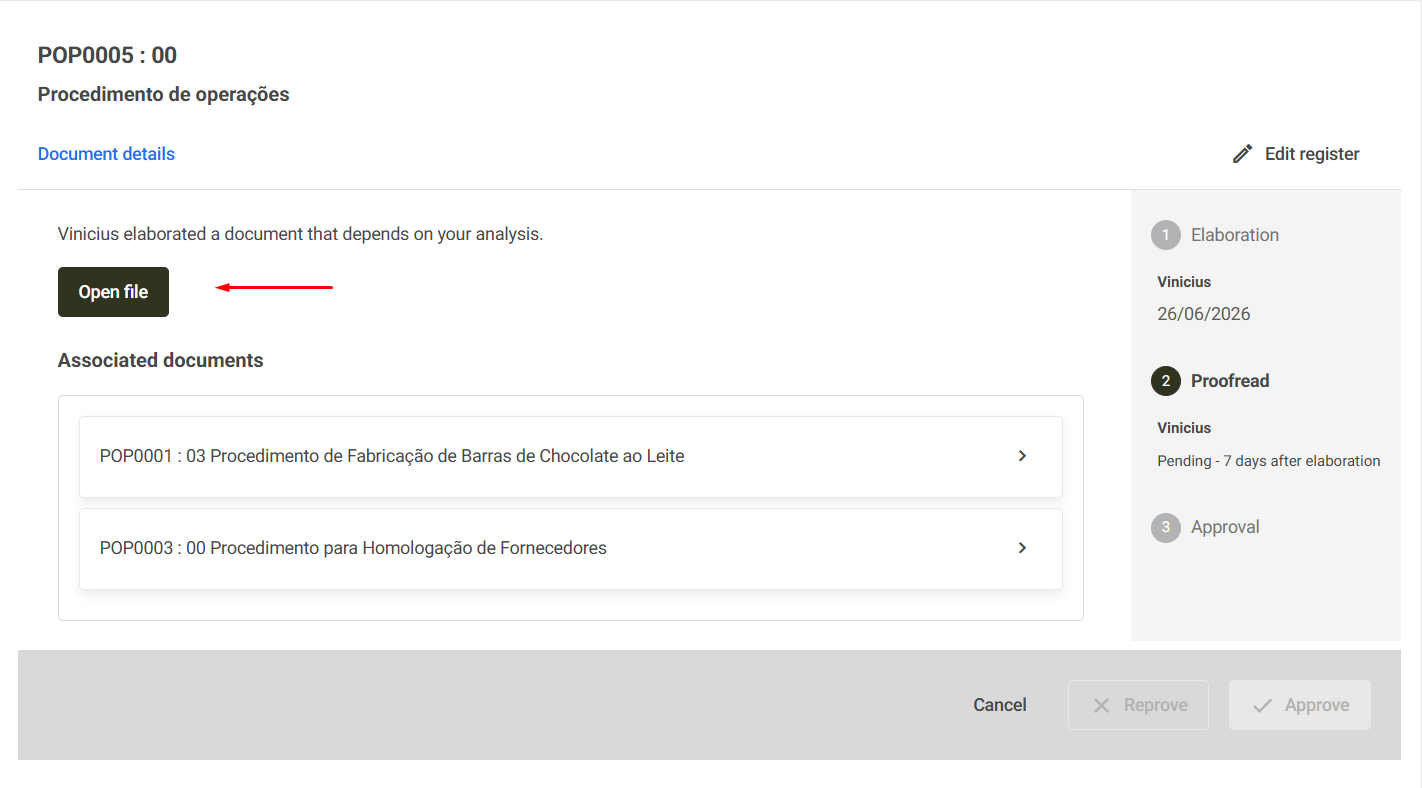
- After completing the necessary validations on the file, you can proceed with one of two options: Approve or Reprove.
A) If everything is correct, click Approve :
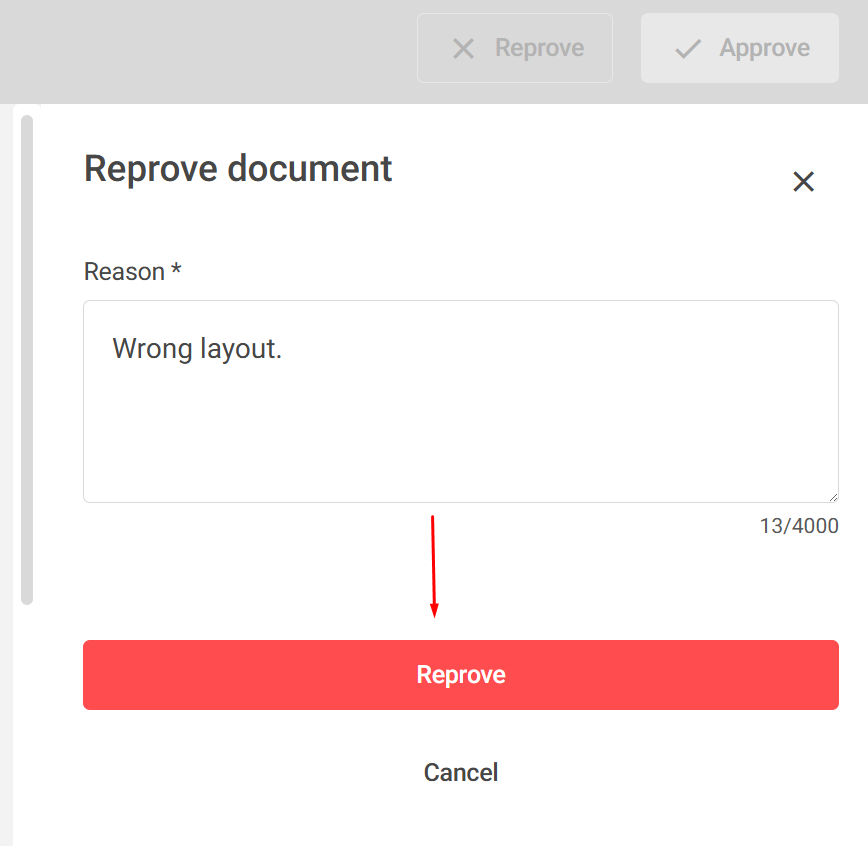
B) If the document is not yet compliant and requires adjustments, click Reprove, provide the reason for the rejection, and then click Reprove again.

Additional information
Register editing:
From your approval task, you can also edit the document information if necessary. Click Edit register to modify the document details.
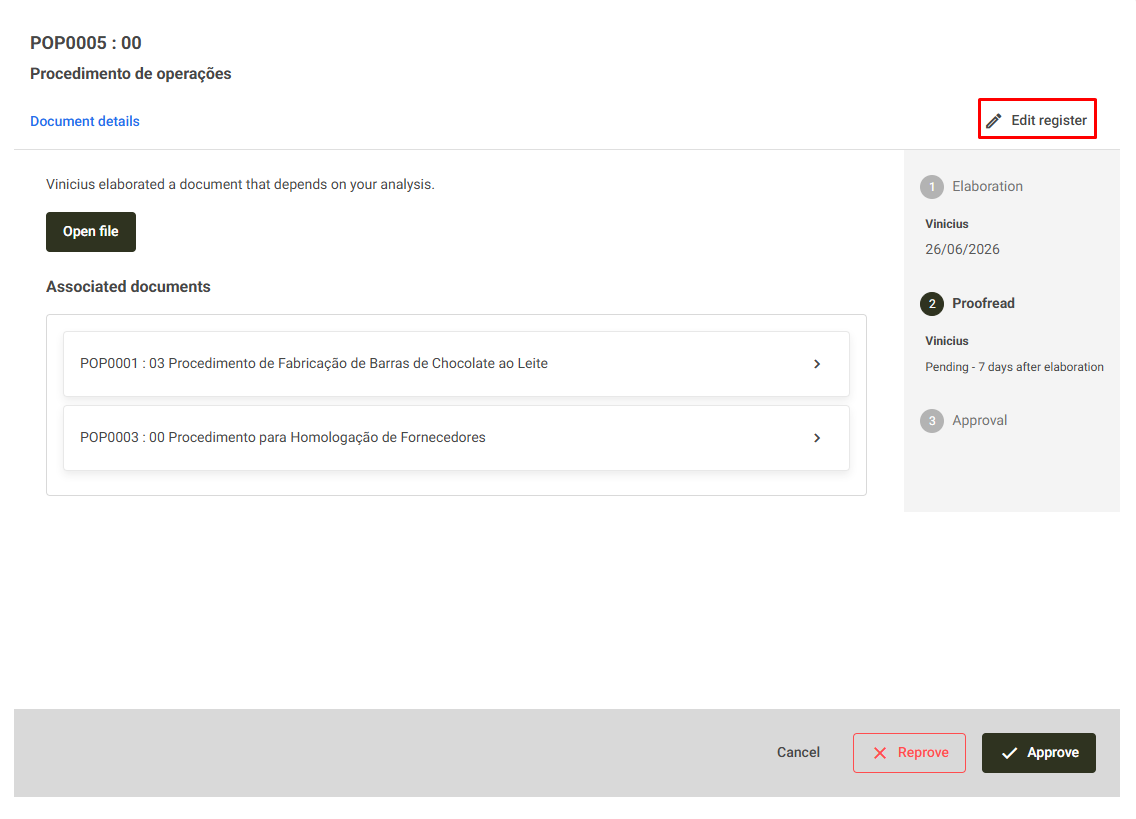
Please note that this requires the appropriate permission to be enabled for your user role. Click here for more details.

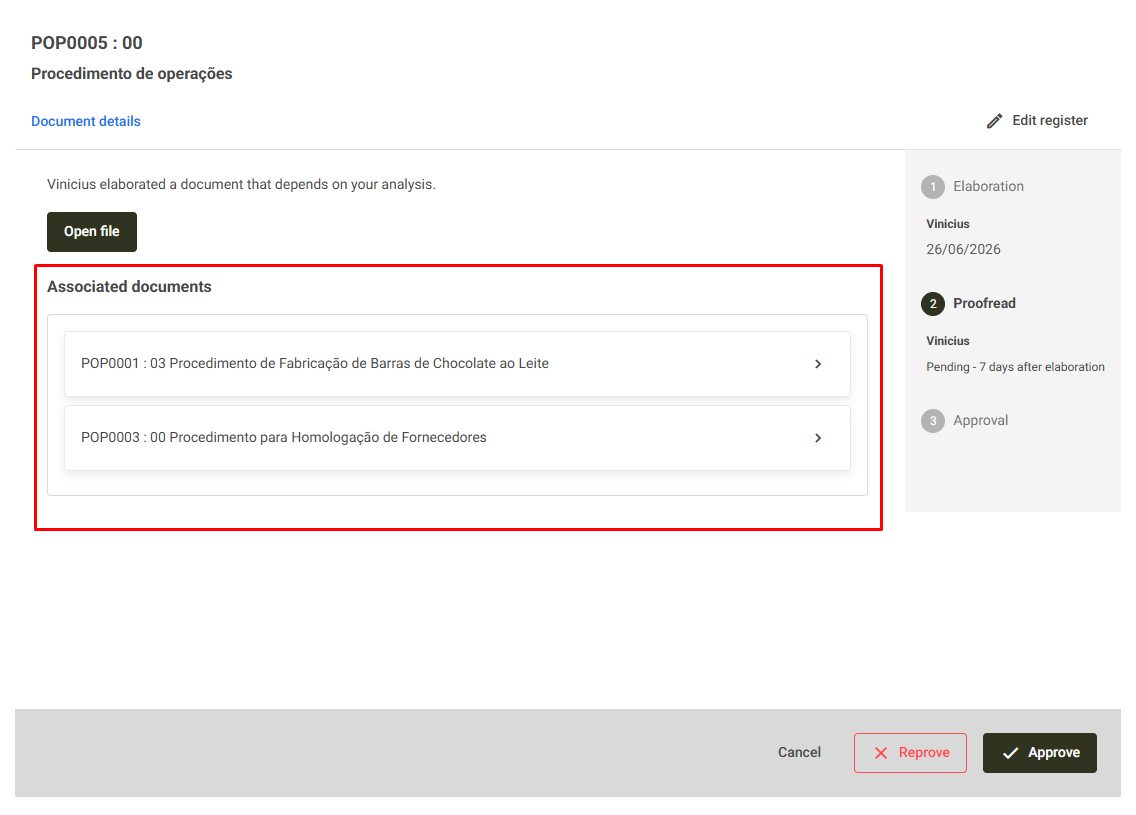
Associated Documents:
If the document has associated documents, they will also be available for viewing on the same screen, just below the main file and its attachments. To view them, click the arrow next to the associated document's name.